
Troubleshooting Issues with Your Popup Widget
If your Popup widget isn’t appearing on your website, don’t worry — the issue is usually related to display settings, triggers, or installation. This guide covers the most common causes and how to fix them.
Troubleshooting steps
1. Check Your Popup Settings
Some Popup settings can prevent the widget from appearing on certain pages, devices, dates, or for returning visitors. To review them, open your widget editor on the Settings tab:
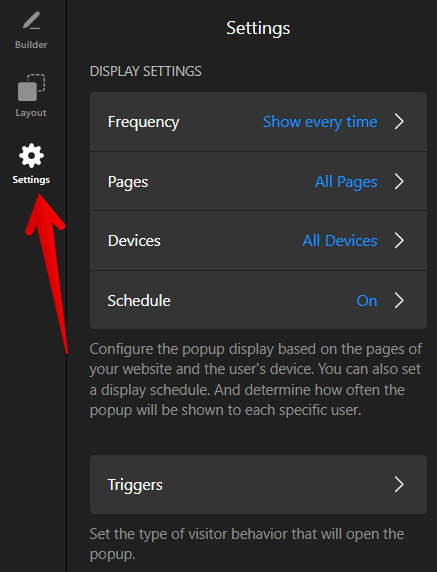
Check the following settings to make sure they're configured correctly:
- The page isn't added to the Excluded Pages list
- If you're using Specific Pages, the page URL matches the rule you've configured
- If you want the Popup to appear throughout your website, All Pages is selected
Frequency
The Frequency setting controls how often the Popup appears for the same visitor. For example, with Show once selected, the Popup won't appear again after it has already been shown to that visitor.
To check your Frequency settings, open Display Settings → Frequency:
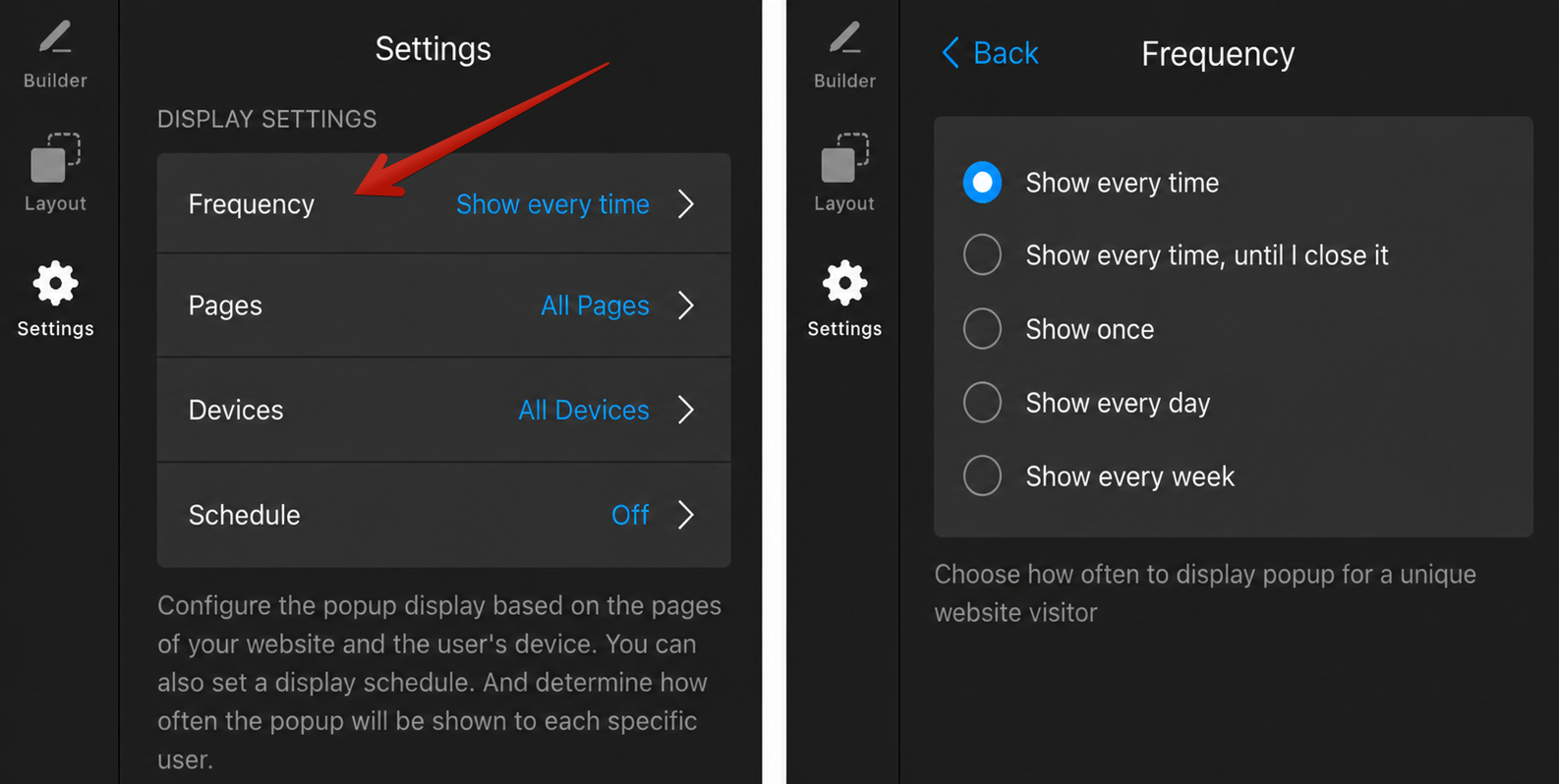
To confirm that this is the issue, open your website in an Incognito or Private browsing window. If the Popup appears there, this setting is most likely preventing it from being shown to returning visitors.
Pages
Your Popup may not be visible because of its page display settings. Depending on these settings, the widget can appear on all pages, selected pages, or everywhere except excluded pages.
To check your page display settings, open Display Settings → Pages:
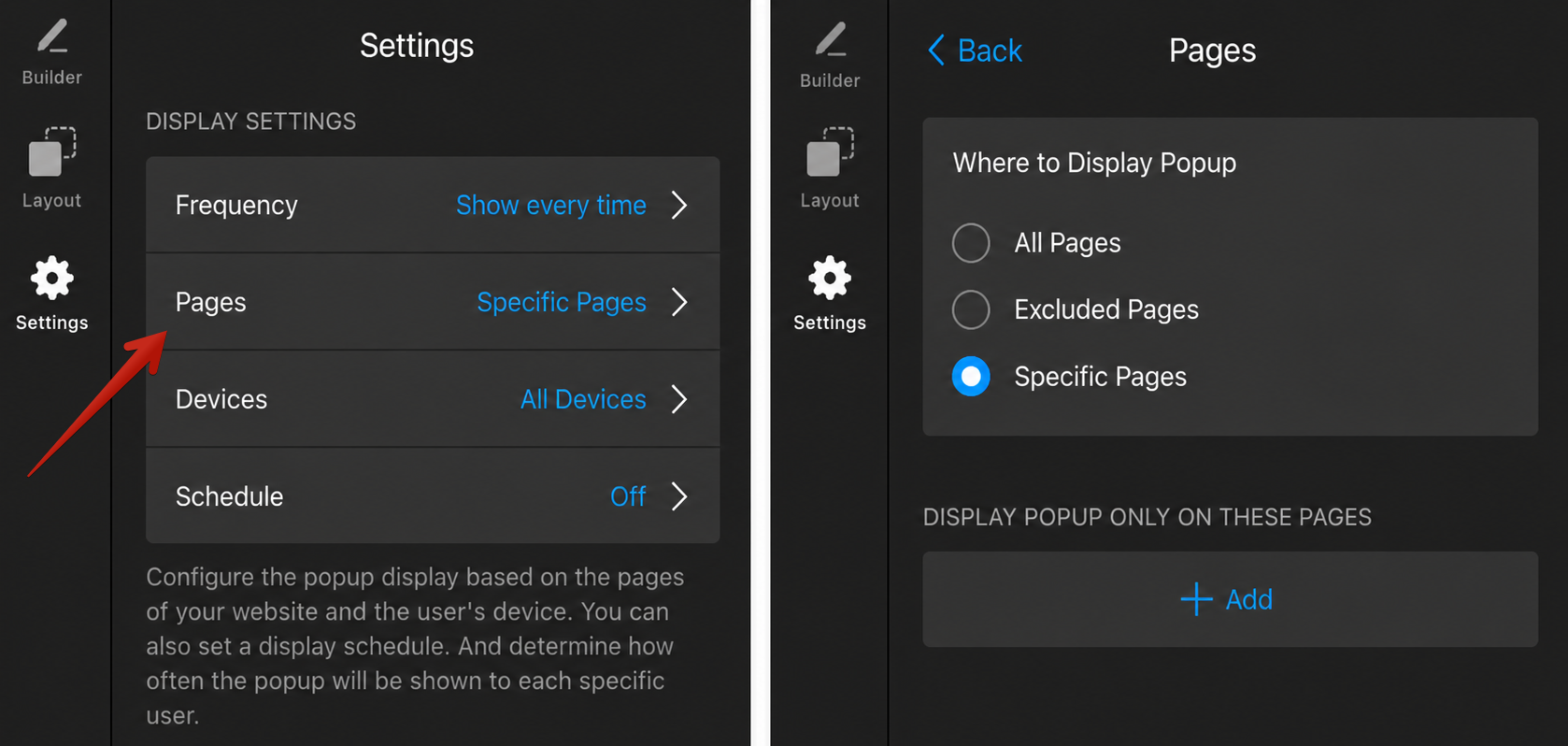
Make sure that:
Devices
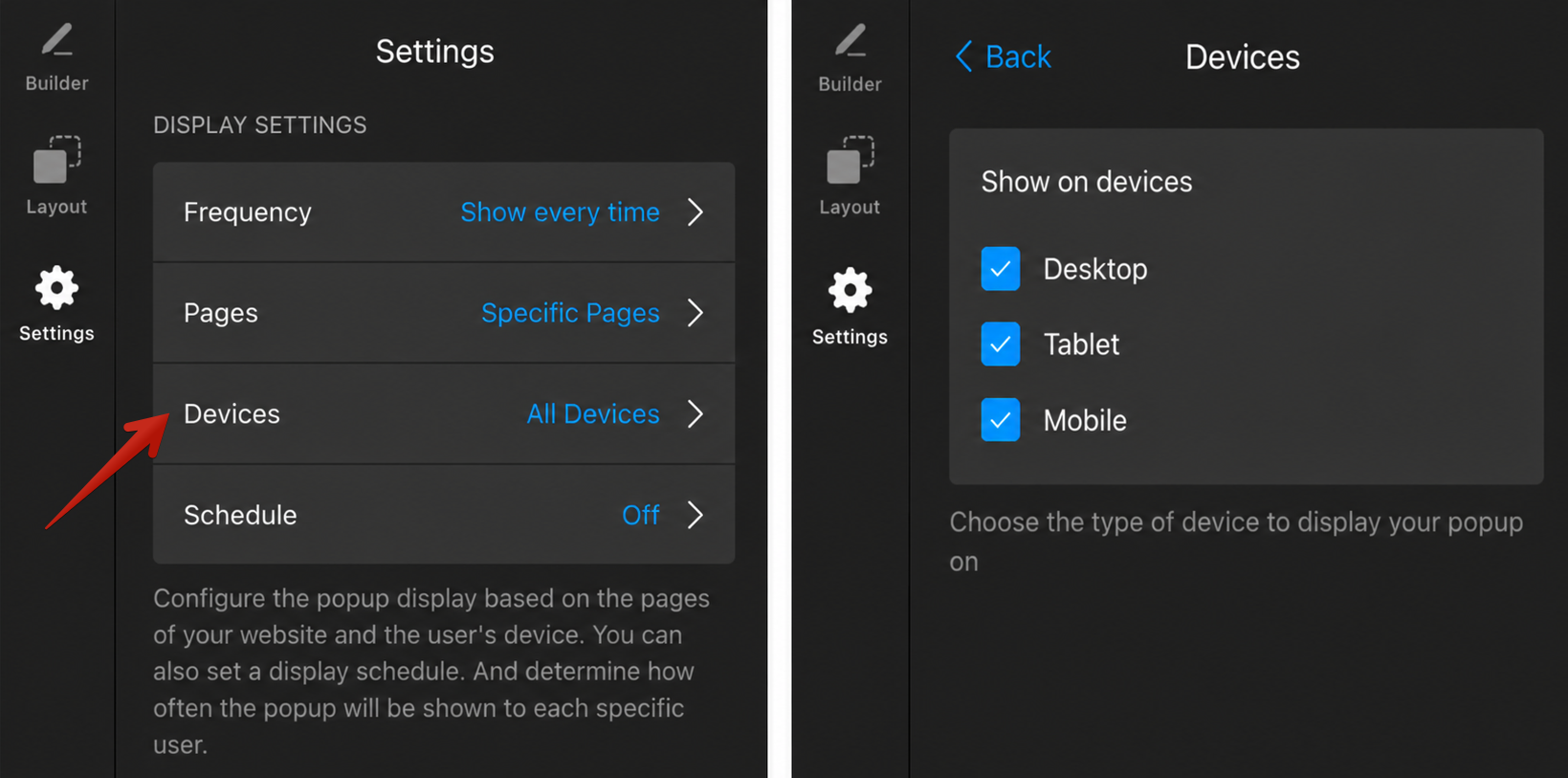
The Popup may not appear if it is disabled for the device you’re testing on. For example, if Mobile is turned off, it won’t be displayed on mobile devices.
To make sure the device you're checking on is enabled, open Display Settings → Devices:
Schedule
The Popup won’t appear if the current date, time, or time zone doesn’t match your schedule settings.
To check your schedule settings, open Display Settings → Schedule:
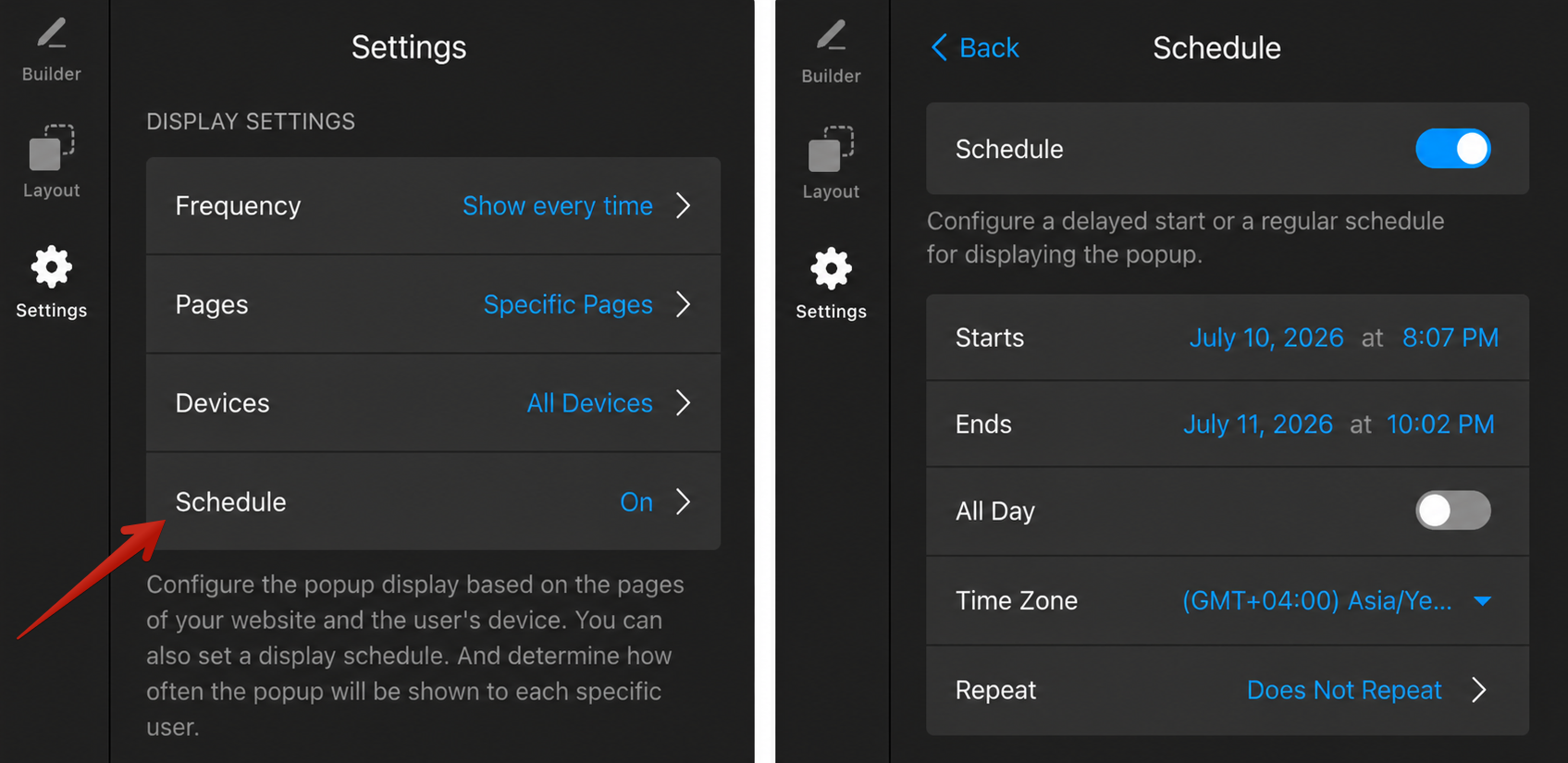
Make sure the Popup is scheduled to be active at the current date and time, and that the correct time zone is selected.
Triggers
Triggers define when the Popup appears — for example, after a delay, when a visitor scrolls, or when they try to leave your website. If no trigger is enabled, the Popup won't appear.
To check your trigger settings, open Display Settings → Triggers:
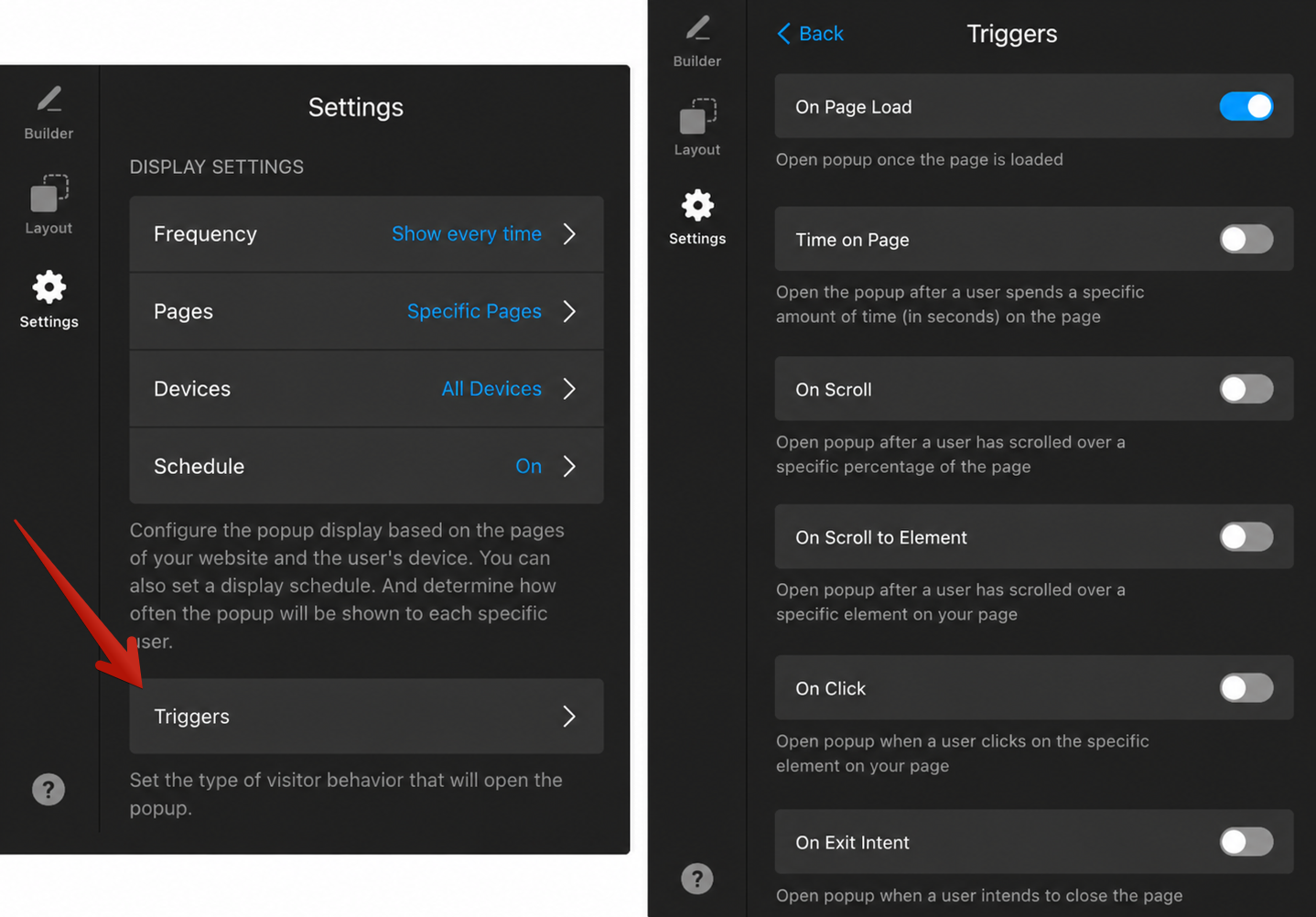
Make sure at least one trigger is enabled and that you're testing the Popup according to the selected trigger.
2. Check Your Widget Installation
If all settings are correct, but the Popup still doesn’t appear, the issue may be related to how the widget is installed on your website.
Installation and Website Issues
The Popup may fail to appear because of website-level issues.
For example, the widget installation code may have been removed, commented out, or added to the wrong place on the website. In some cases, browser extensions, blocking tools, custom scripts, or website restrictions can also prevent the widget from loading correctly.
To check these cases, follow the instructions in this section: Check Your Website.
Iframe Limitations
Some website platforms place content inside an iframe. This is common on platforms like Wix, GoDaddy, Hostinger, and others.
Iframes isolate embedded content from other website elements. As a result, floating widgets like Popups may not work correctly or may not appear at all.
To fix this, reinstall the widget outside the iframe, directly in your website’s main body section, if your platform allows it. Find platform-specific installation guides for installing the widget avoiding an iframe here: Installation Tutorials by Platform (CMS)
On some platforms, such as Google Sites, Canva, and Adobe Portfolio, floating widgets may not work as expected because of platform limitations. In this case, we recommend using a static widget instead, for example Banner.
3. Check Your Elfsight Dashboard
If the widget settings and installation look correct, check in your Elfsight Dashboard that:
- the widget hasn't been deleted
- the widget is not hidden
- you haven't reached your views limit or your subscription is active
For more details, refer to this article: Why My Widget Isn’t Displayed on My Website.
If the Popup still doesn’t appear after checking all the steps above, please contact our Support team and send:
- a direct link to the page where the Popup is installed
- a screenshot or screen recording showing the issue
- a screenshot of the browser’s developer console with any related errors, if possible.
We’ll be happy to check it for you 🤗