
Subscription Upgrade Troubleshooting: Common Errors and Solutions
Upgrading your Elfsight subscription is usually quick and easy. If you run into an issue, find the error message below and follow the troubleshooting steps to complete your upgrade.
In this article
💳 Payment and Checkout Errors
Transaction failed (subscription_payment_declined)
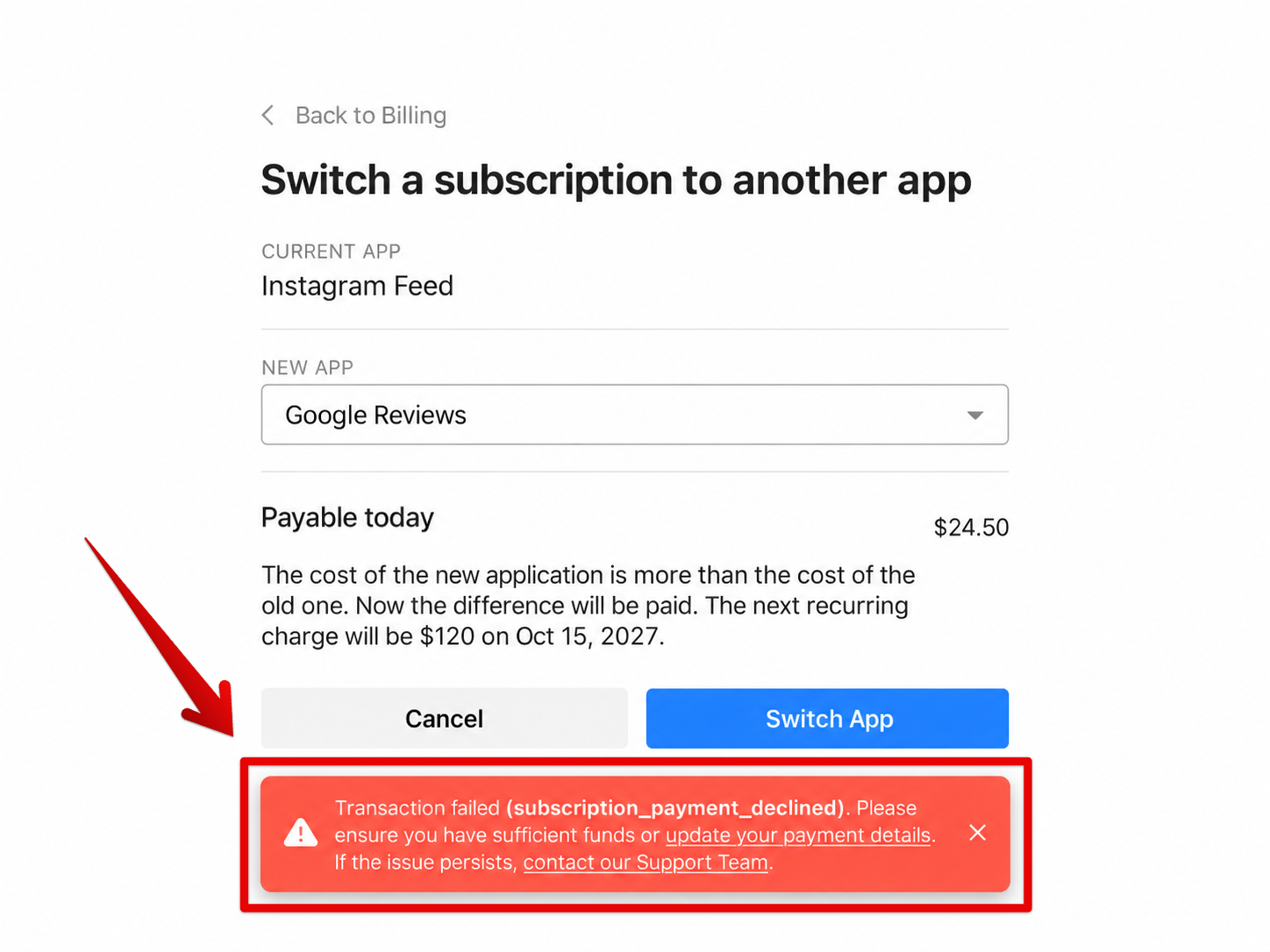
This error means your payment was declined. Common reasons include insufficient funds, an expired card, or a restriction set by your bank. You will see the following message:
Transaction failed (subscription_payment_declined). Please ensure you have sufficient funds or update your payment details. If the issue persists, contact our Support Team.
Troubleshooting Steps
- Check your card. Make sure it has enough funds, has not expired, and has not reached a spending limit. If needed, update your payment details.
- Approve the payment if prompted. Your bank may ask you to enter a code or confirm the payment in its banking app.
- If it is still declined, ask your bank whether it is blocking the charge, or try another supported payment method.
If these steps do not resolve the issue, contact our Support team — we’ll be happy to help with your upgrade.
The checkout window couldn't load
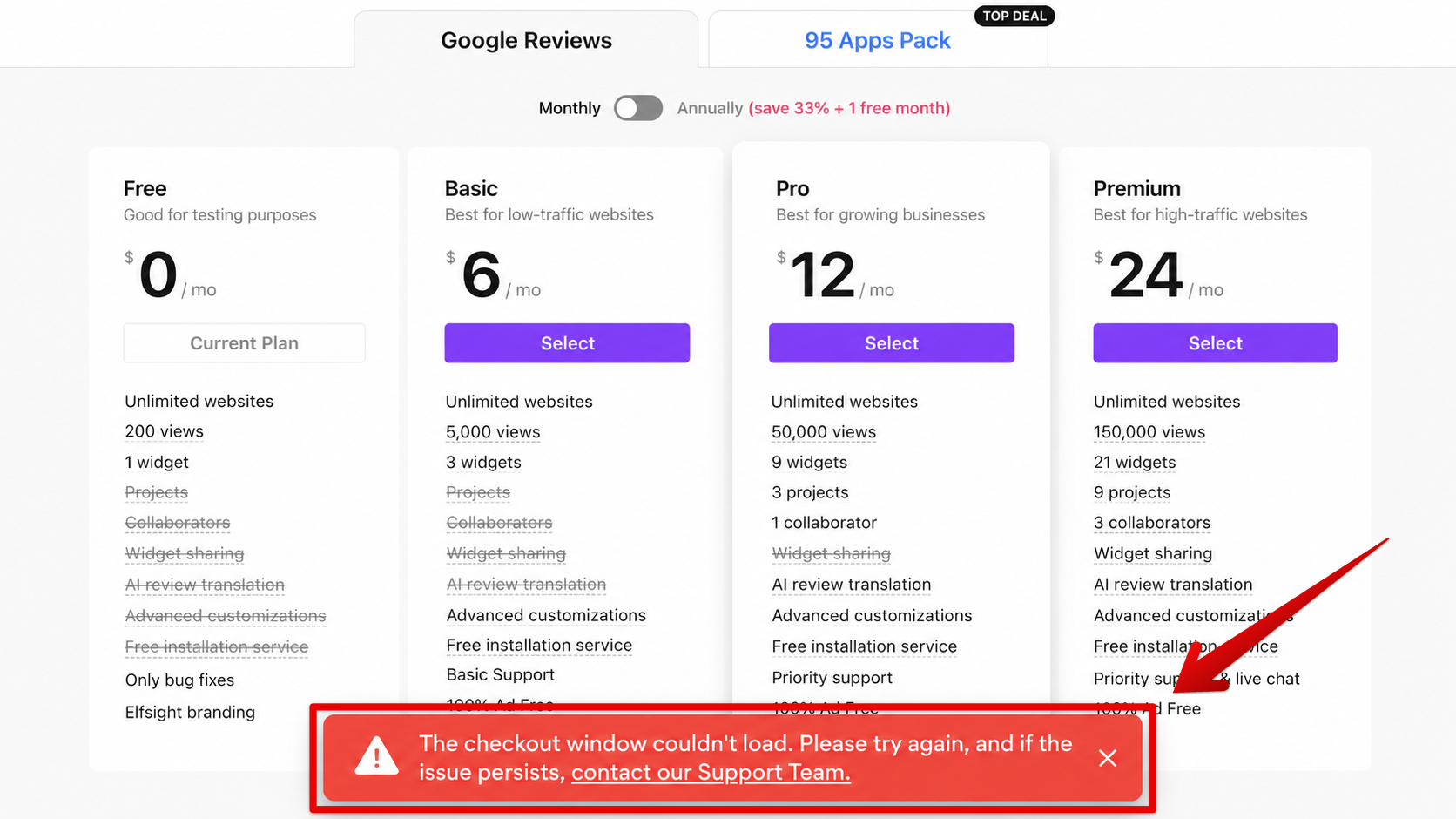
This error may appear when your browser, an extension, or a VPN prevents the payment window from opening:
The checkout window couldn't load. Please try again, and if the issue persists, contact our Support Team.
Troubleshooting Steps
- Refresh the page and try again.
- Try an incognito/private window or another browser. If you use a VPN or proxy, temporarily turn it off.
- If checkout works in another browser, check that your original browser allows pop-ups and temporarily disable ad-blocking or privacy extensions for Elfsight.
If the checkout window still won’t open, contact our Support team — we’ll be happy to help with your upgrade.
⚠️ “Something Went Wrong” Errors
Something went wrong (…balance_less_than_charge_limit)
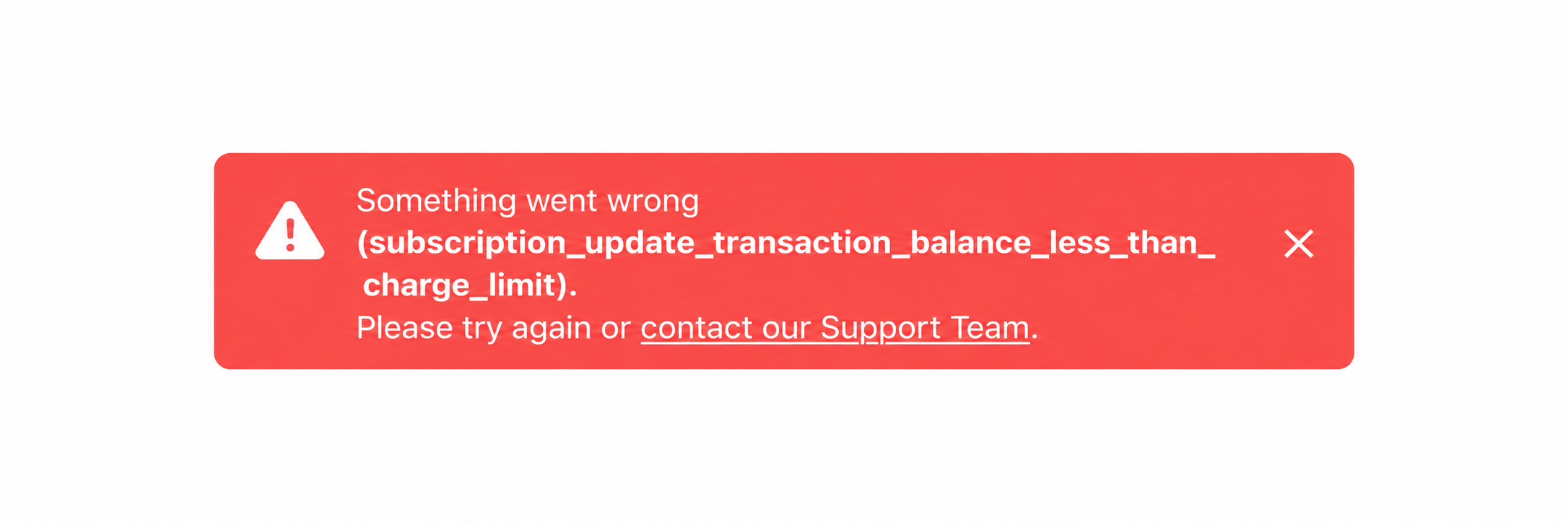
This error means the upgrade amount is below Paddle’s minimum charge, which can happen shortly before your renewal date:
Something went wrong (subscription_update_transaction_balance_less_than_charge_limit). Please try again or contact our Support Team.
Troubleshooting Steps
Contact our Support team with the plan and billing period you would like to switch to — we’ll help you complete your upgrade manually.
Something went wrong (subscription_update_when_past_due)
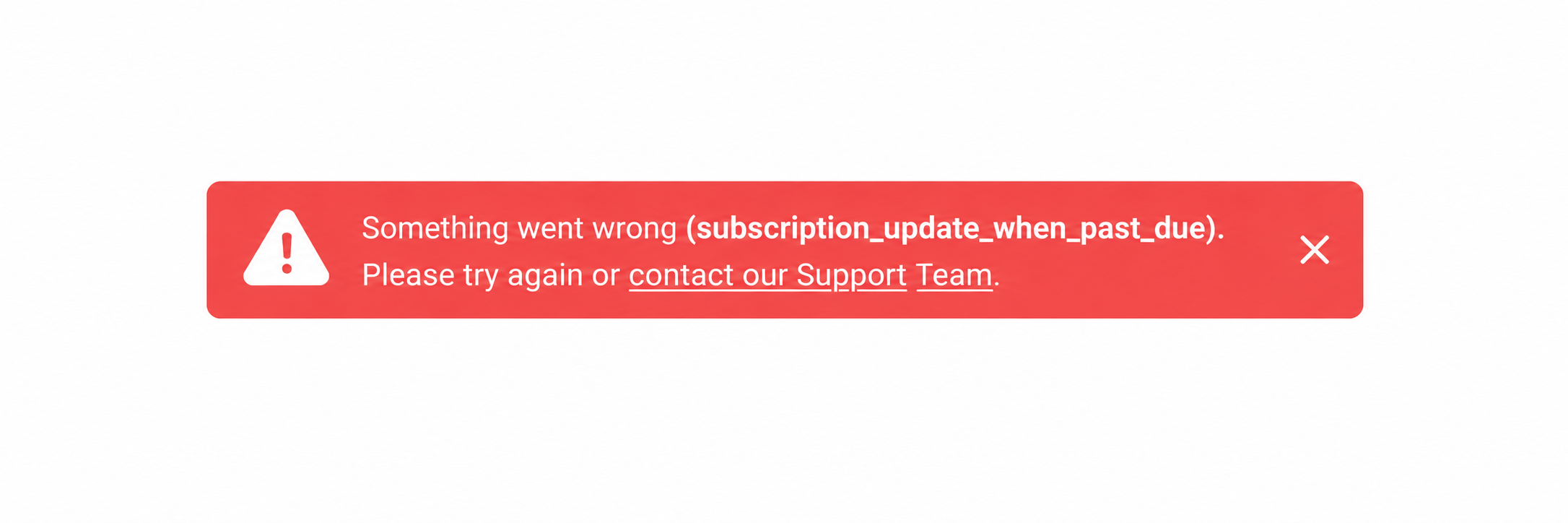
This error means your current subscription has an overdue payment that needs to be paid before you can upgrade:
Something went wrong (subscription_update_when_past_due). Please try again or contact our Support Team.
Troubleshooting Steps
- Update your payment details in the Billing tab. Once updated, the system will immediately attempt to collect the overdue payment for your current subscription. For more details, see Changing Your Billing Information.
- Try upgrading again once the payment is successful and your subscription is active. Your payment will be taken into account when calculating the upgrade charge, so you won’t pay twice for the same period.
If you need help with the payment or upgrade, contact our Support team — we’ll be happy to help.
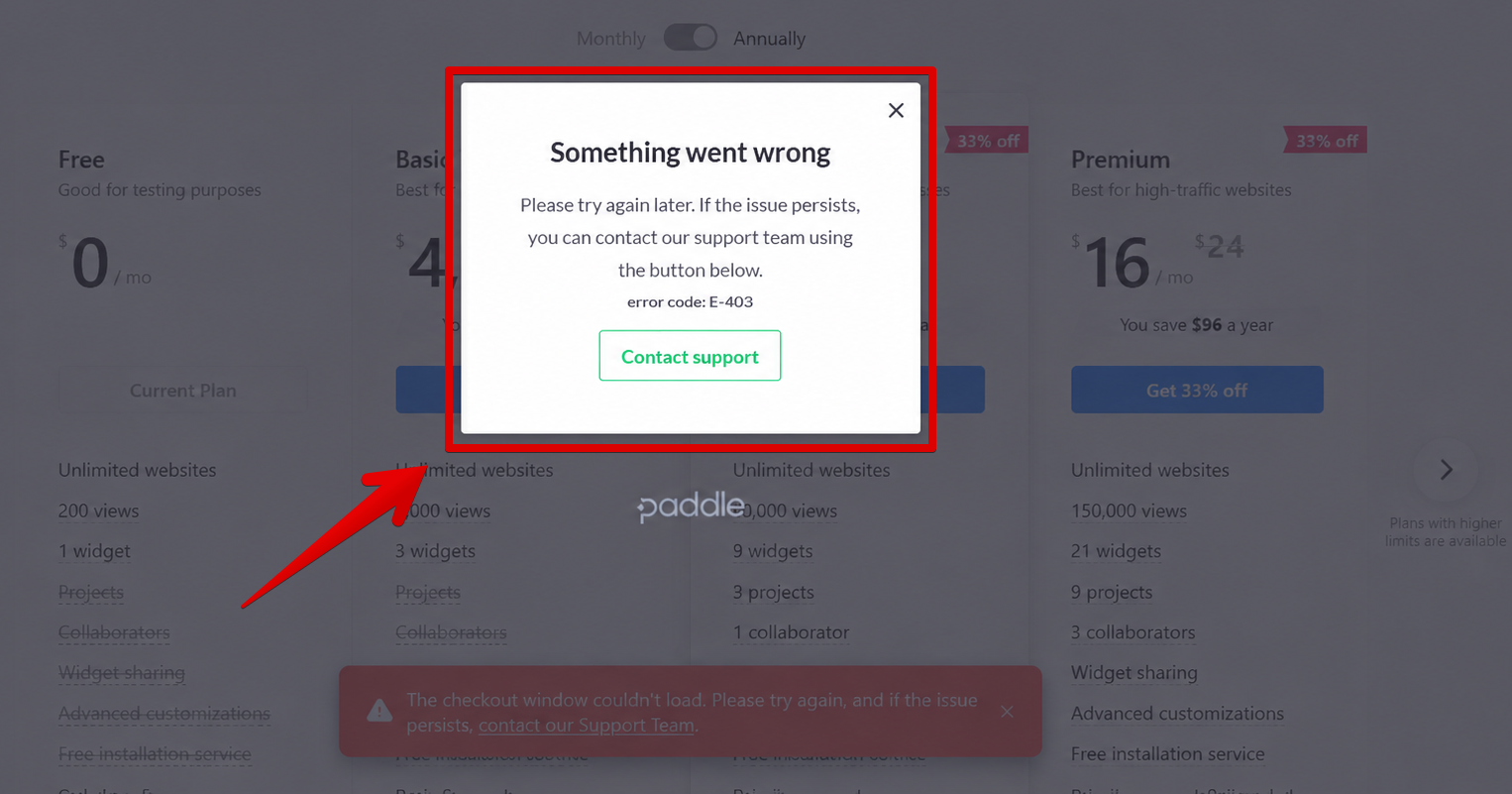
Something went wrong — error code: E-403
This error may mean Paddle, our payment provider, does not support purchases from your location or with your payment method:
Something went wrong
Please try again later. If the issue persists, you can contact our support team using the button below.
error code: E-403
Troubleshooting Steps
- Check your location against Paddle’s unsupported countries and regions.
- If your location is supported, but your card was issued in an unsupported country, try a card issued in a supported country.
If you’re unsure why this error appears, contact our Support team — we’ll help you check the available options.
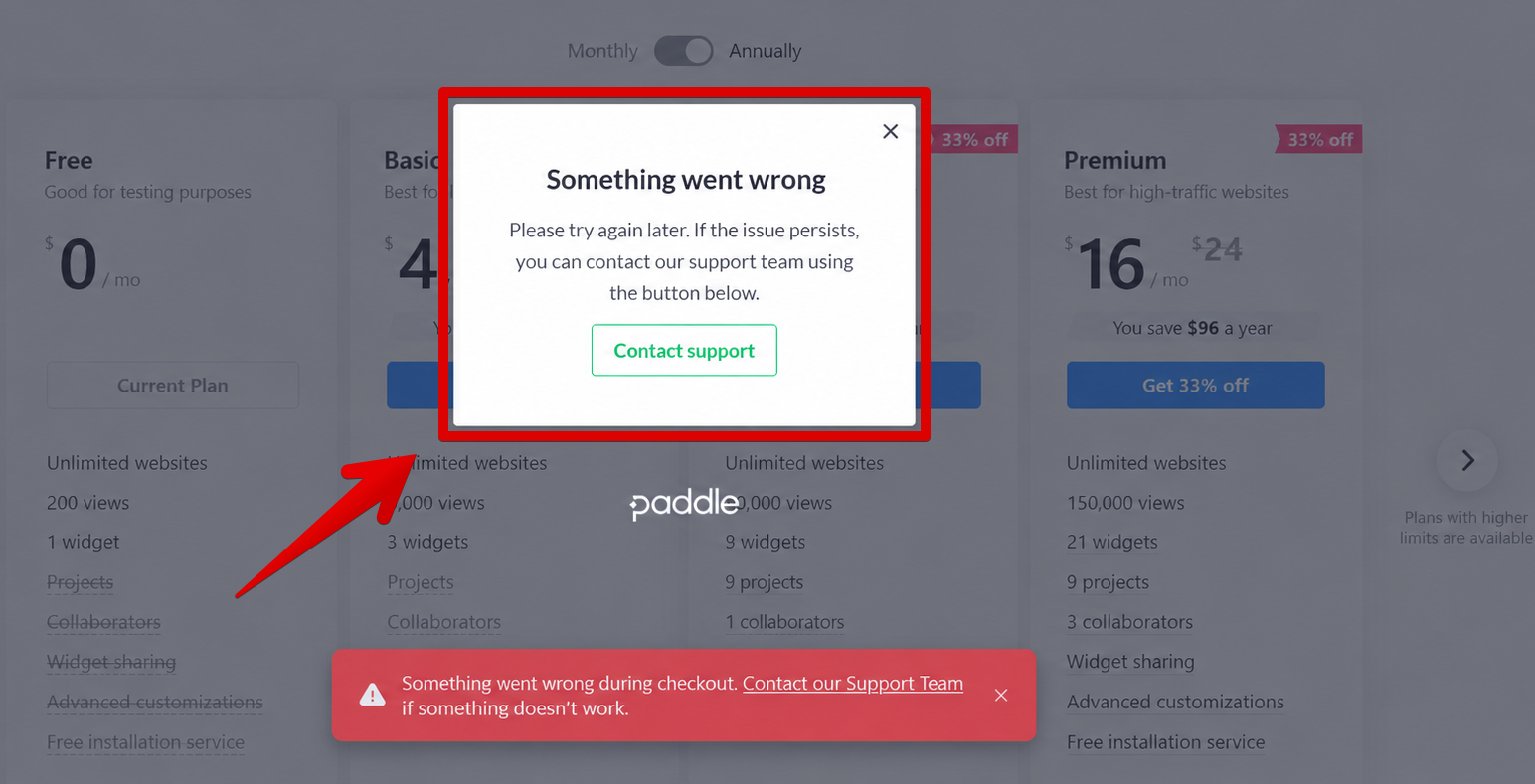
Something went wrong — no error code or a different code
This general message means your subscription change could not be completed. It may appear without a code or with one not listed above:
Something went wrong
Please try again later. If the issue persists, you can contact our support team using the button below.
Troubleshooting Steps
- Refresh the page and try upgrading again.
- Use an incognito/private window or another browser to open your Elfsight dashboard and retry the upgrade.
If the error still appears, contact our Support team with a screenshot of the message and your desired plan and billing period — we’ll be happy to help.
Still Having Trouble?
If you still can’t upgrade or your error isn’t listed above, contact our Support team — we’ll help you complete your upgrade right away! 🙌🏻
Please include:
- A brief description of the issue and a screenshot of any error message.
- Your desired plan and billing period.
- Any troubleshooting steps you’ve already tried.
FAQ
How do I change my billing information?
You can update your billing information directly in your Elfsight Dashboard or through the Paddle Customer Portal. Our Changing Your Billing Information guide walks you through the process step by step.
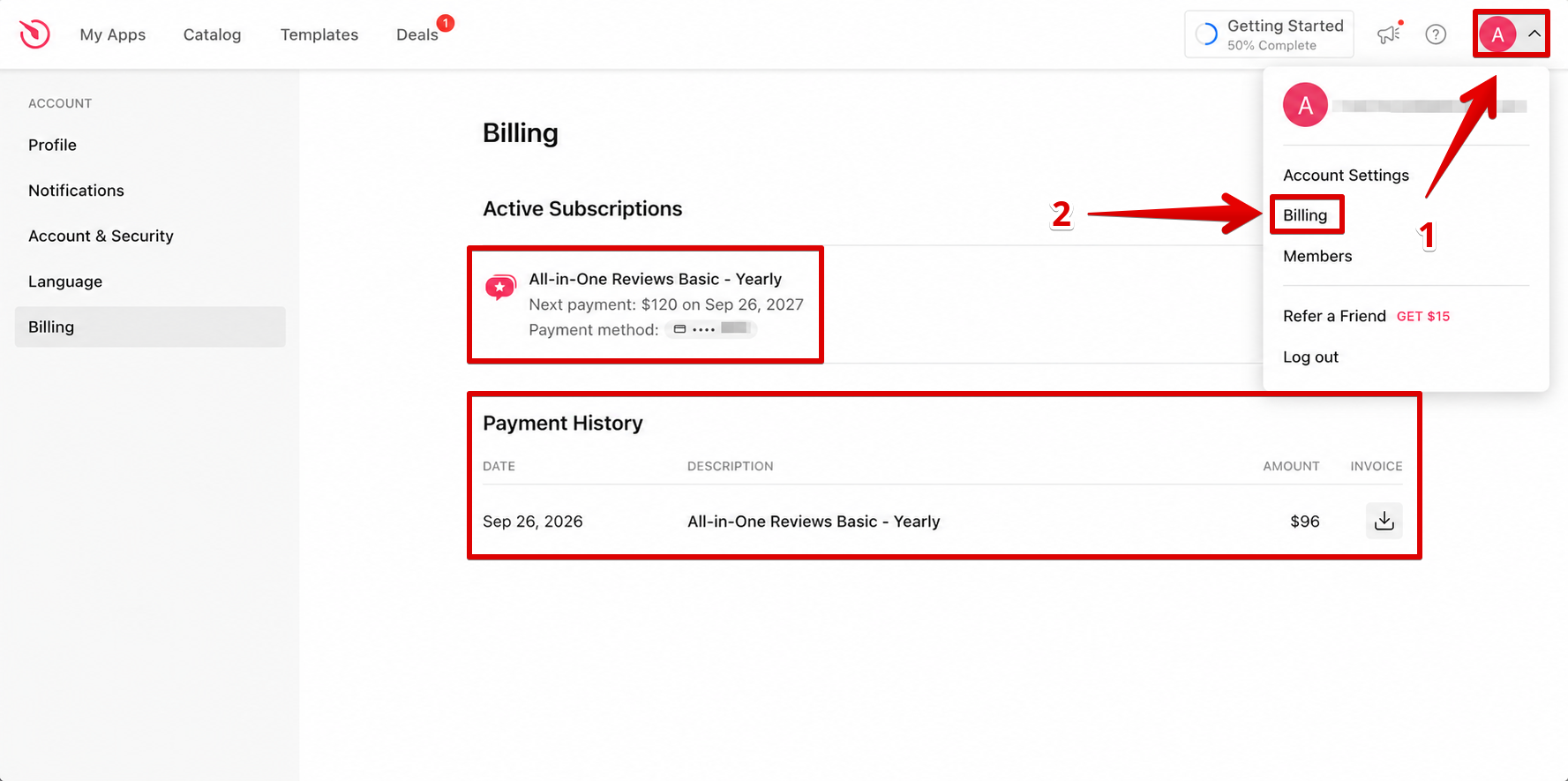
How can I check if my subscription upgrade was successful?
You will receive a confirmation email after upgrading. You can also view your payment history anytime in your Elfsight dashboard under the Billing tab:
How long does it take for the upgrade to activate after the payment?
Subscription upgrades are usually processed instantly. In rare cases, it may take a few minutes for the changes to reflect in your account.