
Adding Elfsight Widget to Wix Website
Looking for instructions on how to add your Elfsight widget to your Wix website? Follow this easy guide for seamless integration. Copy your widget installation code, and let’s get started!
Watch the quick video tutorial or scroll down for step-by-step instructions 🚀
In this article
Add a Static Widget to a Specific Page
Let’s start by opening your website editor. Log in to your Wix dashboard and click Edit Site: 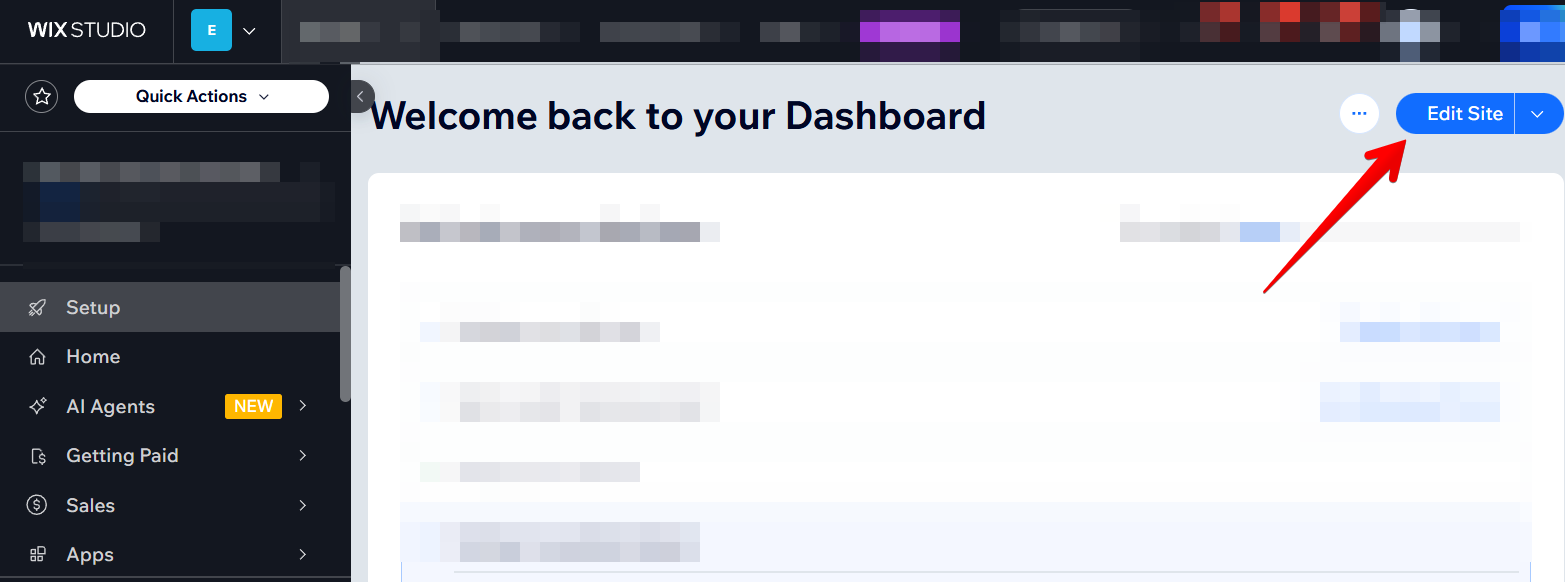
The next steps may slightly differ between Wix Editor and Wix Studio. Choose your version using the toggles below.
Instructions for Wix Studio
- 1
-
Add Embed Code
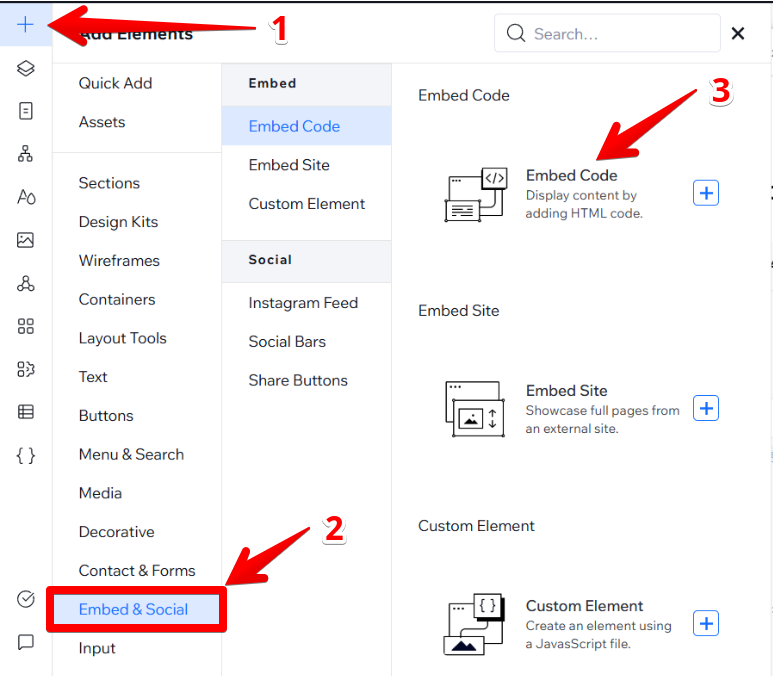
Click the ➕ icon, go to the Embed & Social section and select Embed Code:
- 2
-
Paste the installation code
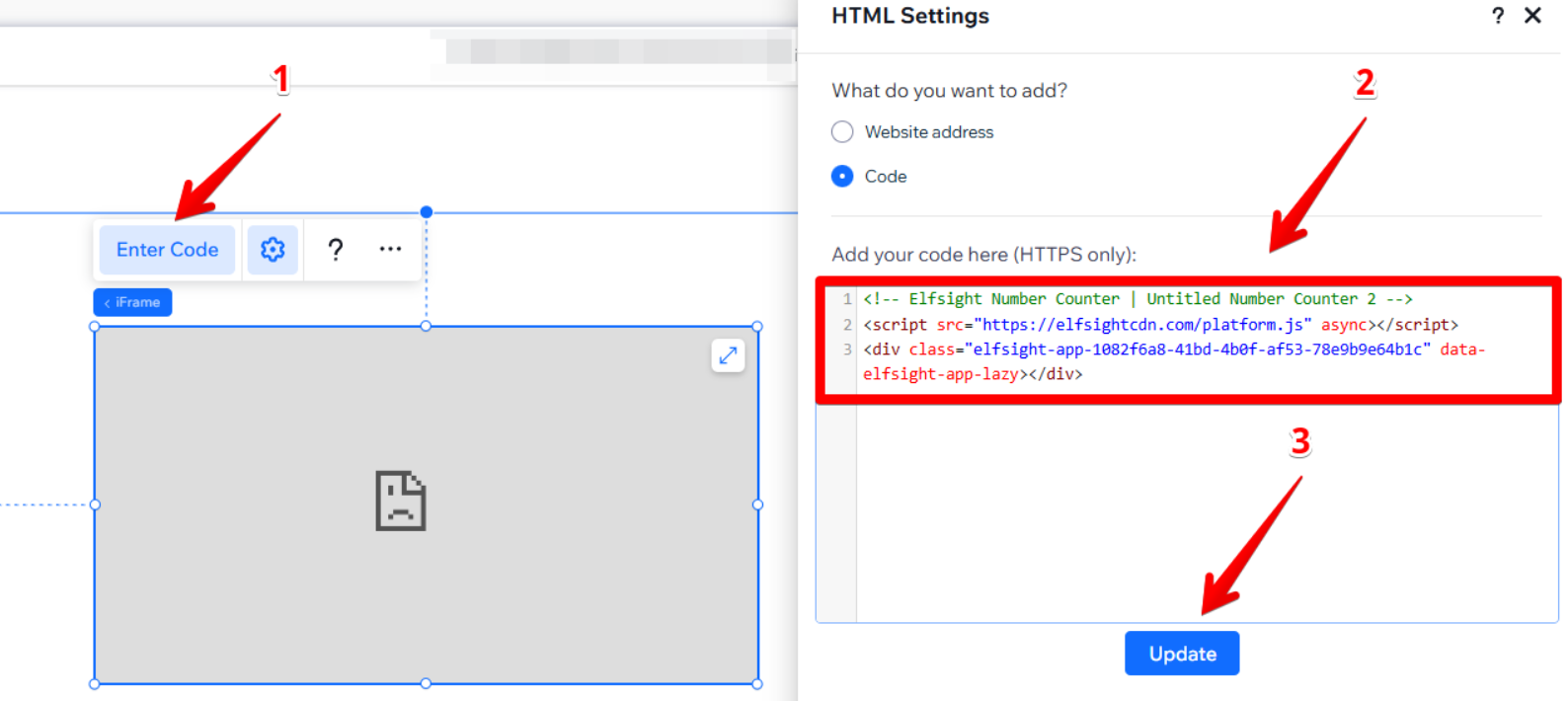
Click Enter Code, paste your widget installation code and press Update:
- 3
-
Adjust the widget's size and position
Drag the widget to the desired page area and stretch it until all content fits and no scroll bars appear:

- 4
-
Adjust the mobile appearance
Click the mobile editor icon to adjust the widget's size for mobile, and click Publish: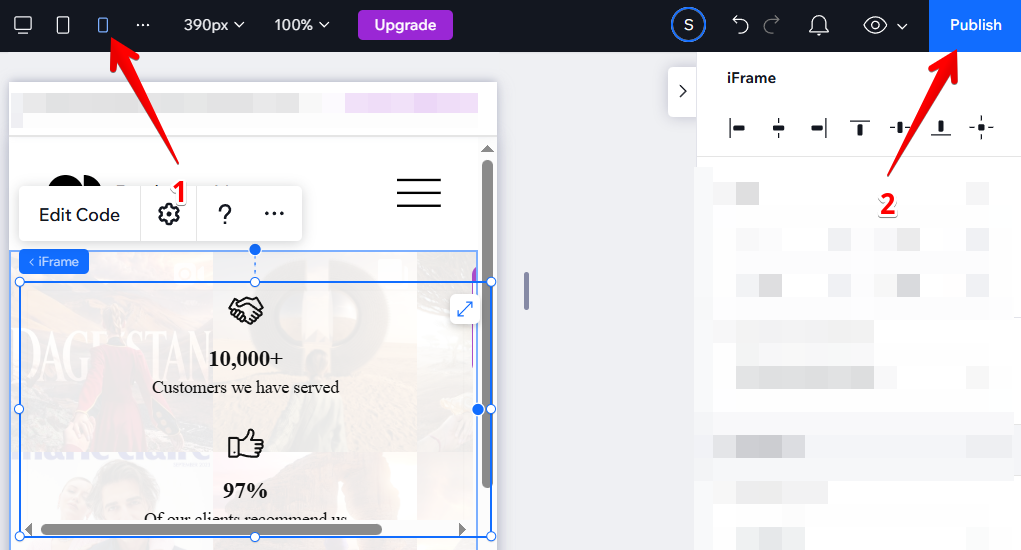
That's it! You've successfully added your static widget to the selected page!

Instructions for Wix Editor
- 1
-
Add HTML block
Click the ➕ icon, go to the Embed Code section and select Embed HTML: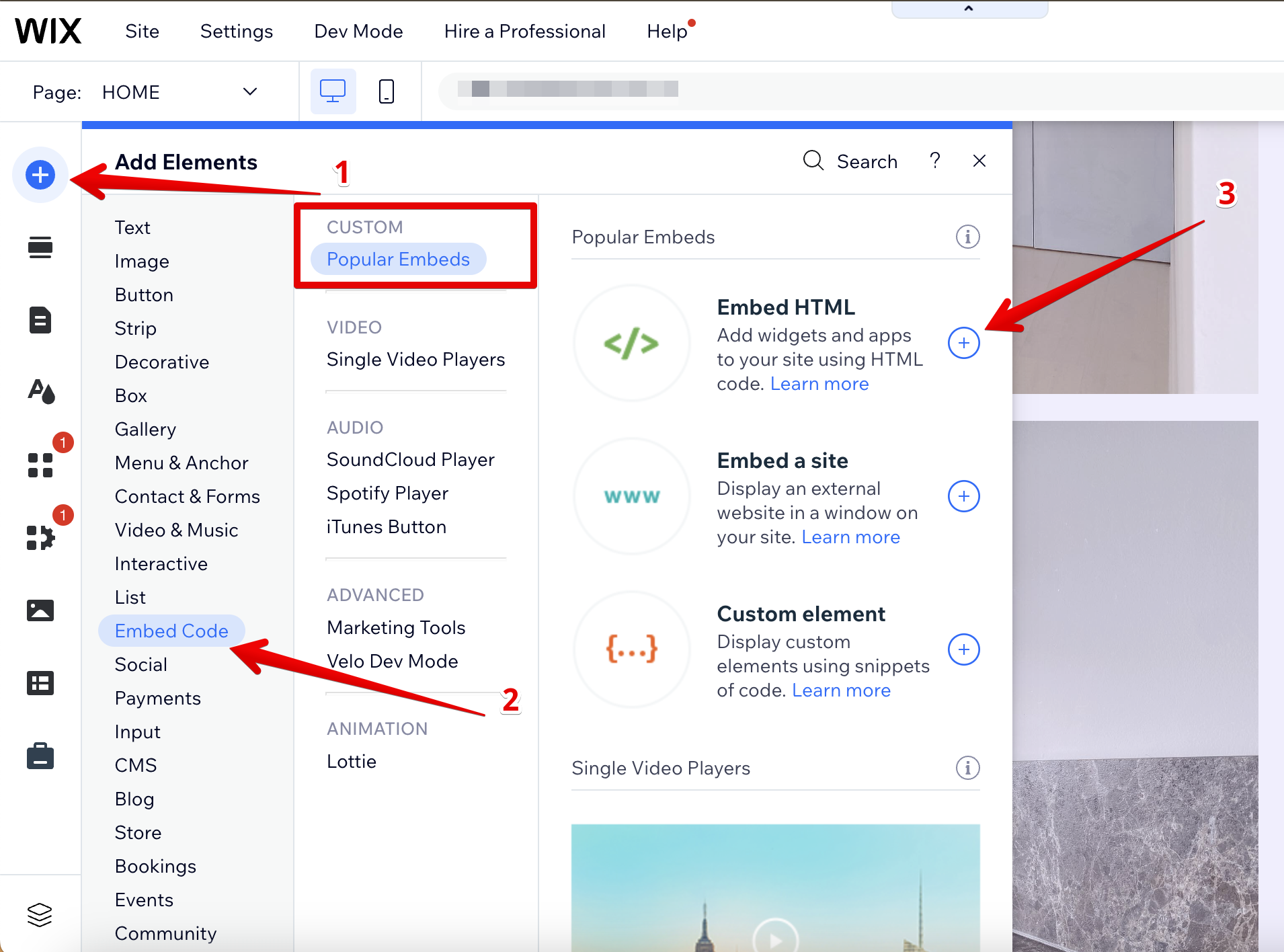
- 2
-
Paste the installation code
Click Enter Code, paste your widget installation code and press Update: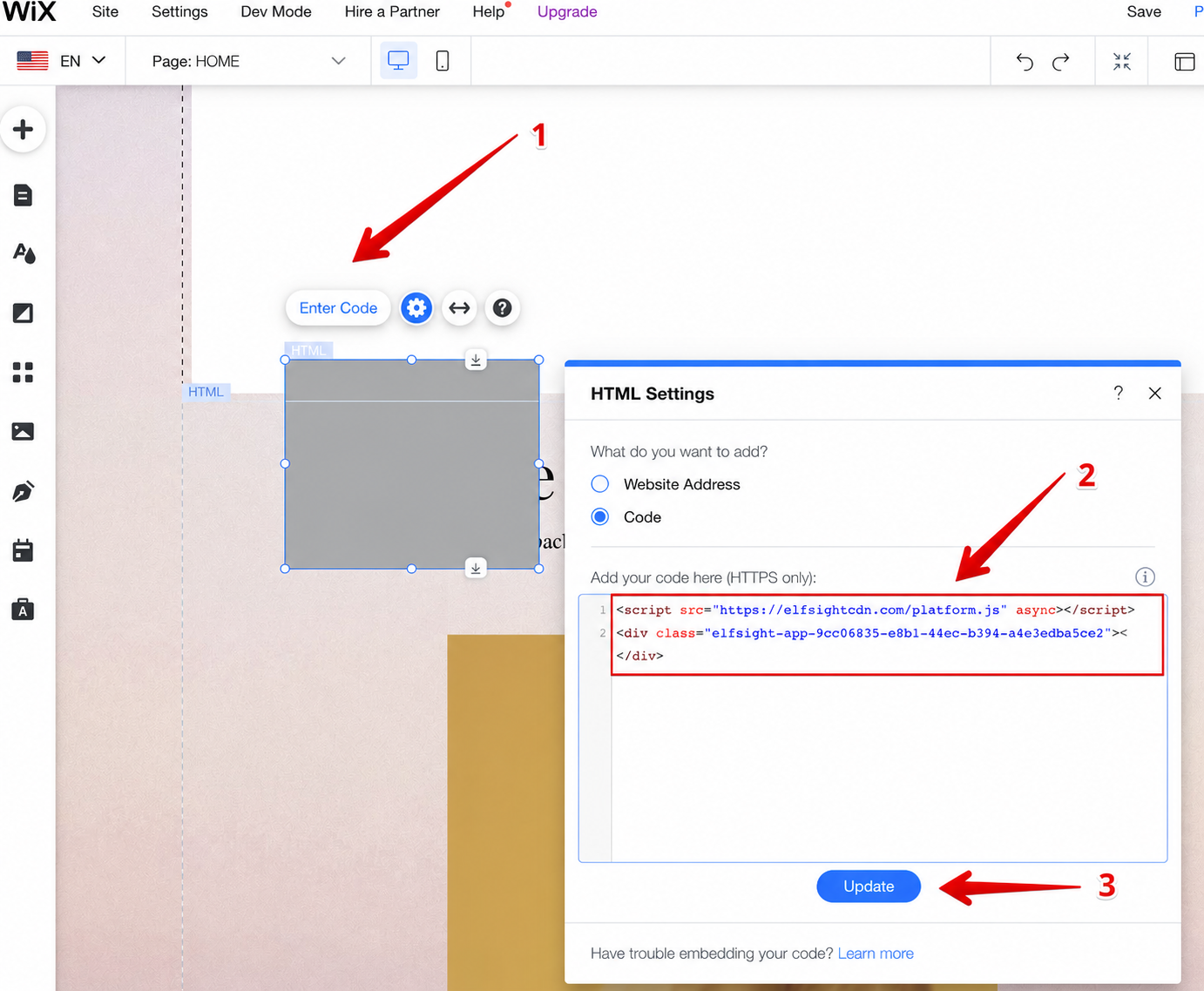
- 3
-
Adjust the widget's size and position
Drag the widget to the desired page area and stretch it until all content fits and no scroll bars appear:
- 4
-
Adjust the mobile appearance
Click the mobile editor icon to adjust the widget's size for mobile, and click Publish:
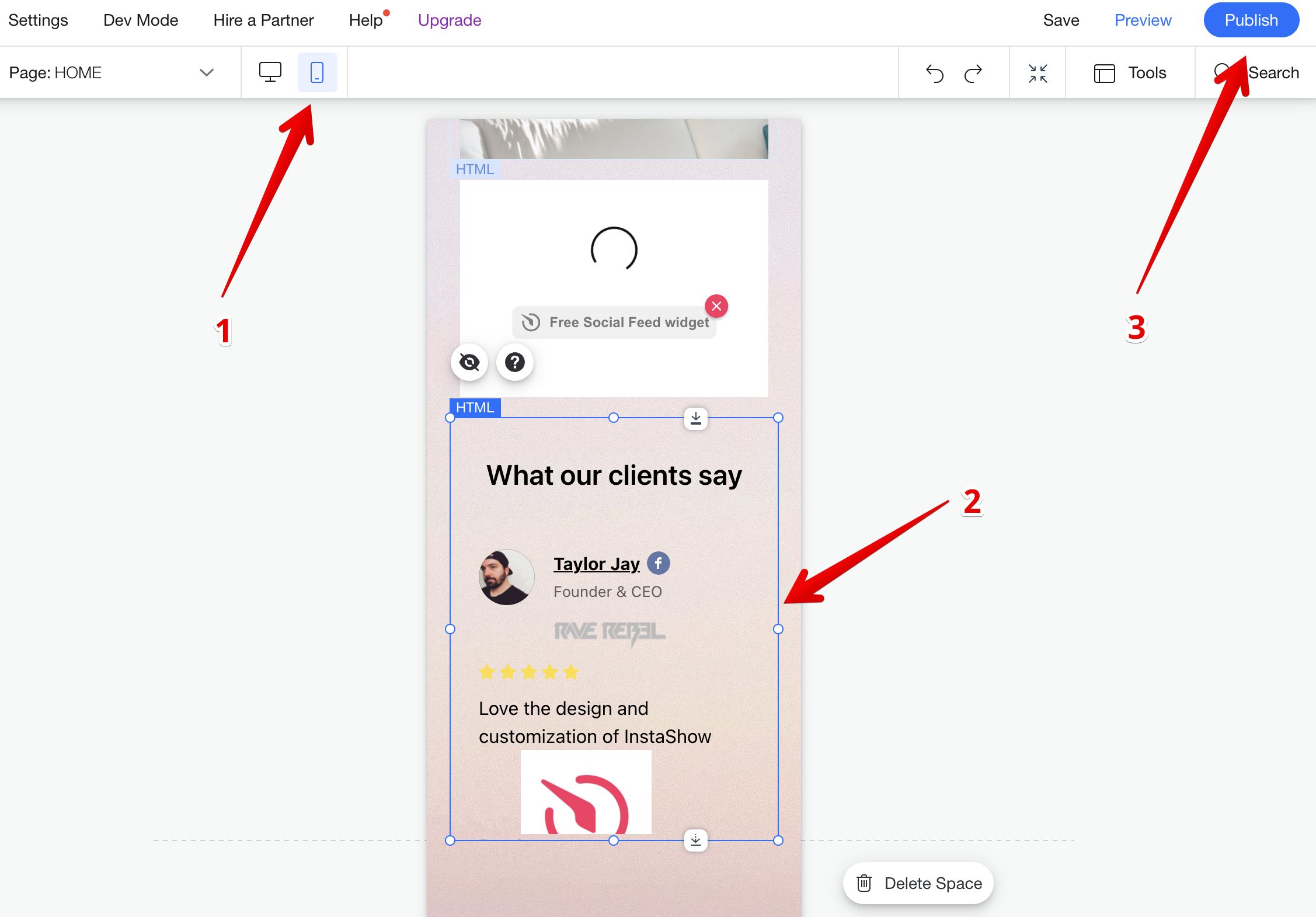
That's it! You've successfully added your static widget to the selected page!
Add a Floating Widget to Specific Pages or All Pages
- 1
-
Go to Wix website dashboard
In your Dashboard, open Settings, find the Development & Integrations section, and select Custom Code: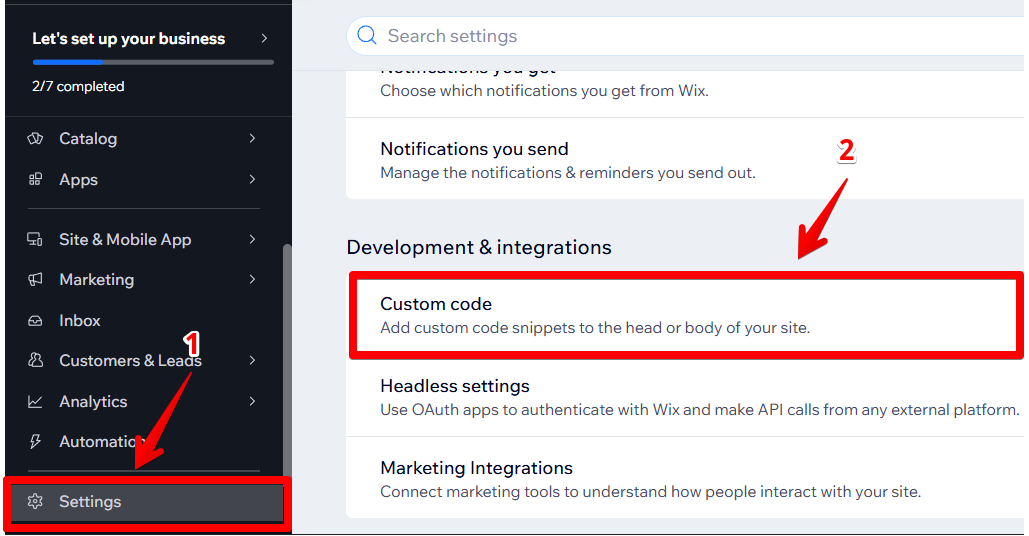
- 2
-
Add Custom Code
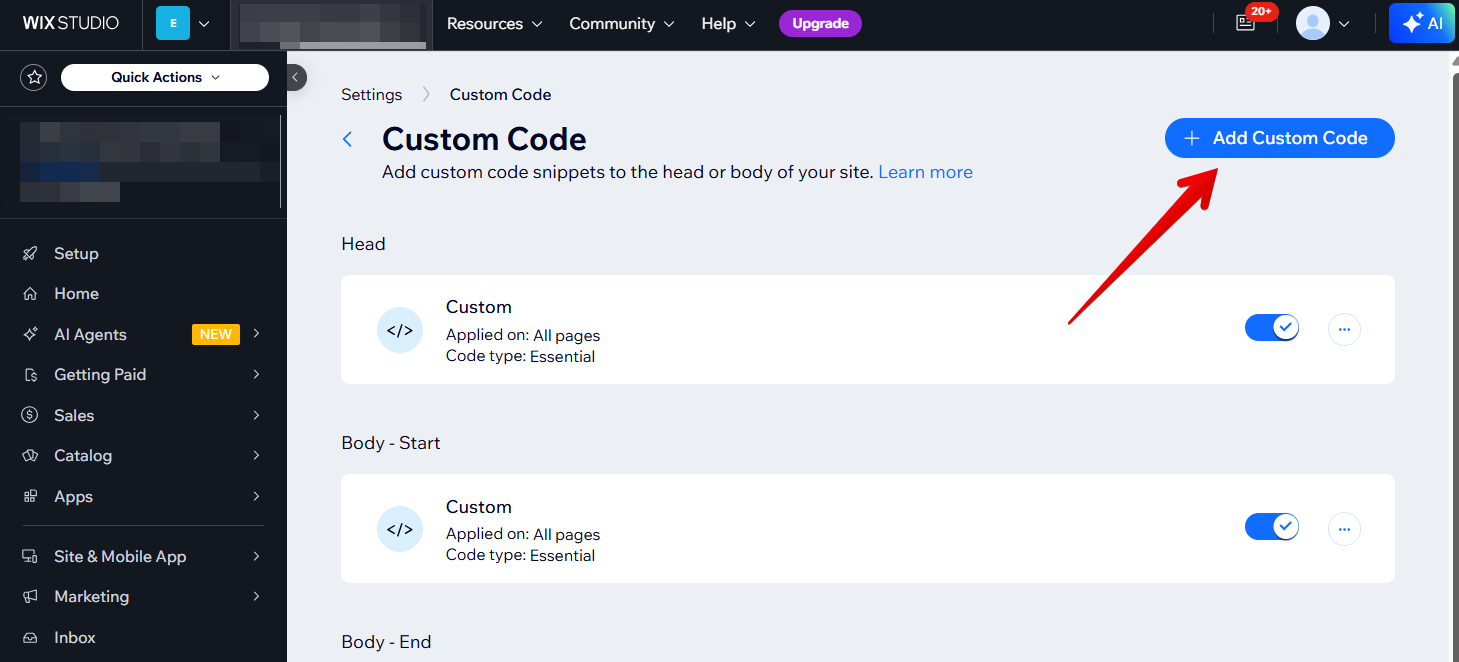
Click on the + Add Custom Code button in the upper-right corner:
- 3
-
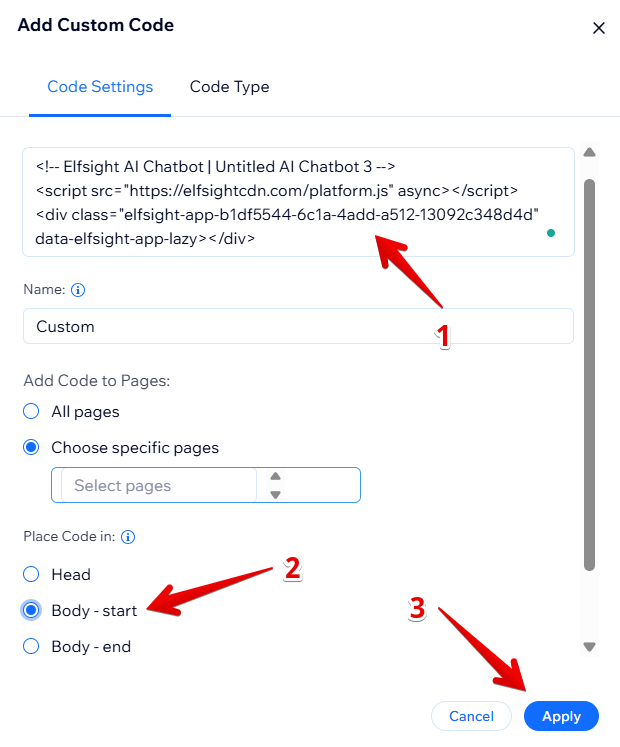
Paste the widget installation code into the code snippet field, set Place Code In to Body - start, and click Apply:
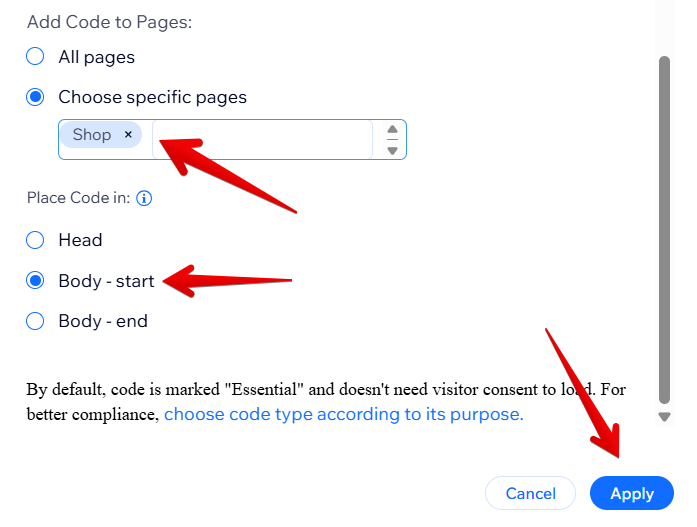
To add the widget to a specific page, click Choose Specific Pages, select the page from the dropdown, set Place Code In to Body - start, and click Apply:
The installation process is the same for both Wix Editor and Wix Studio.
All set! Your floating widget is now successfully installed on your Wix website.
Stuck with installation? Let us help! 🙌 Send us a quick request, and we’ll handle the setup for you.