
Accepting Payments in Your Pricing Table Widget
Want customers to select an offer and pay quickly and securely right inside your widget? Our Pricing Table widget widget makes it easy! This guide will show you how to connect Stripe and start accepting payments.
In this article
Important Notes Before You Begin
💳 Payment Types
The Pricing Table widget supports one-time payments and subscription payments only. Other Stripe payment options, such as “Buy now, pay later”, are not available.
💰 Supported Pricing Models
Stripe payments work only when the column uses a Fixed Price or Subscription pricing model. To learn more, see Pricing and Currency.
📋 How Payments Work
To accept payments, buttons in your widget should open a form. Once Stripe is connected, payment is required to submit the form.
💵 Supported Currencies
Payments are available only in currencies and minimum amounts supported by Stripe. For details, see Stripe Docs: Supported Currencies.
How to Set Up Payments
To enable payments in your Pricing Table widget, set a form as the button action and connect Stripe in the form’s Payment settings.
Connecting Stripe
- 1
-
In the Content tab, click the column you want to edit:
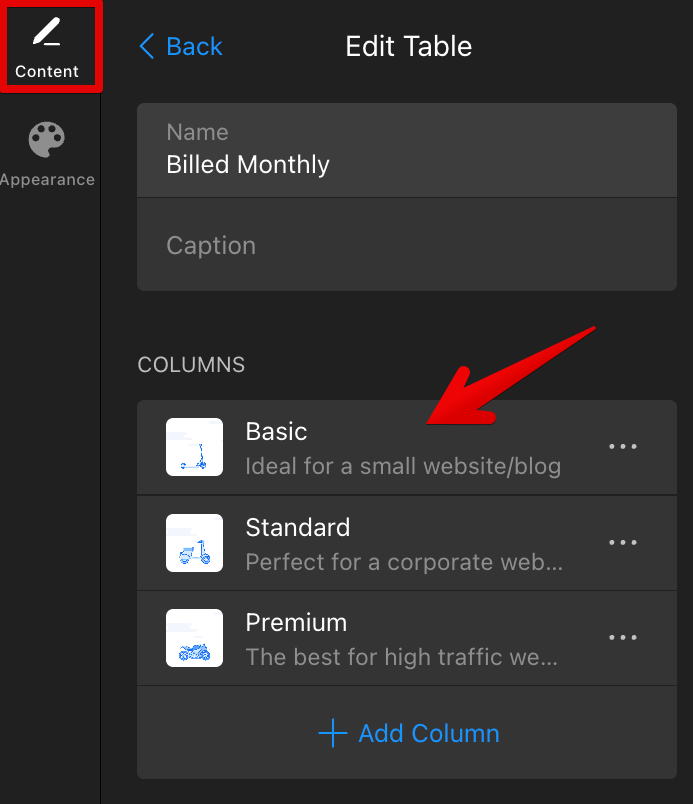 If you use Multiple Tables Mode, first select the table you want to edit, then click the needed column.
 - 2
-
In the column settings, scroll to the Button section and set Button Action to Open Form. Then click Edit Form:
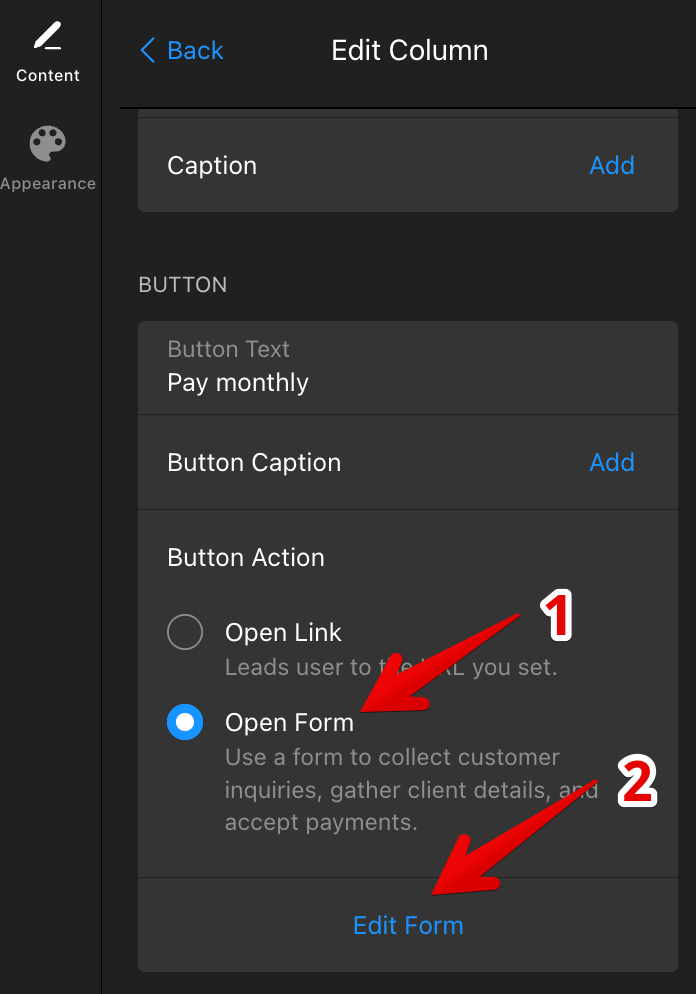
Payments are available only when the Open Form button action is enabled. - 3
-
In the form editor, scroll down and click Payment:
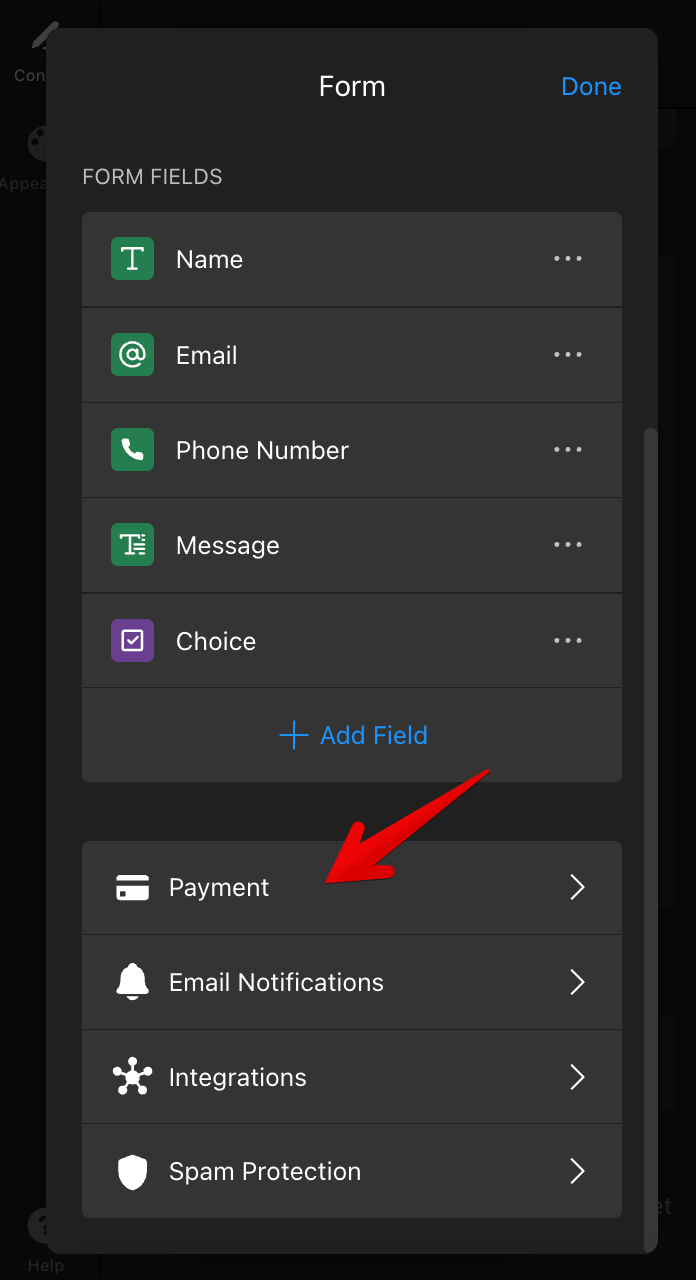
- 4
-
Click Connect Stripe:
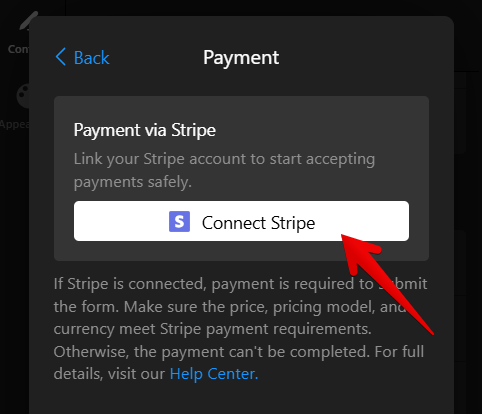
- 5
-
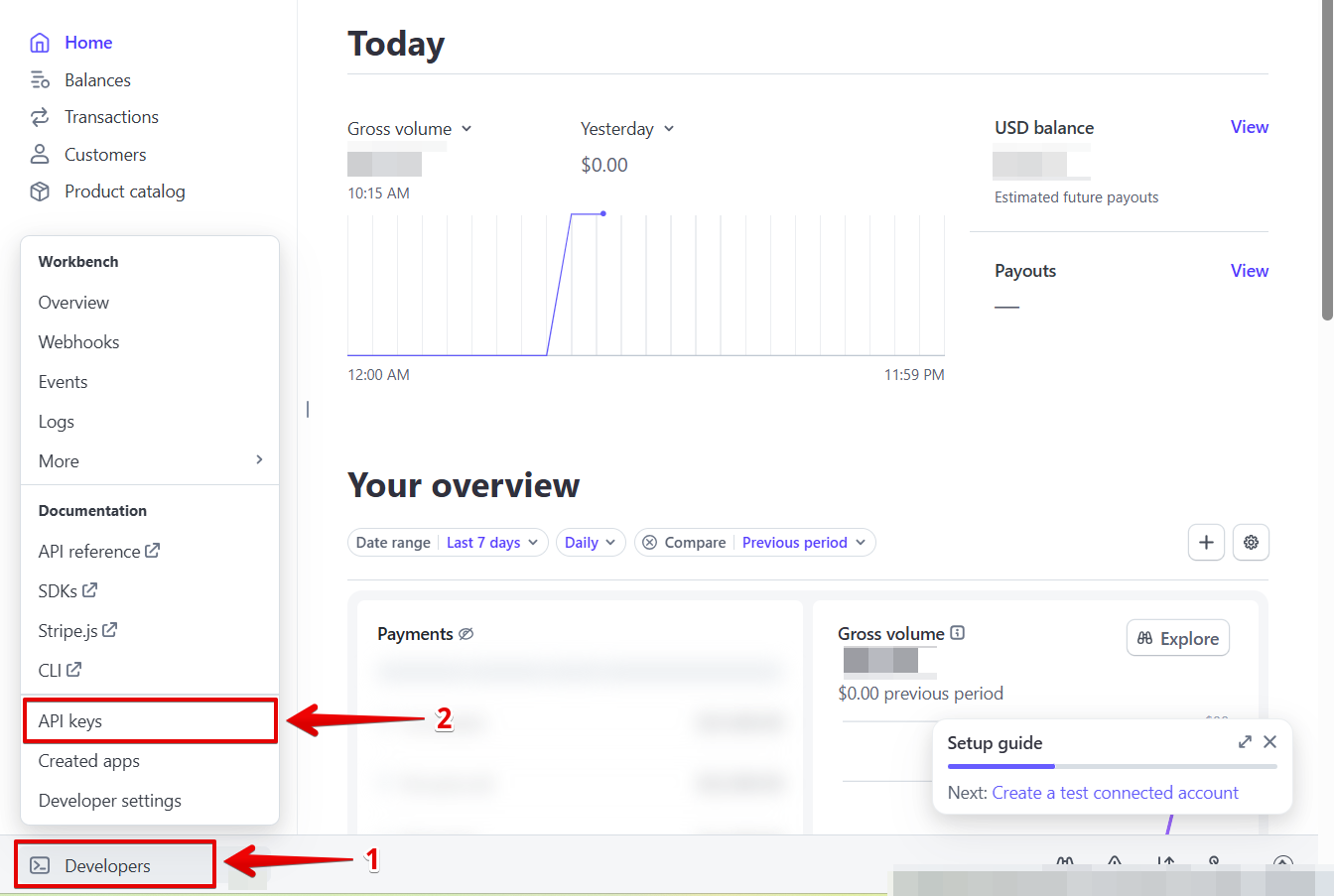
In your Stripe Dashboard, go to Developers → API keys or follow this direct link:
Copy the Publishable and Secret keys:
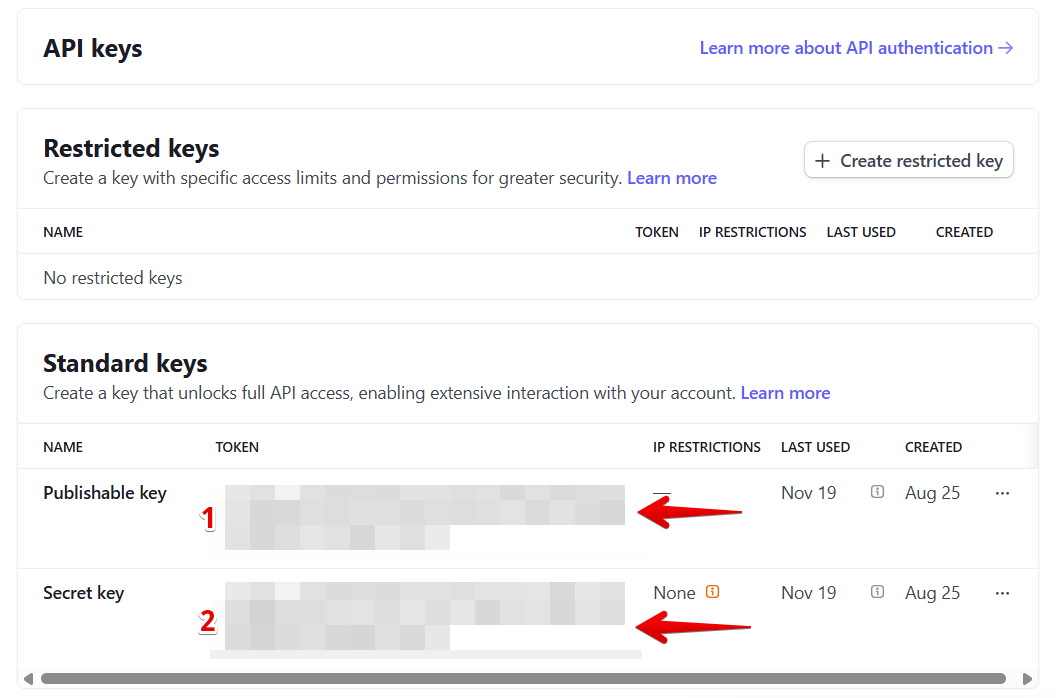
Stripe provides two types of keys: Sandbox for testing and Live for real payments. Make sure you’re viewing the correct environment in your Stripe Dashboard, as each has its own set of keys. Learn more: Stripe API Keys Explained. - 6
-
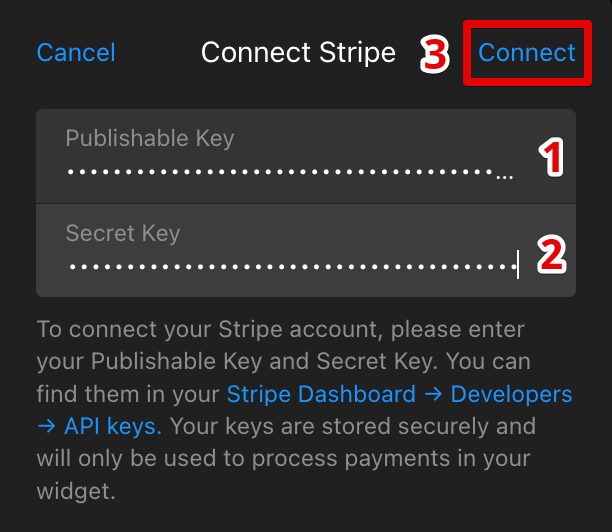
Return to the widget editor, paste both keys into the fields, and click Connect:
 If you use Multiple Tables Mode, first select the table you want to edit, then click the needed column.
Success! 🎉 Stripe is now connected. Here's how the payment form will appear to your customers: 
Optional Payment Settings
After connecting Stripe, you can optionally customize a few payment-related settings in the Payment section:

- Terms & Refund Policy — Add your refund or policy text shown during checkout.
- Success Message — Customize the message shown after a successful payment.
Nicely done! Your Pricing Table widget is now ready to accept payments.
Viewing Payment Information in Your Submissions
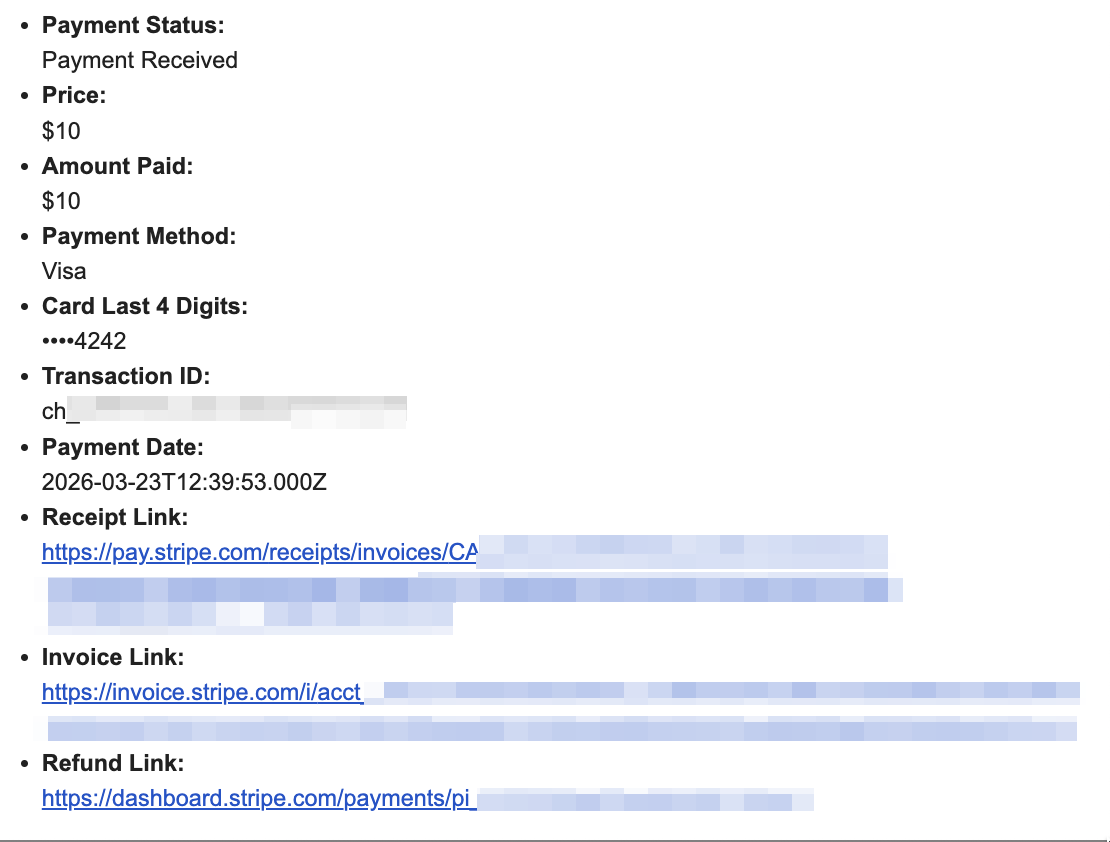
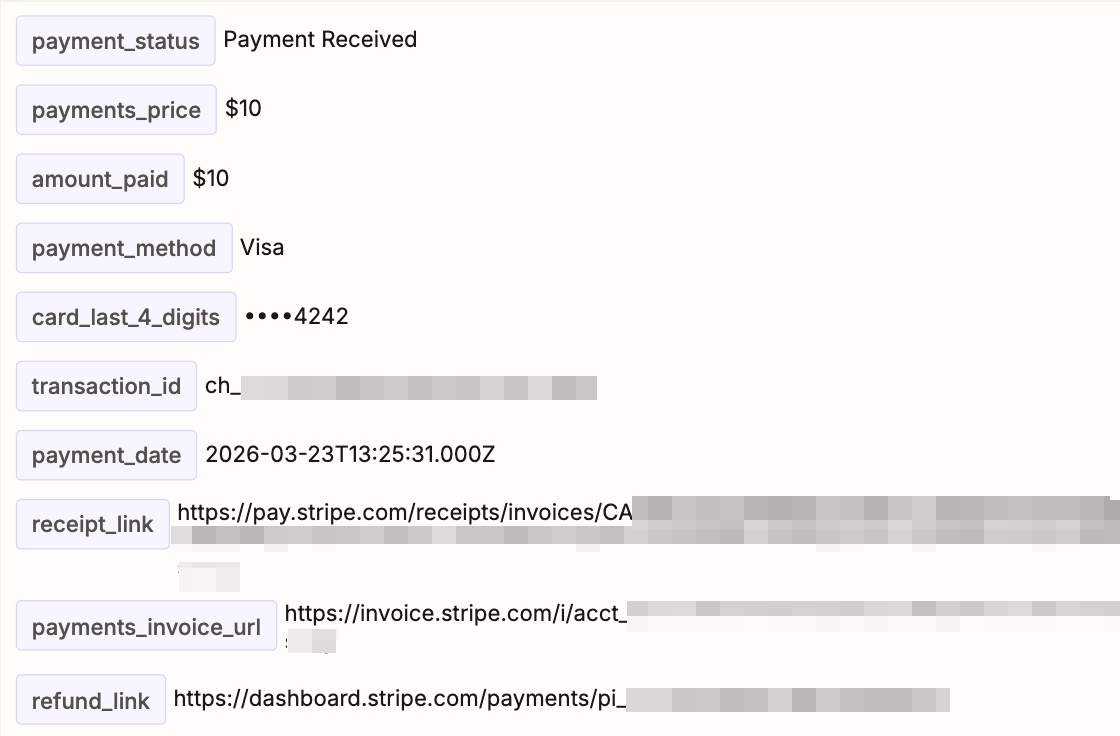
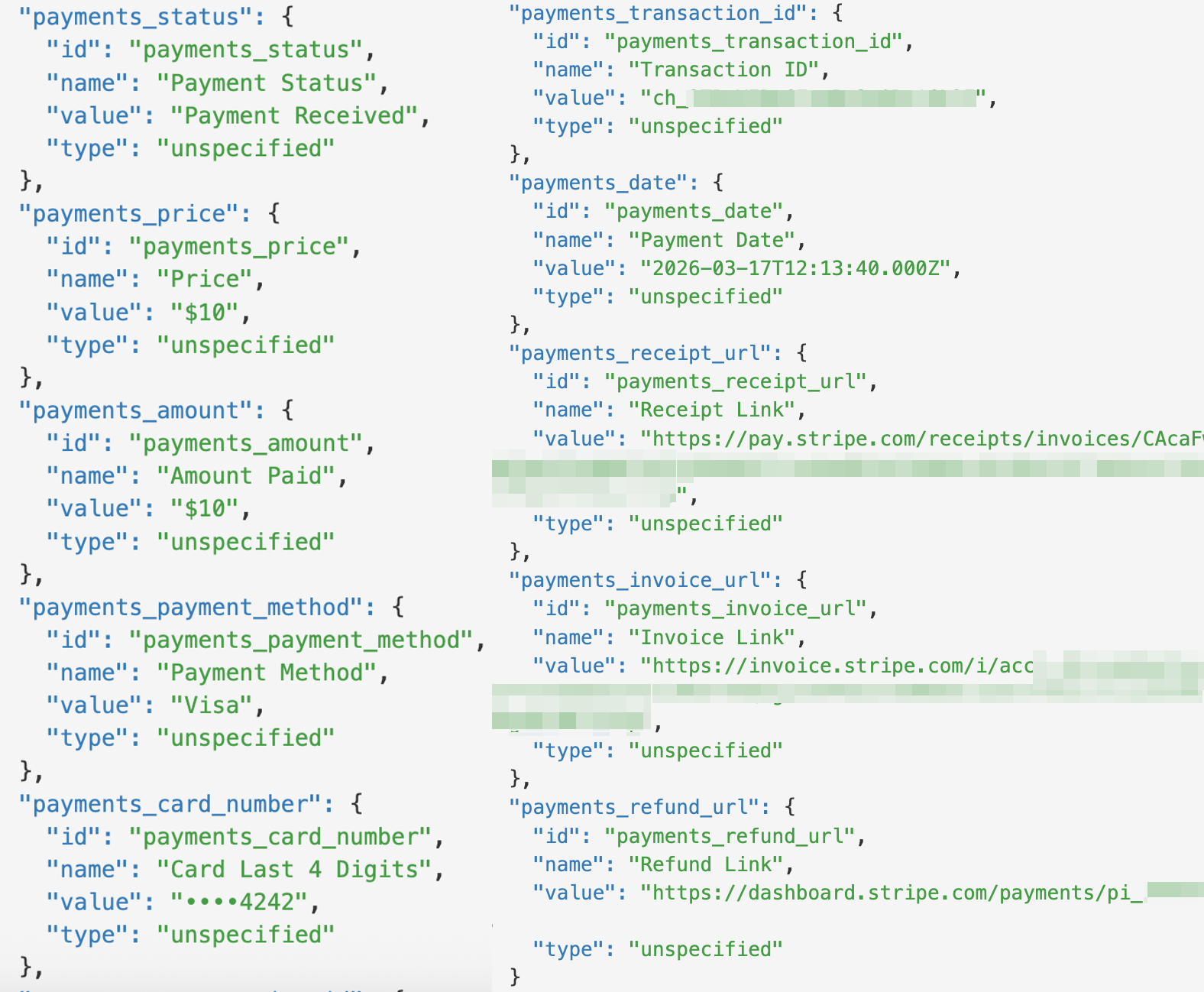
Once payments are enabled, you can access the payment data in your Stripe Dashboard and your submission notifications. The following payment details will be transferred:
| Payment Status | Price |
| Amount Paid | Payment Method |
| Card Last 4 Digits | Transaction ID |
| Payment Date | Receipt Link |
| Invoice Link | Refund Link |
Check the toggles below to see how the information will appear in your submissions.
Email Notifications
When you receive a new submission email, the payment information will appear like this:
Google Sheets Integration
Here’s how the payment details will appear in your spreadsheet:

Zapier Integration
Here’s how the payment data will appear in your Zap:
Webhooks Integration
Here’s how the payment information will appear in the webhook payload sent with your submission:
Payments are now easy to accept with your Pricing Table widget! 🙌 If you need any help along the way, feel free to contact our Support team. We're happy to assist!
FAQ
Can I test the integration before accepting real payments?
Yes! Use the API keys from your Stripe Sandbox environment and test payments with Stripe Test Cards.
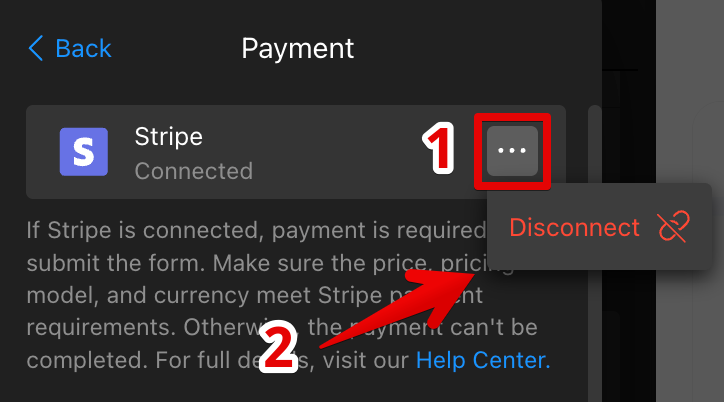
When you're ready to switch to Live mode, in the widget editor, open the three dots menu next to Stripe, click Disconnect, and replace the keys with your Live ones:
Can I use a restricted Stripe key in the widget?
Yes. Although your standard Secret Key is secured and used only to process payments, you can use a restricted key instead. Make sure it has the following permissions:
- Checkout Sessions (Write)
- Customers (Write)
- Payment Intents (Write)
- Balance (Read)
- Invoices (Read)
- Subscriptions (Write) for subscription payments
To create a restricted key, follow this guide: Stripe API Keys.
Will my customers get a receipt after payment?
Customers can access their receipt in the email sent after submission:
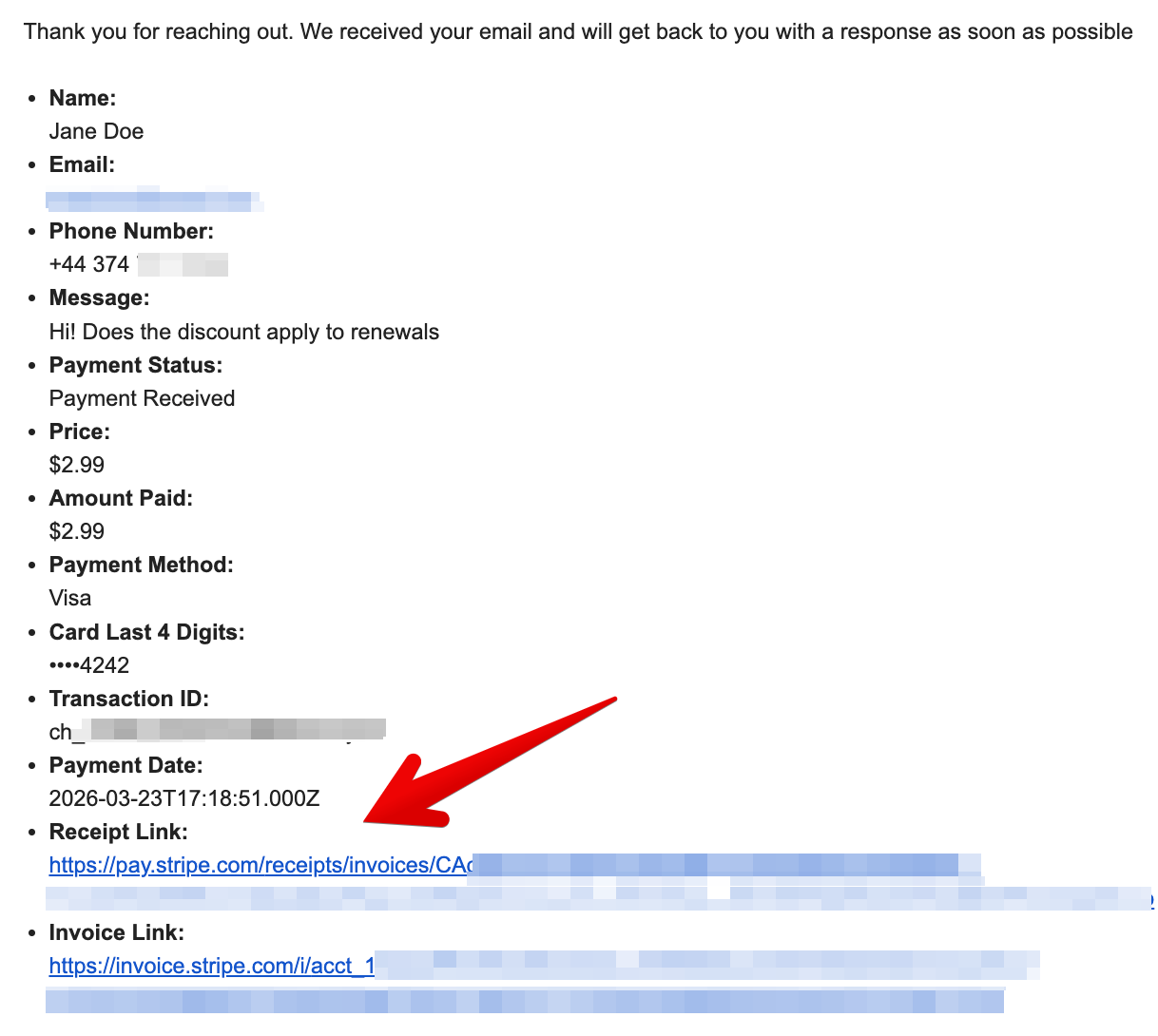
To send confirmation emails, toggle on Autoresponder Email in Edit Form → Email Notifications → Notify Respondents.