
Step 3: Configure Your AI Chatbot Settings
Once your AI Chatbot is trained and styled, you can finish setting it up in the Settings and Integrations tabs. Here, you can control where it appears, manage notifications, sounds, language, advanced settings, and connections with external tools. ✨
- Step 1 – Set Up Your AI Chatbot Knowledge Base
- Step 2 – Adjust Your AI Chatbot Design & Skills
- 👉 Step 3 – Configure Your AI Chatbot Settings & Integrations
In this article
Set Up AI Agent Visibility & Notifications
Let's fine-tune your AI Chatbot's visibility, email notifications, and footer text with the following options:
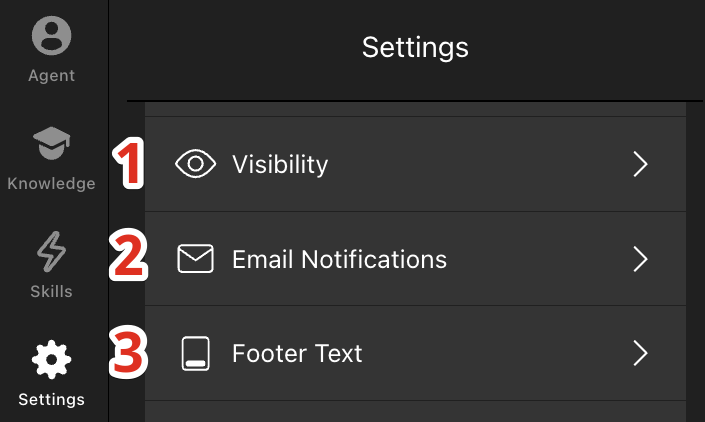
- 1
-
Use the Visibility section to control where your chatbot appears by limiting it to specific pages or devices:
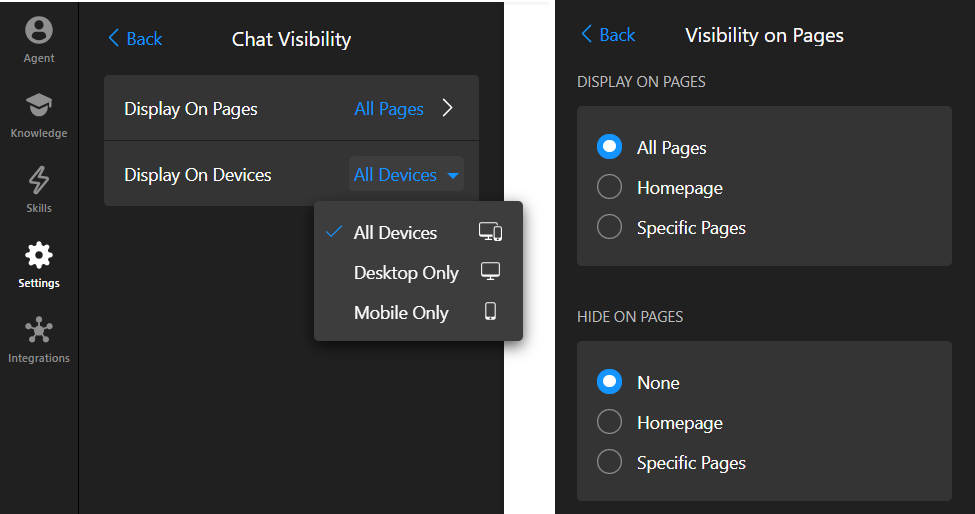
- 2
-
In the Email Notifications section, you can enable the Send Chat History to Email option to receive chat transcripts after each conversation:
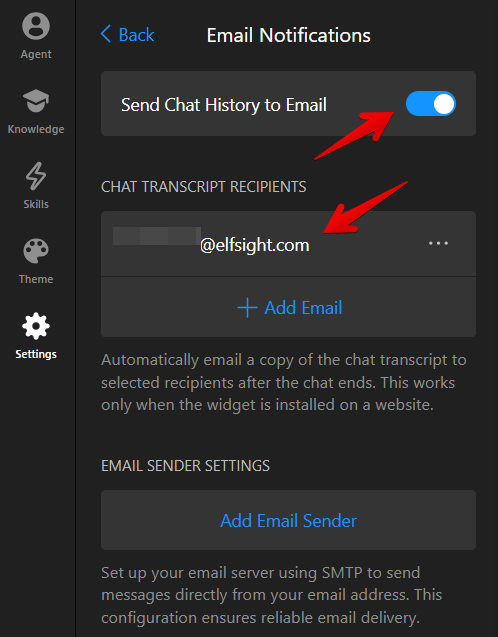
For chat histories to be delivered, the following conditions must be met:
- You must enter a valid email address under Owner Email
- The chatbot must be installed on a live website (not used in the widget editor)
- The conversation must be inactive for at least 10 minutes
By default, these notifications are sent from a system address, but you can also configure Email Sender Settings using SMTP to send them from a different email address.
- 3
-
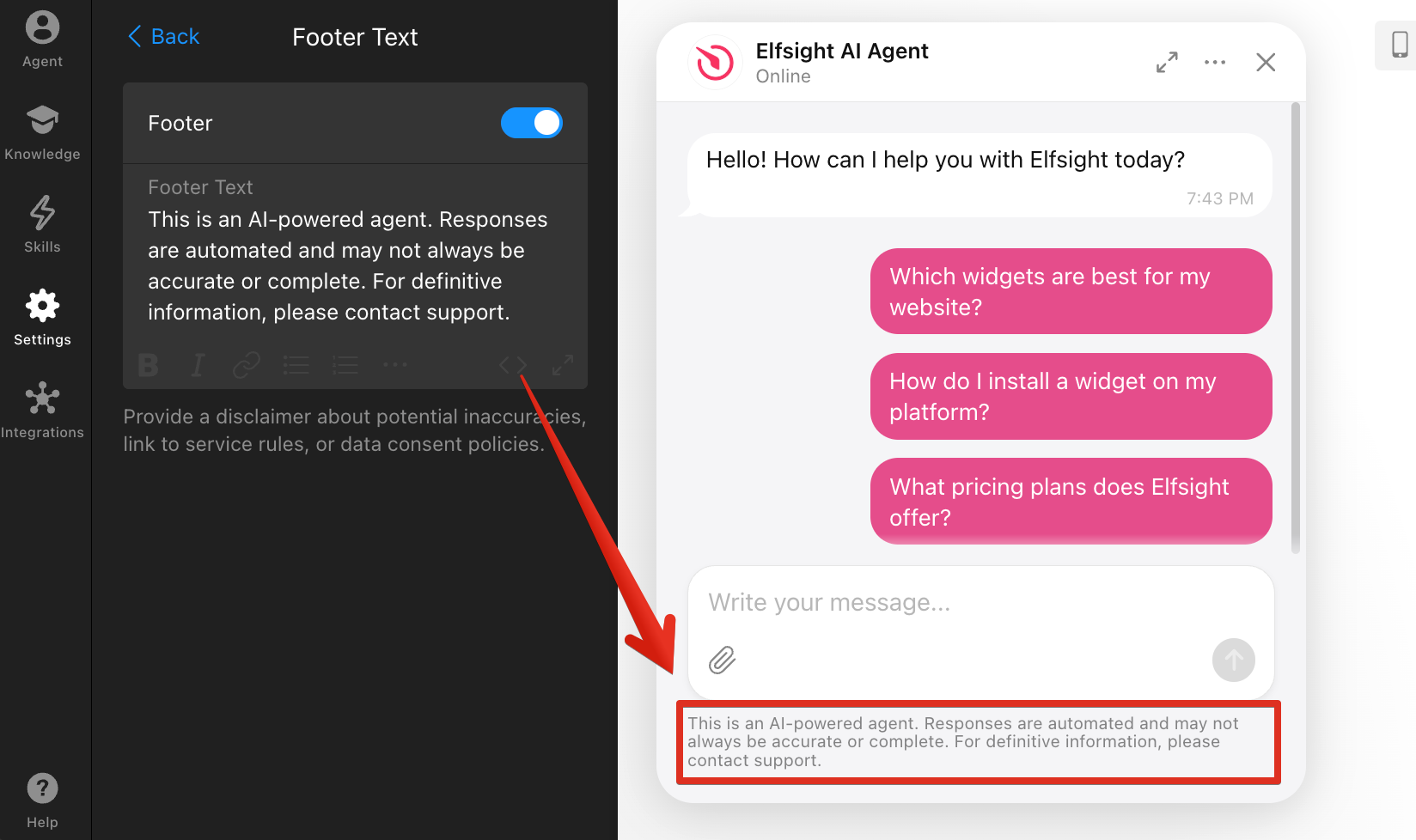
Toggle on the Footer to show text at the bottom of the chat window, such as the default disclaimer or any custom message:
Manage Chat Session Settings, Sounds & Language
Let's manage your AI Chatbot's chat sessions, sound alerts, language, and regional settings with the following options: 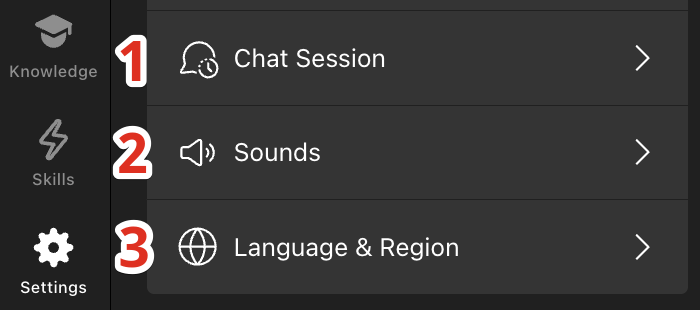
- 1
-
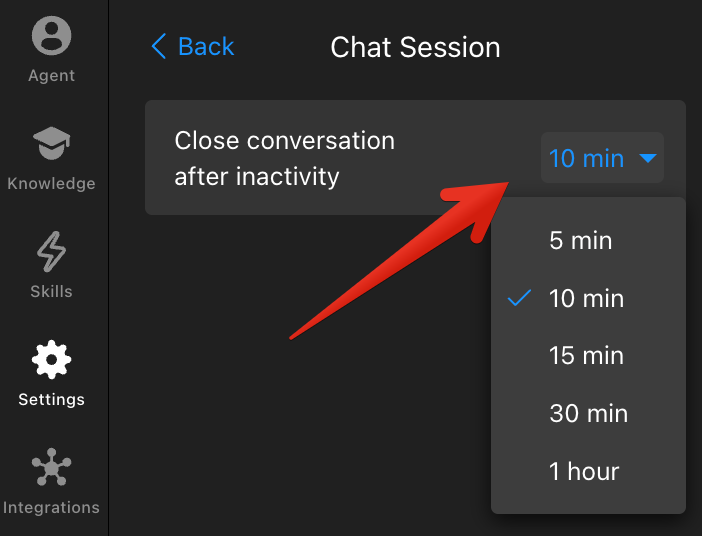
In the Chat Session section, use the Close Conversation After Inactivity dropdown to choose when an inactive conversation should close:
- 2
-
In the Sounds section, you can assign sound alerts for different chatbot actions, including opening the chat window, agent messages, and user messages:
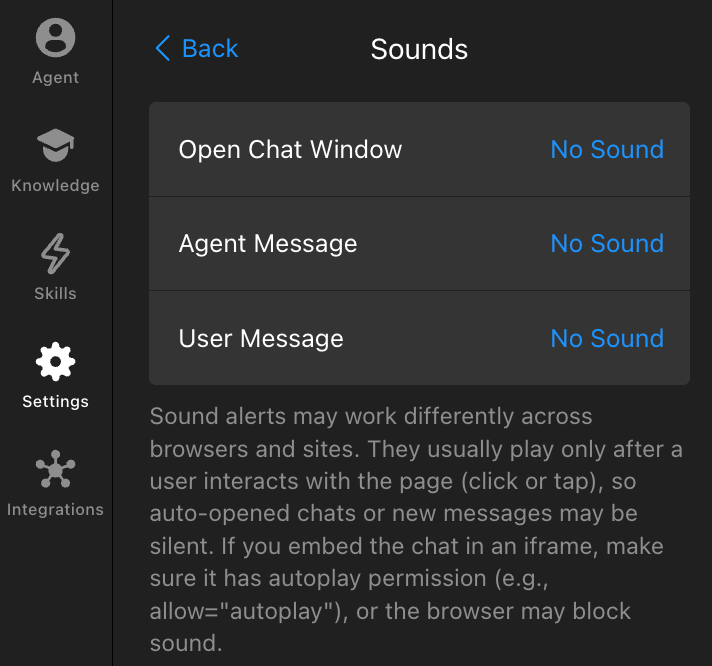
Sound alerts may only play after a visitor interacts with the page (for example, by clicking or tapping). If the chatbot is embedded in an iframe, make sure autoplay permissions are enabled, or the browser may block sounds. - 3
-
In the Language & Region section, you can choose the chatbot interface language using the Language dropdown. You can also customize the interface text with the Edit Text option:
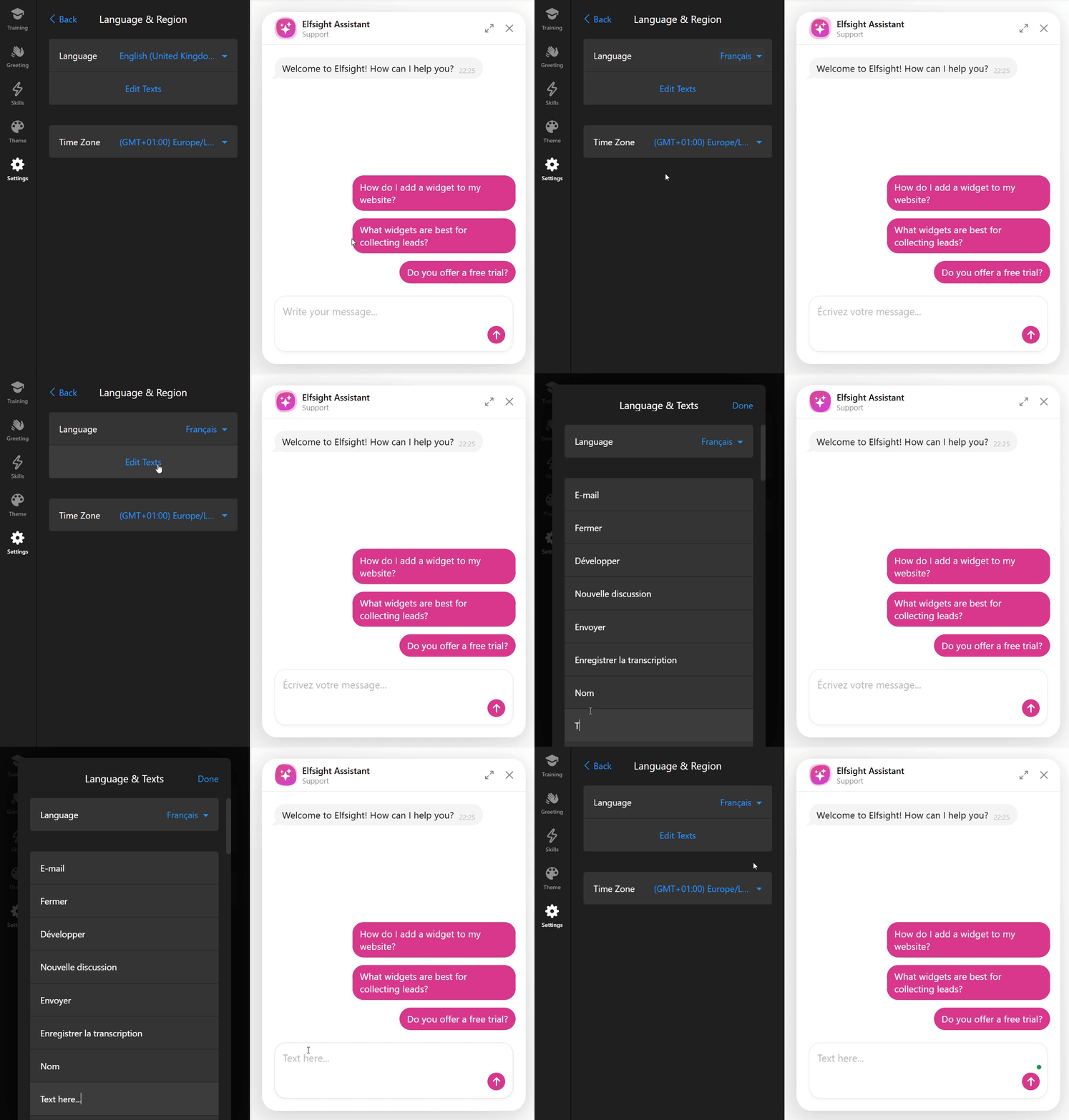
The selected language only affects the chatbot interface (buttons, labels, system messages). The AI agent will respond in the user’s language. Use the Time Zone dropdown to select the time zone for your widget. This time zone will be reflected in the chat history emails you receive as the widget owner:
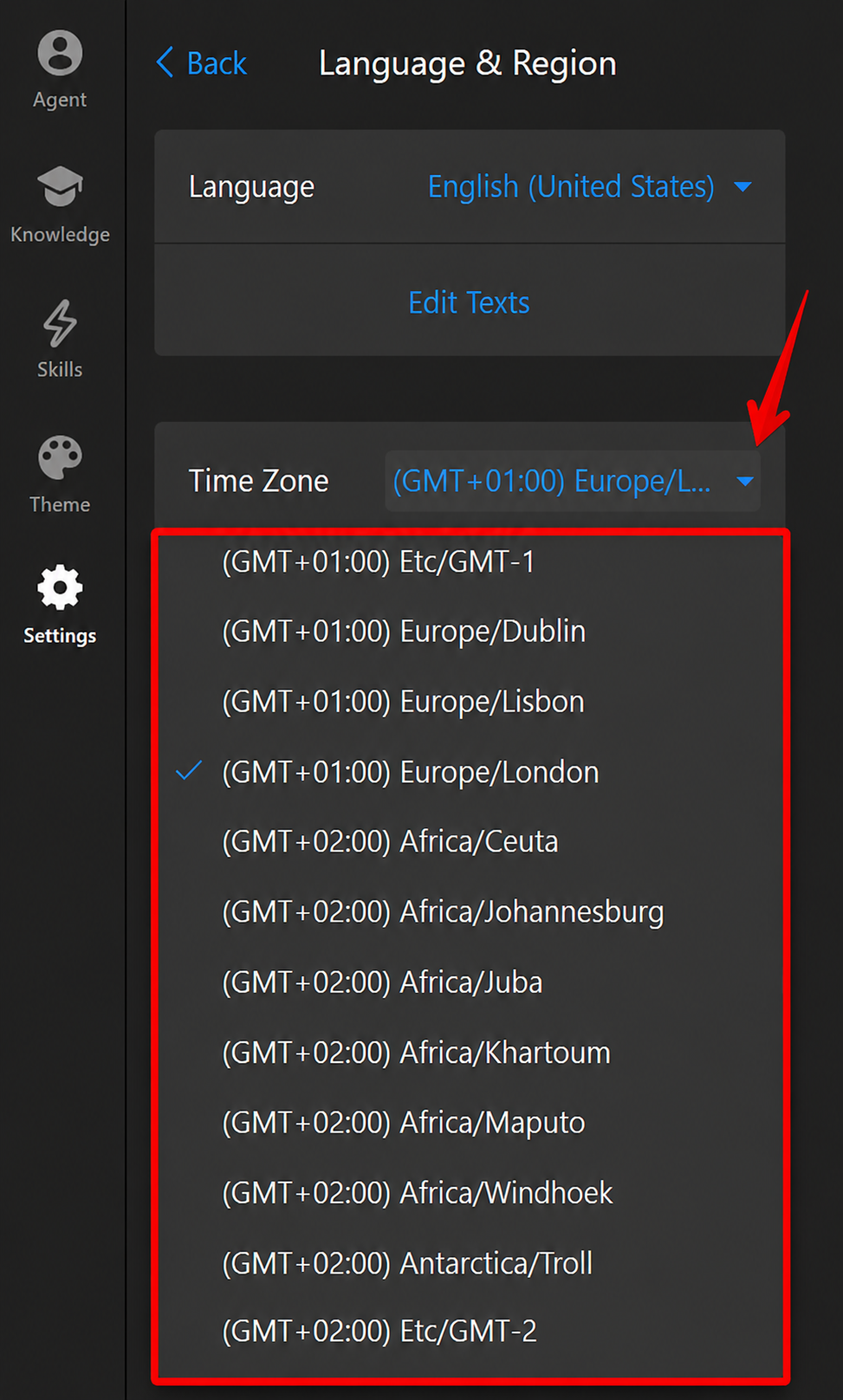
Chat users always see timestamps in their own local time zone in the chat and in any chat transcripts they save.
Adjust Advanced Settings & Enable Integrations
Let's customize your AI Chatbot with advanced code settings and connect it to external tools using integrations.
Custom CSS & JS
In the Custom CSS and Custom JS sections, you can add your own code to adjust the appearance and behavior of your widget: 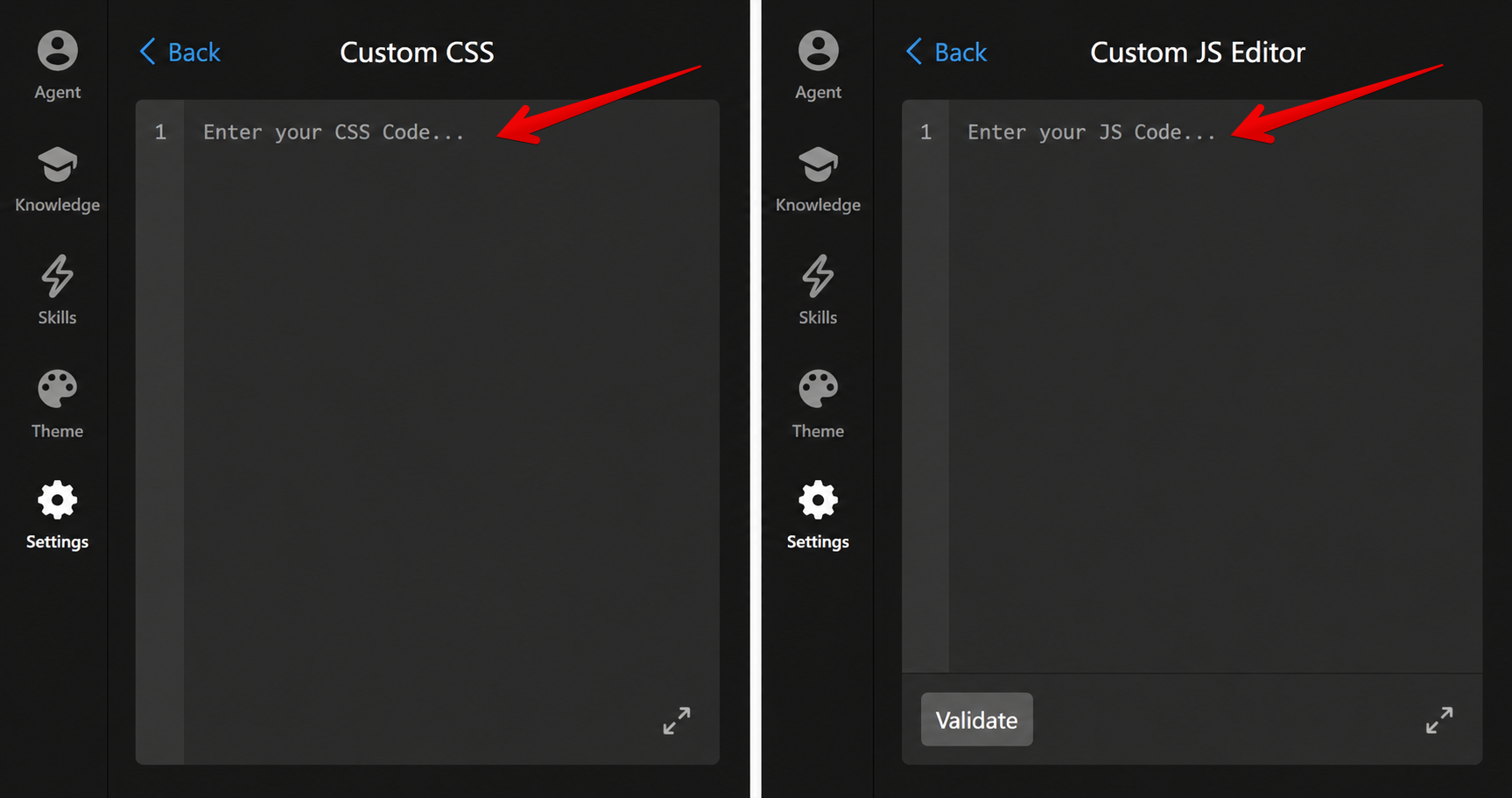
Check out our community post for handy CSS snippets and ideas to enhance your widget’s design and functionality even further.
Integrations
The Integrations tab allows you to connect your AI Chatbot with external tools to send or track conversation data:
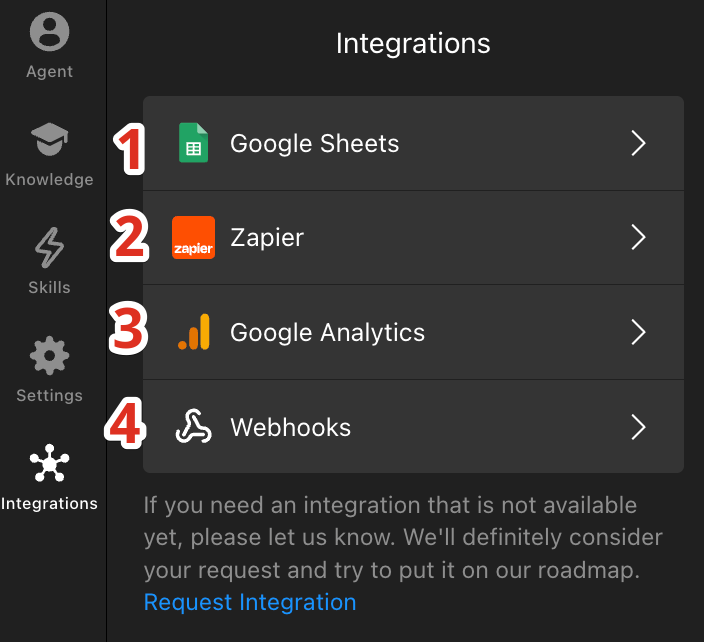
- Google Sheets — Automatically syncs chat details to a spreadsheet, with each conversation stored in a separate row.
- Zapier — Lets you connect your agent to more than 9,000 apps. When a conversation ends, its chat data is automatically sent through Zapier to your chosen tool.
- Google Analytics — Tracks chatbot interactions as events in Google Analytics 4 or Google Tag Manager without transferring chat data. Learn more in our Google Analytics and Event Tracking Guides.
- Webhooks — Automatically send chat data to external services whenever a conversation ends. For more information, check out Using Webhooks in Your Elfsight AI Chatbot.
Need another integration? Submit your request in our AI Chatbot Wishlist.
Your AI Chatbot is now fully set up and ready to go! 🎉 If you need any help along the way, feel free to reach out to our Support team.