
Building Out Your Popup
Our Popup widget helps you grab visitors’ attention, collect leads, and share important messages. In this article, we’ll show you how to create your own popup in just a few minutes. Let's get started! 🙌
In this article
Create and Style Your Popup
Start by creating your popup and setting its overall appearance in the Builder tab.
AI Popup Generator
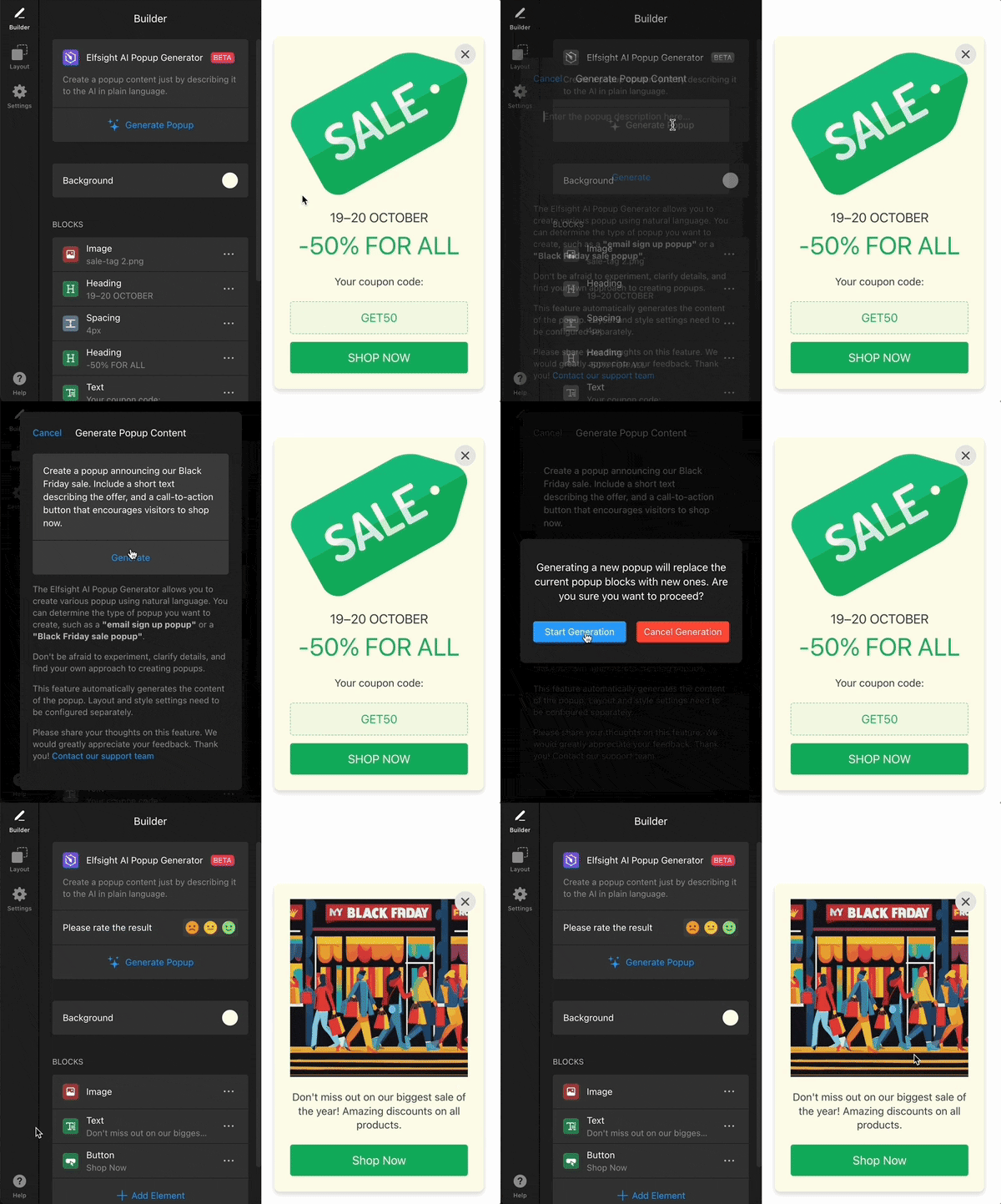
The AI Popup Generator lets you create a popup automatically from a short prompt. Click Generate Popup, enter a brief description including the popup type and elements (e.g., “Email signup popup for Black Friday sale with heading, text, and button”), and click Generate:
Background
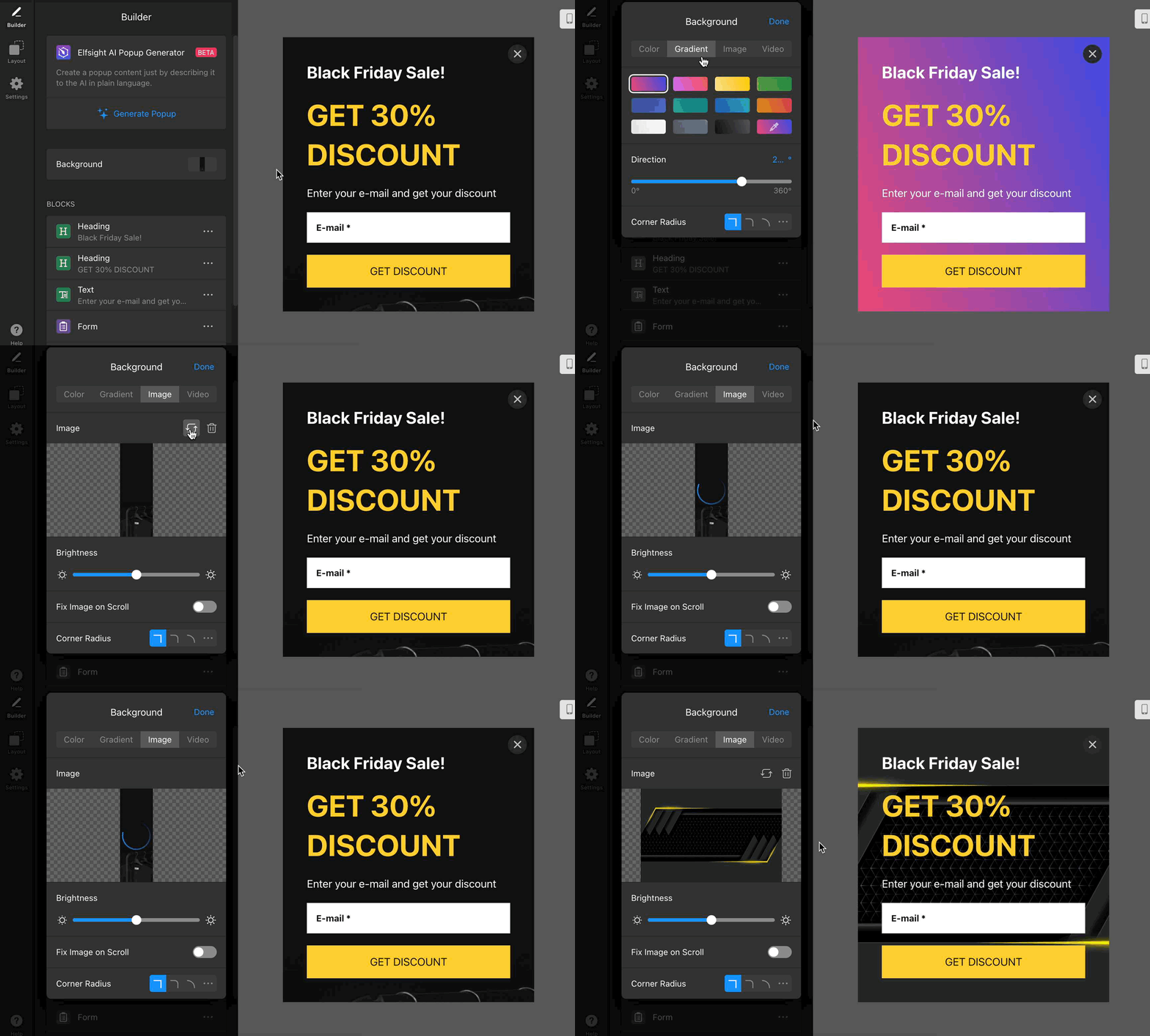
Customize the background to match your brand and grab attention. You can use a solid color, gradient, image, or video to create the right look for your popup:
Add Blocks
Elements are the building blocks of your popup. You can add them in Builder → Add Element: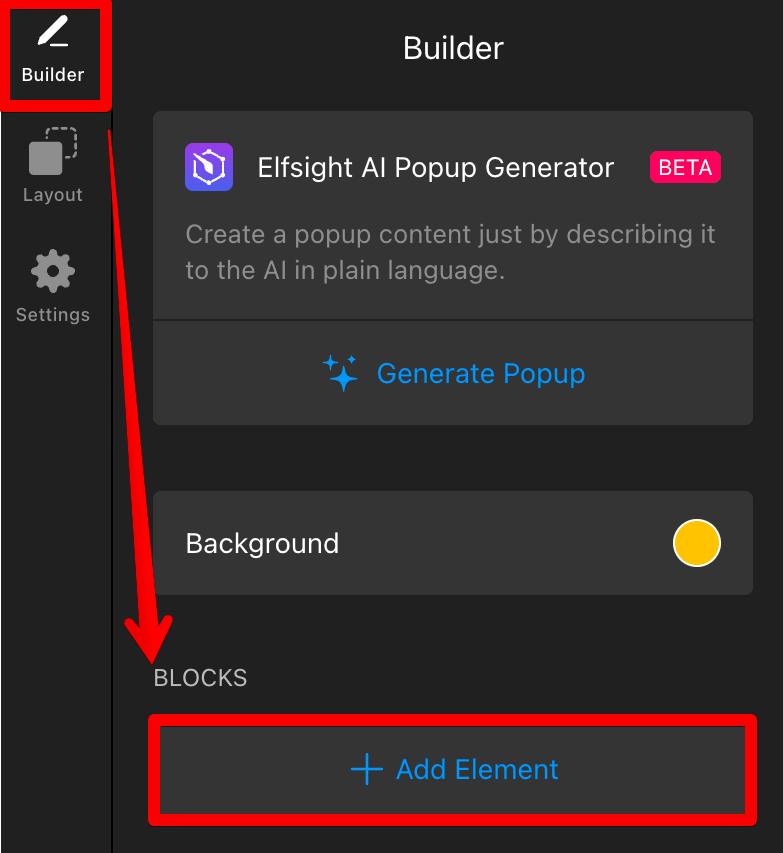
Each element is color-coded and serves a specific purpose. The available types include:
Content Elements
These blocks help you present your message and add calls to action. In this group, you’ll find:
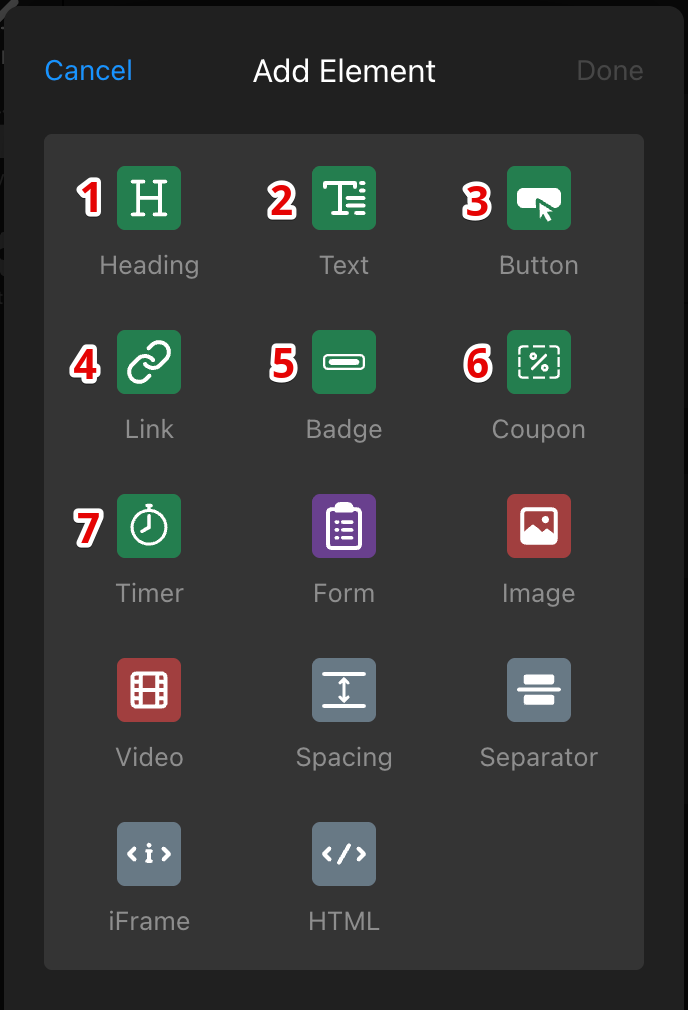
- Heading — Add a title to highlight key messages.
- Text — Add descriptions or supporting content.
- Button — Create a call-to-action button.
- Link — Add a clickable link to another page or resource.
- Badge — Highlight special offers or important information.
- Coupon — Display promotional codes.
- Timer — Add a countdown to create urgency.
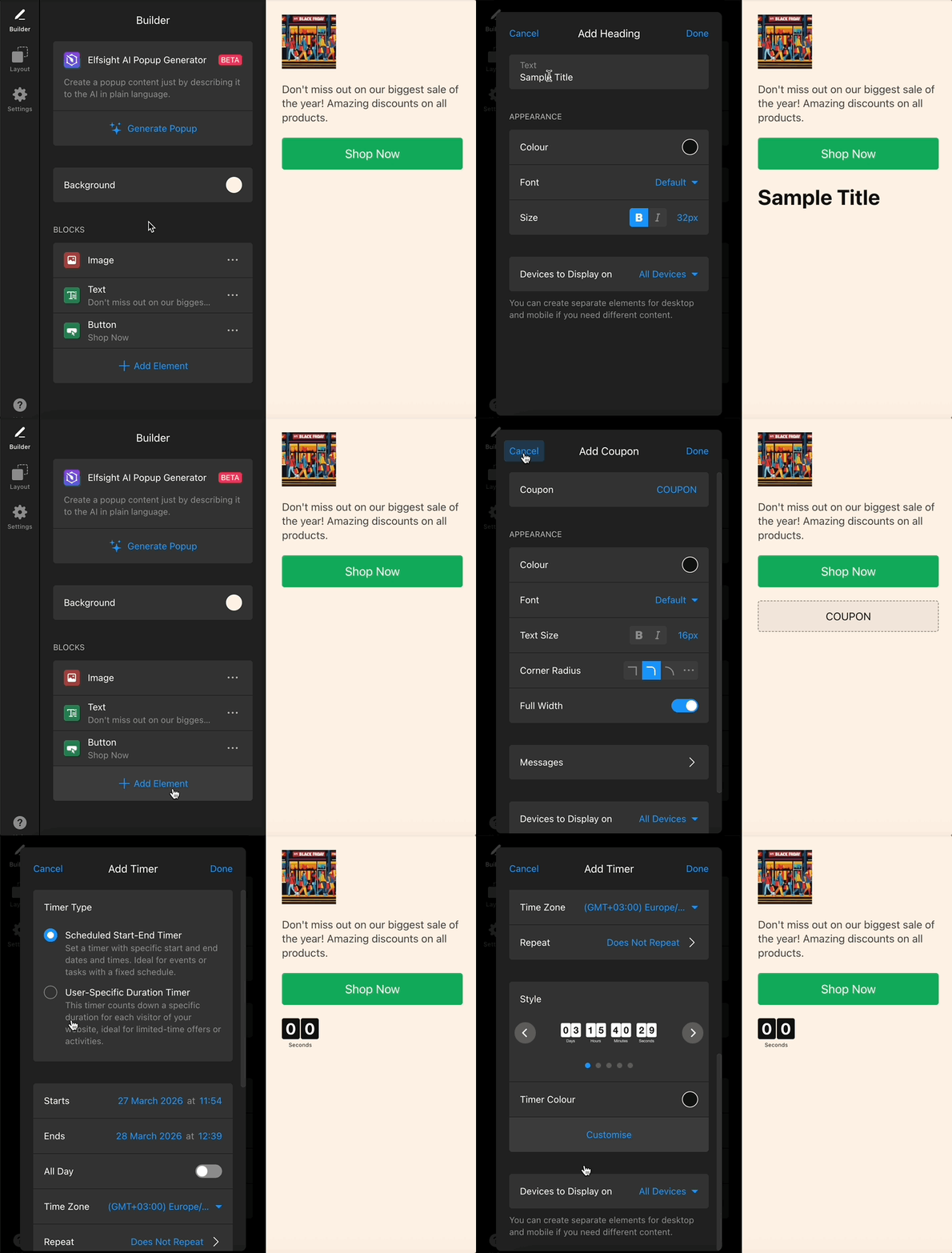
Each element includes customization options such as editing text, adjusting colors, and setting width:
Form
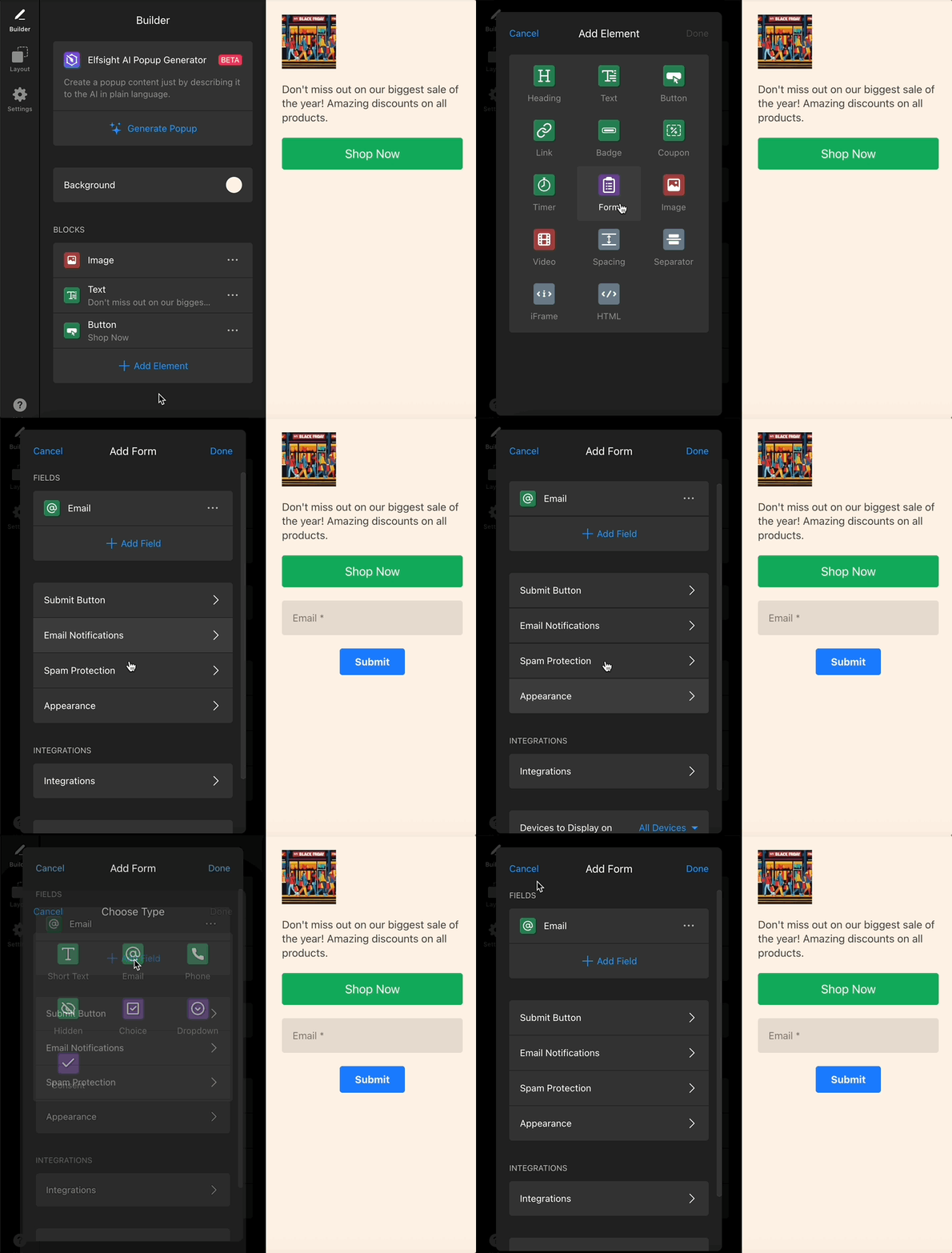
The Form element lets you add a fully customizable form to your popup, with flexible fields, integrations, and email notifications to manage submissions:
Media
These elements help you enrich your popup with visual content:
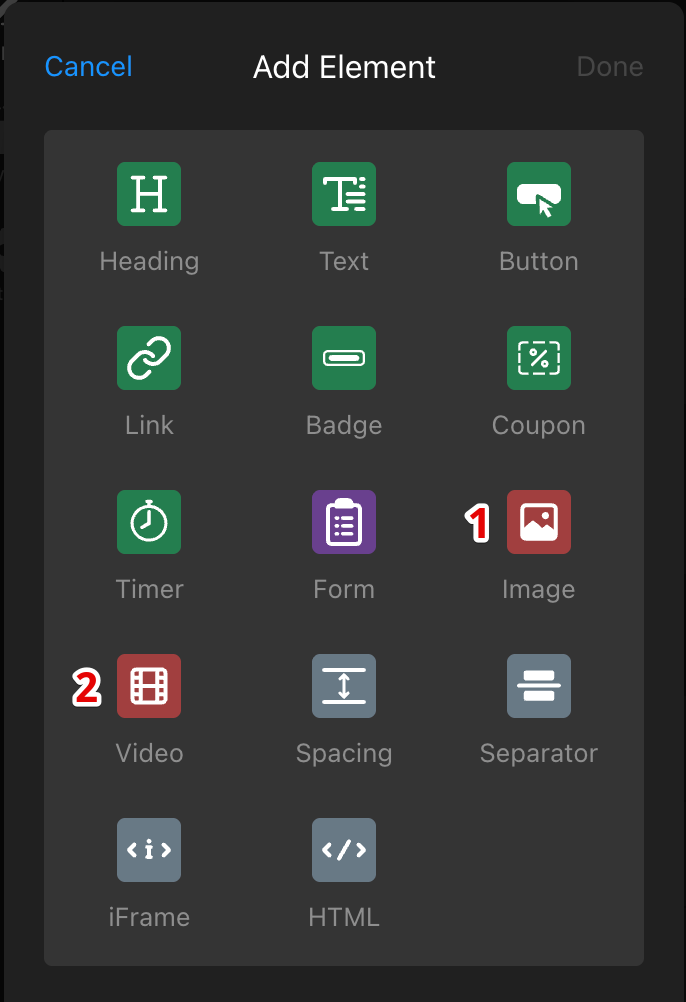
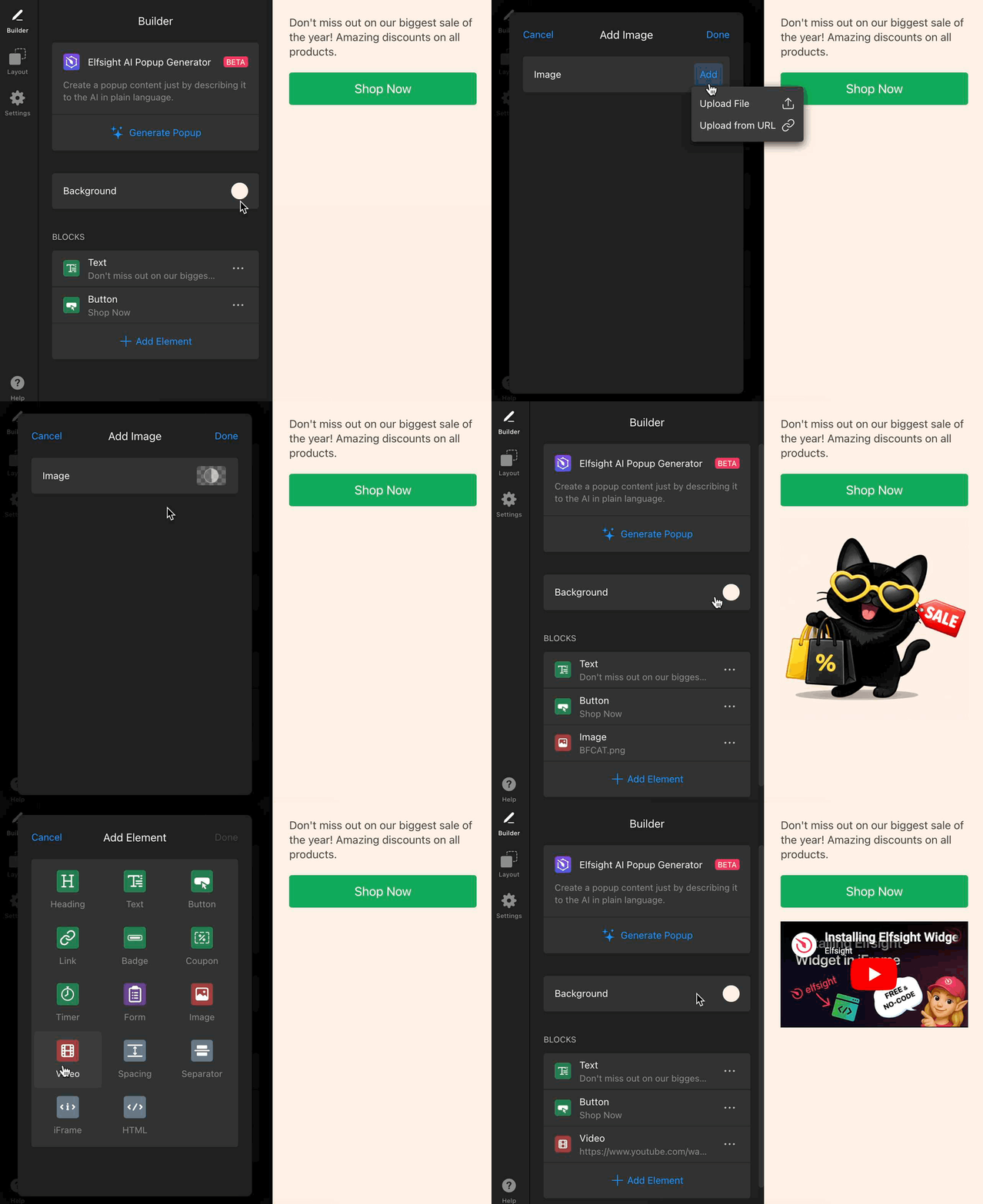
- Image — Upload an image from your device or add one via a direct URL.
- Video — Embed a video using a public YouTube or Vimeo link.
Spacing & Embed Elements
These elements help structure your popup and add advanced or custom content:
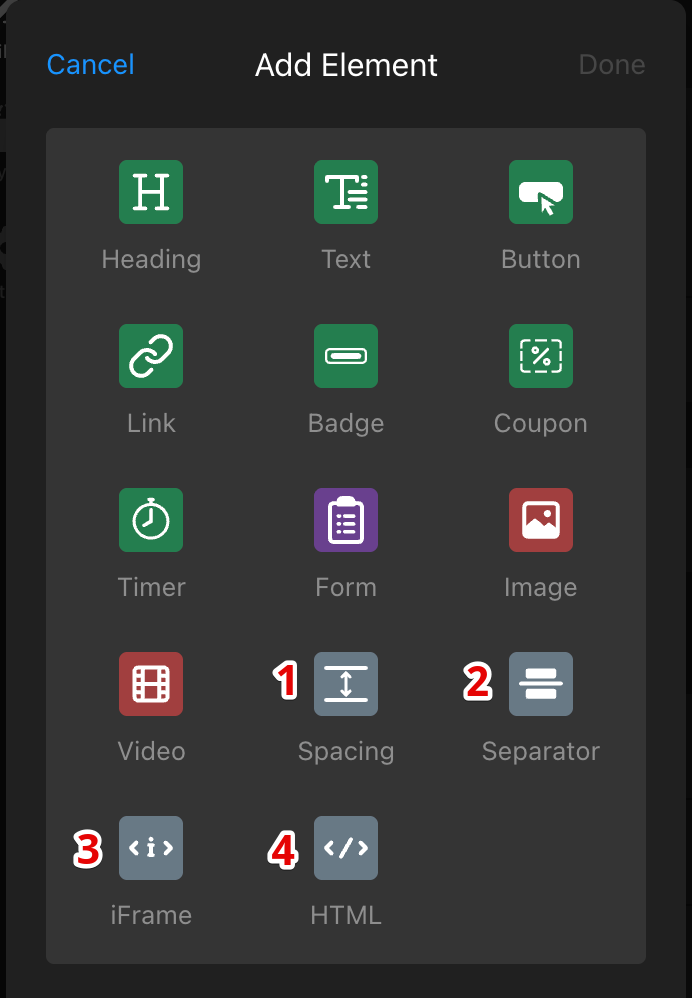
- Spacing — Add space between elements.
- Separator — Insert a visual divider.
- iFrame — Embed external content (e.g., maps or other widgets) using a URL.
- HTML — Add custom HTML code to embed advanced or custom content.
.gif)
Choose a Layout
In the Layout tab, you can choose a popup layout and customize it for desktop and mobile. Available layouts include Modal, Left or Right Pane, Left or Right Slide-in, and Top or Bottom Bar:
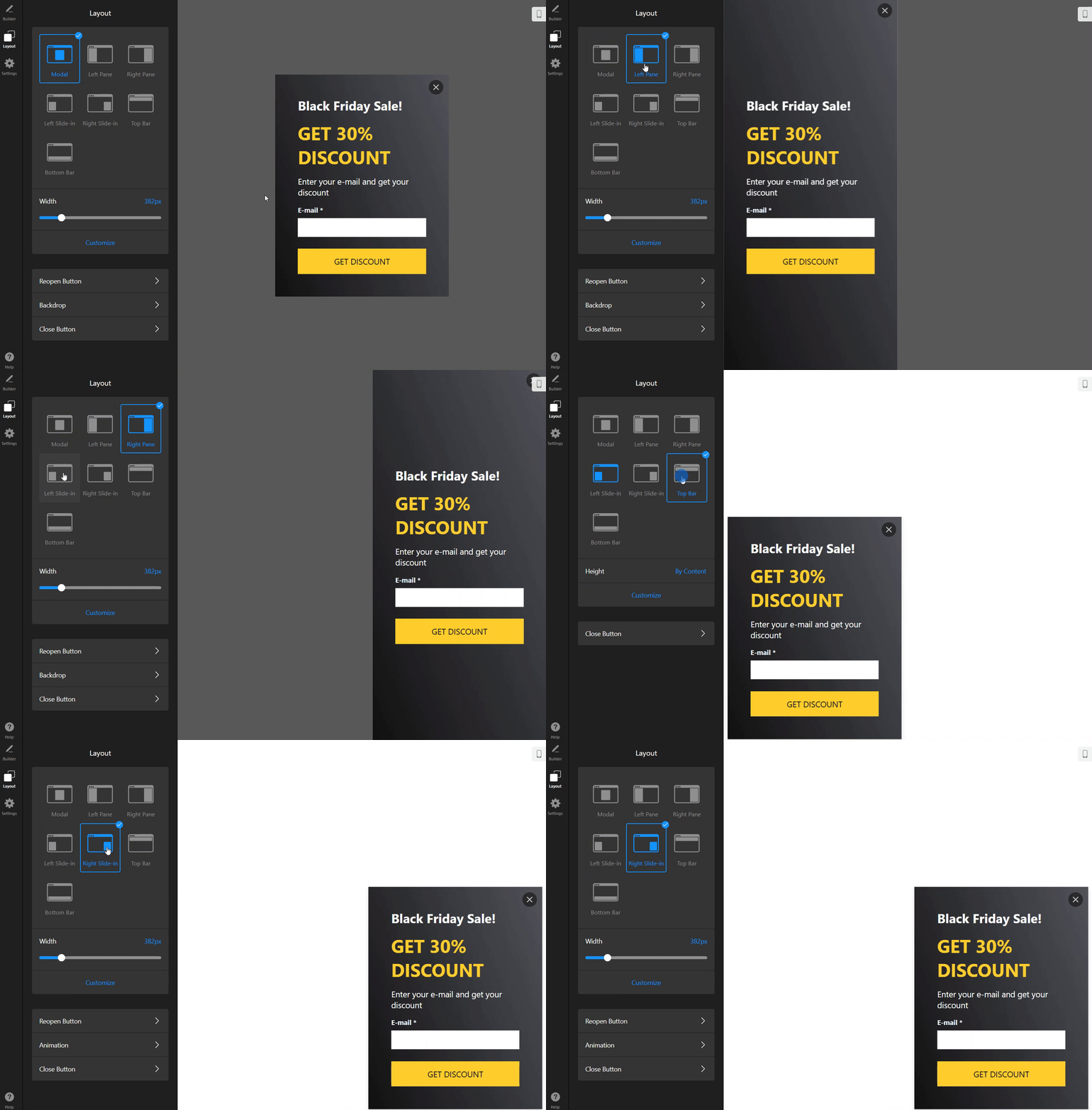
Depending on the selected layout, you can configure additional interaction settings:
- Close button — Add and customize the close icon.
- Reopen button — Allow reopening the popup.
- Backdrop — Set the background behind the popup.
- Animation — Configure animation (for Slide-in layouts).
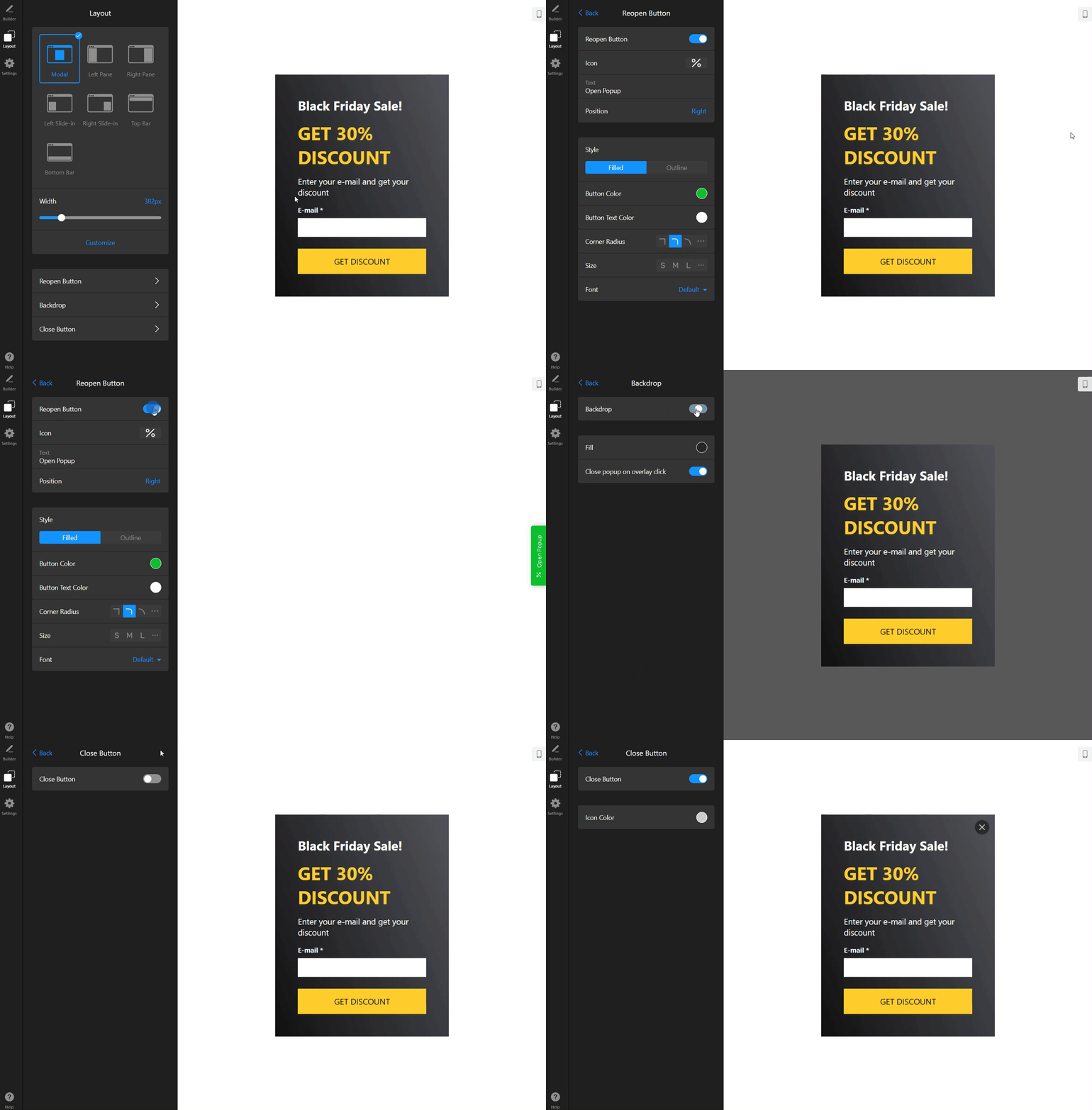
Nice work! Now you can mix and match elements and layouts to create popups for promotions, announcements, or lead generation. Try different setups to see what works best. ✨
If you have any questions, feel free to contact our Support Team. We’ll be happy to help!