
Using Webhooks in Your Elfsight AI Chatbot
Want to send data from your Elfsight AI Chatbot to another application or service? Add a webhook URL to automatically send conversation details—such as transcripts, AI summaries, collected contacts, and more—whenever a conversation ends.
A webhook works by sending an HTTP POST request to the URL you specify, allowing you to build your own integrations and automations. Follow the steps below to set it up.
In this article
Setting Up Webhooks
To add webhook URLs for your AI Chatbot conversations, follow these steps:
- 1
-
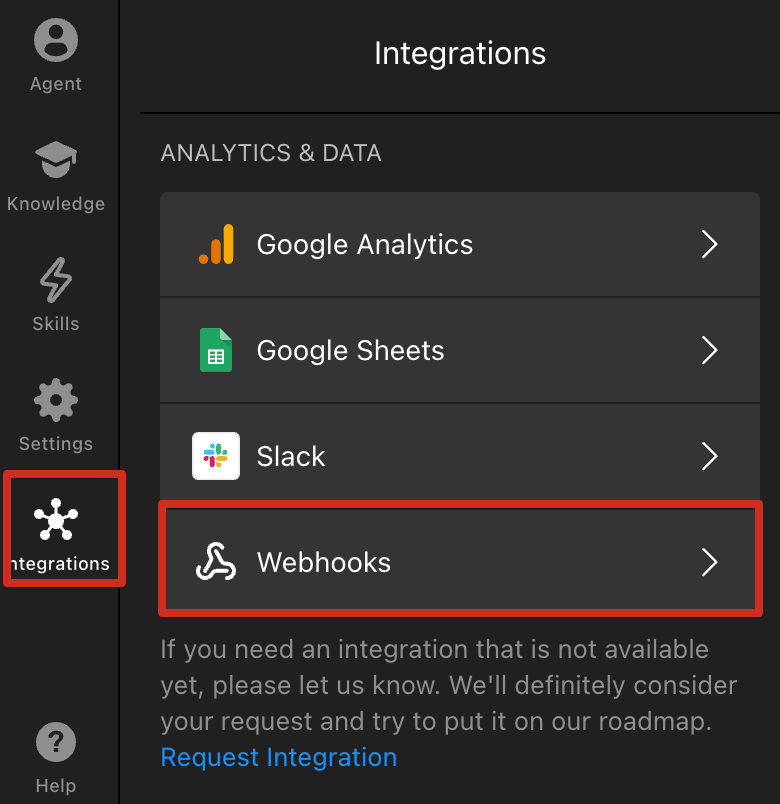
In your widget editor, go to the Integrations tab, scroll down to Analytics & Data, and click Webhooks:
- 2
-
Add one or more webhook URLs that should receive your conversation data:
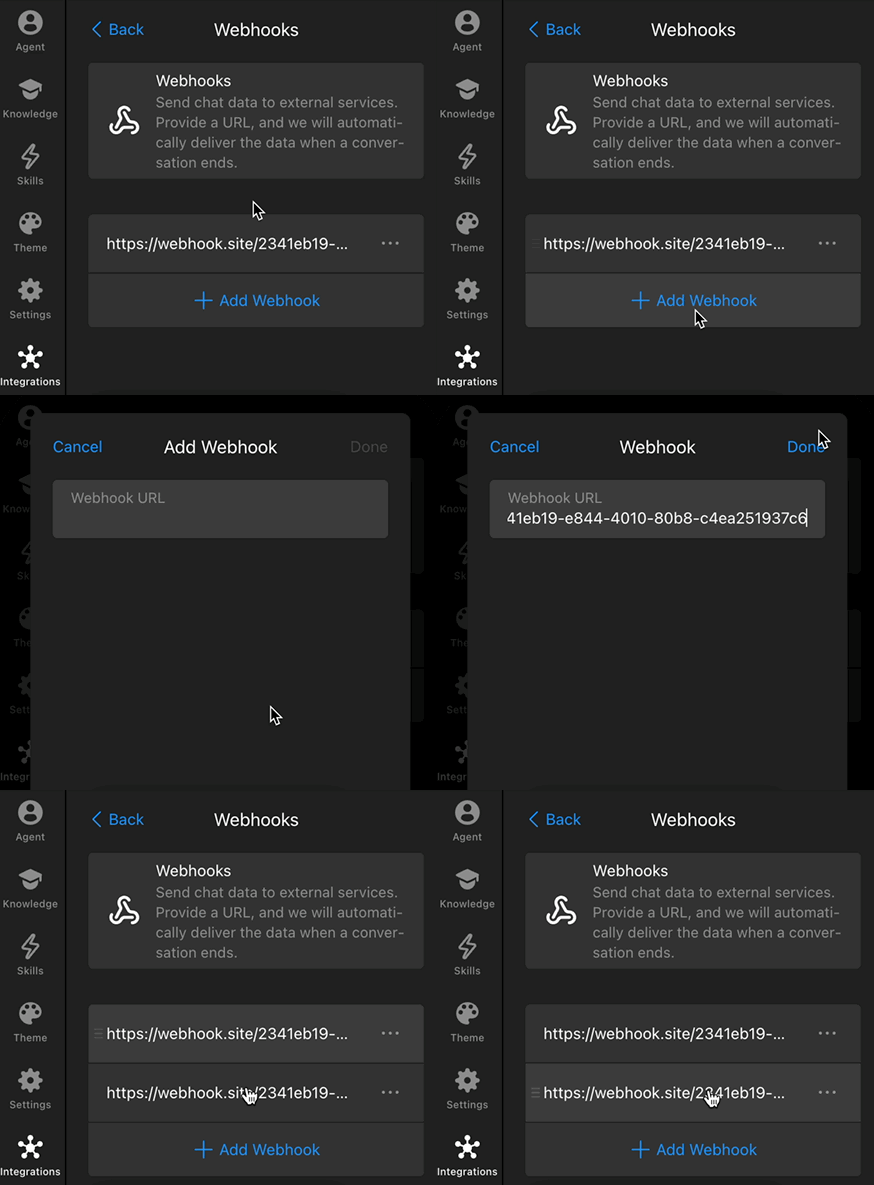
Don’t have a webhook URL for testing yet? Use a free service like webhook.site. Copy your unique URL and add it to the widget to inspect the conversation data it receives. - 3
-
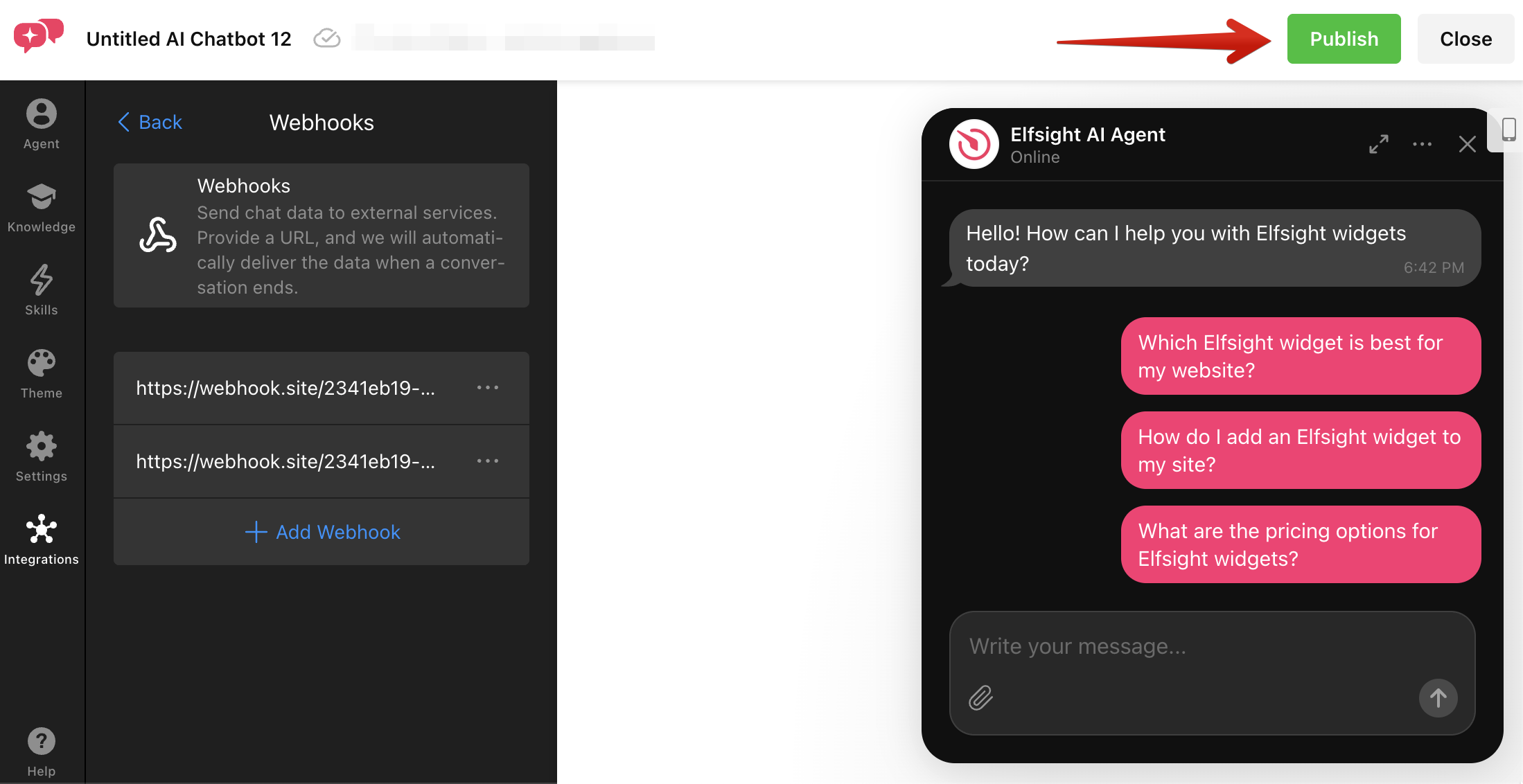
Publish your widget to enable the Webhook integration:
That’s it for the setup on the Elfsight side! 🎉 Let’s take a closer look at when webhooks are triggered and what data they send.
When Webhook Data Is Sent
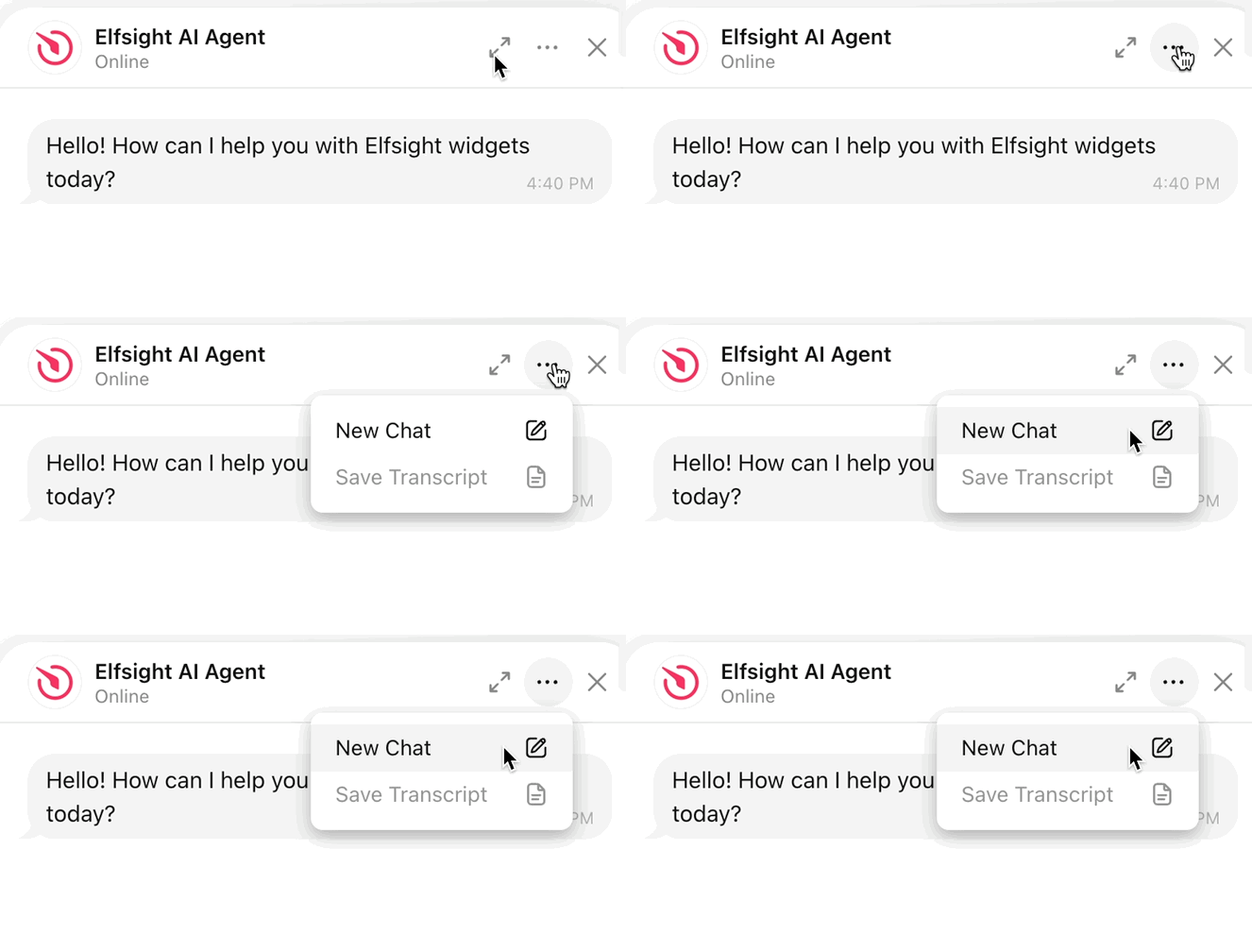
After you add your webhook URL and publish the widget, the AI Chatbot sends an HTTP POST request whenever a conversation ends. This happens in either of the following cases:
- The visitor clicks New Chat in the chatbot window:
- The configured inactivity period expires.
By default, a conversation closes after 10 minutes of inactivity. You can change this period in your widget editor under Settings → Chat Session → Close Conversation After Inactivity:
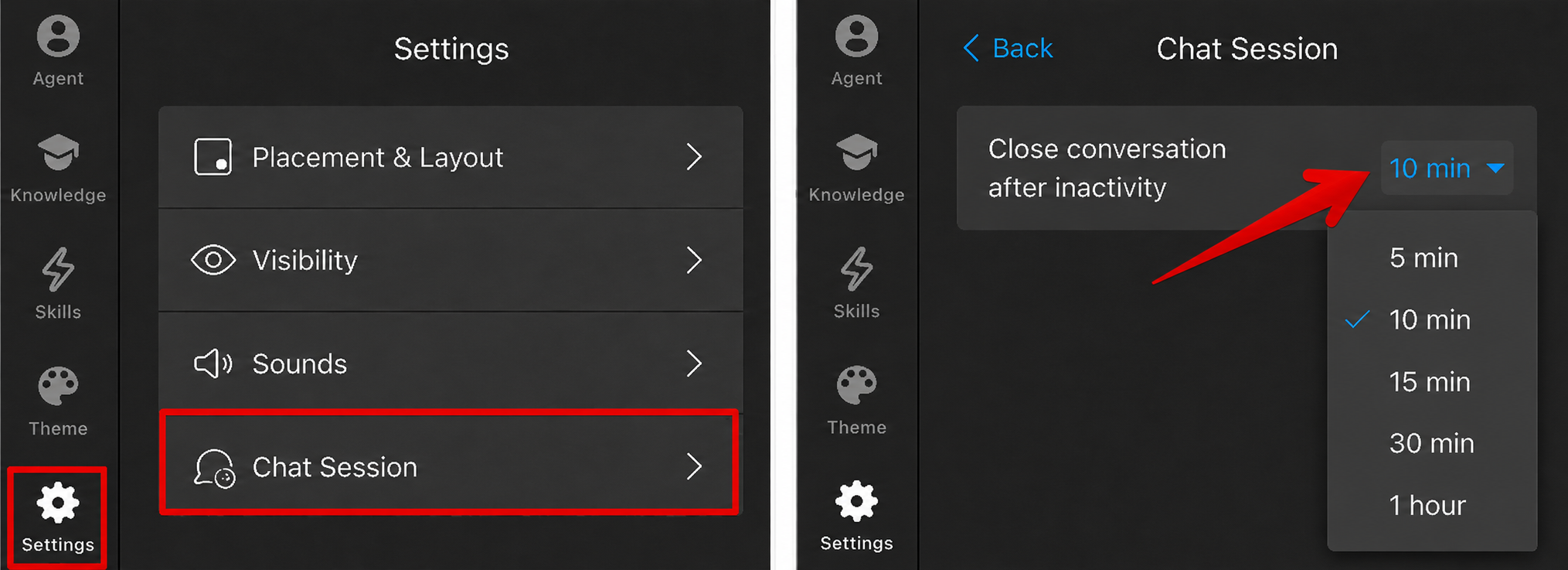
When one of the conditions is met, the widget sends one POST request to each webhook URL you have added. Next, we'll look at the structure of the conversation data included in the request.
Webhook Data Structure
The conversation data is sent in JSON format within the request body. It includes key details such as when and where the chat started, its duration and topic, an AI-generated summary, collected contact information, identified knowledge gaps, the full conversation transcript, and a direct link to the conversation in your Elfsight dashboard.
The same fields are included in every request. If certain information isn't available, the corresponding field may be empty.
Click the toggles below to view an example of the data structure and learn what each field represents:
Example JSON Data
The example below shows the structure of the conversation data sent to your webhook URL:
{
  "threadPid": "598f33ac-fa72-41b1-9a7f-2007455e32d1",
  "assistantPid": "51decad4-6ab7-473f-b0f7-24548dcbe78f",
  "widgetPid": "a395578b-f21f-4596-87fa-716df7b68432",
  "timeZone": "Etc/UTC",
  "chatStarted": "2026-10-20T14:32:10+00:00",
  "duration": "6 min",
  "sourcePage": "https://example.com/pricing",
  "chatTopic": "Refund policy for annual plans",
  "summary": "The visitor asked about refunds for annual plans, submitted contact information, and shared a screenshot. The assistant suggested contacting the team for details.",
  "leadName": "Jane Smith",
  "leadEmail": "jane@example.com",
  "leadPhone": null,
  "knowledgeGaps": [
    {
      "shortName": "Annual plan refunds",
      "summary": "What is the refund policy for annual plans?"
    }
  ],
  "transcript": [
    {
      "role": "AI Agent",
      "message": "Hi! How can I help you today?",
      "dateTime": "2026-10-20T14:32:10+00:00",
      "rating": null,
      "widgets": [],
      "attachments": [],
      "action": null
    },
    {
      "role": "Visitor",
      "message": "What is the refund policy for annual plans?",
      "dateTime": "2026-10-20T14:32:25+00:00",
      "rating": null,
      "widgets": [],
      "attachments": [],
      "action": null
    },
    {
      "role": "AI Agent",
      "message": "I don't have the exact details. Please share your contact information.",
      "dateTime": "2026-10-20T14:32:30+00:00",
      "rating": null,
      "widgets": [
        {
          "type": "collectContacts",
          "fields": [
            "email",
            "name",
            "phone",
            "consent"
          ],
          "buttons": [],
          "caption": null
        }
      ],
      "attachments": [],
      "action": "formRequest"
    },
    {
      "role": "System",
      "message": "You filled out the contact form",
      "dateTime": "2026-10-20T14:33:00+00:00",
      "rating": null,
      "widgets": [],
      "attachments": [],
      "action": "formSuccess"
    },
    {
      "role": "Visitor",
      "message": "Here is a screenshot of the plan.",
      "dateTime": "2026-10-20T14:33:10+00:00",
      "rating": null,
      "widgets": [],
      "attachments": [
        {
          "name": "screenshot.png",
          "type": "image",
          "url": "https://...",
          "fileSize": 48213
        }
      ],
      "action": null
    },
    {
      "role": "AI Agent",
      "message": "Thanks, Jane! You can contact our team for more details.",
      "dateTime": "2026-10-20T14:33:12+00:00",
      "rating": "good",
      "widgets": [
        {
          "type": "actionButtons",
          "fields": [],
          "buttons": [
            "Contact sales"
          ],
          "caption": null
        }
      ],
      "attachments": [],
      "action": null
    },
    {
      "role": "System",
      "message": "Chat ended due to inactivity",
      "dateTime": "2026-10-20T14:38:00+00:00",
      "rating": null,
      "widgets": [],
      "attachments": [],
      "action": "chatEndedInactivity"
    }
  ],
  "dashboardLink": "https://dash.elfsight.com/widget/.../chats/...",
  "language": "en",
  "durationMinutes": 6,
  "knowledgeGapsDashboardLink": "https://dash.elfsight.com/widget/...",
  "leadConsent": {
    "status": "granted",
    "text": "I consent to the processing of my personal data.",
    "submittedAt": "2026-10-20T14:33:00+00:00"
  }
}
Webhook Data Fields
The tables below explain what each field in the webhook data represents:
Main Data Fields
| Field | Type | Description |
|---|---|---|
| threadPid | string (UUID) | Unique identifier of the conversation. |
| assistantPid | string (UUID) | Unique identifier of the AI Agent. |
| widgetPid | string (UUID) | Widget ID. |
| timeZone | string | Time zone selected in the widget settings. |
| chatStarted | string (ISO 8601) | null | Date and time when the conversation started. |
| duration | string | null | Conversation duration as text (e.g., "6 min"). |
| sourcePage | string (URL) | null | Page or channel URL where the chat began. |
| chatTopic | string | null | AI-identified conversation topic. |
| summary | string | null | AI-generated conversation summary. |
| leadName | string | null | Visitor's name from the Collect Contacts skill. |
| leadEmail | string | null | Visitor's email from the Collect Contacts skill. |
| leadPhone | string | null | Visitor's phone number from the Collect Contacts skill. |
| knowledgeGaps | object[] | Questions the AI Agent couldn't answer. Contains an empty array if no knowledge gaps were identified. See Knowledge Gaps Fields below. |
| transcript | object[] | Complete conversation history. See Chat Transcript Fields below. |
| dashboardLink | string (URL) | null | Direct link to the conversation in your Elfsight dashboard. |
| language | string | Language selected in the widget settings, as a locale code (e.g., "en"). |
| durationMinutes | number | null | Conversation duration in minutes; null if not closed. |
| knowledgeGapsDashboardLink | string (URL) | Link to Knowledge Gaps in your dashboard. |
| leadConsent | object | null | Consent details from the Collect Contacts skill. See Lead Consent Fields below. |
Knowledge Gaps Fields
| Field | Type | Description |
|---|---|---|
| shortName | string | Short title describing the knowledge gap. |
| summary | string | Detailed description of the question the AI Agent couldn't answer. |
Chat Transcript Fields
| Field | Type | Description |
|---|---|---|
| role | string | Message sender: "AI Agent", "Visitor", "System", or "Channel Owner" (channel owner's reply). |
| message | string | Plain text for all roles, with HTML removed. |
| dateTime | string (ISO 8601) | Date and time when the message was sent. |
| rating | string | null | Message rating: "good", "bad", or null. |
| widgets | object[] | Skill widgets included in the message. Contains [] if none. See Skill Widget Fields below. |
| attachments | object[] | Files attached to the message. Contains [] if none. See Attachment Fields below. |
| action | string | null | Associated action (e.g., formRequest, formSuccess, followUp, chatEndedByUser, chatEndedInactivity) or null. |
Skill Widget Fields
| Field | Type | Description |
|---|---|---|
| type | string | Skill widget type: collectContacts, actionButtons, contactHuman, booking, createTicket, or followUp. |
| fields | array | Field identifiers as strings (e.g., "email", "name"). |
| buttons | array | Action button labels as strings. |
| caption | string | null | Skill widget caption. |
Attachment Fields
| Field | Type | Description |
|---|---|---|
| name | string | Original filename, including its extension. |
| type | string | Attachment type: "image" or "file". |
| url | string (URL) | Public, non-expiring link to the attached file. |
| fileSize | number | Attachment size in bytes. |
Lead Consent Fields
| Field | Type | Description |
|---|---|---|
| status | string | Consent status: "granted" or "not_asked". |
| text | string | null | Consent statement shown in the form. |
| submittedAt | string (ISO 8601) | null | Date and time of consent submission. |
You can now process the received conversation data in an external service, store it in a database, or use it in your own integrations and automations.
We hope this article was helpful! If you have any questions or need assistance, feel free to contact our Support Team — we're happy to help! 🙌