
How to Generate a HAR File
When investigating technical issues, we may ask you to provide a HAR (HTTP Archive) file. A HAR file records network requests made by your browser while loading a webpage.
We usually request a HAR file when we can’t reproduce the issue on our side or need more details about what happens in your browser. It helps us analyze requests, responses, loading times, and other technical details to identify the cause of the issue.
Choose your browser
Google Chrome
- 1
-
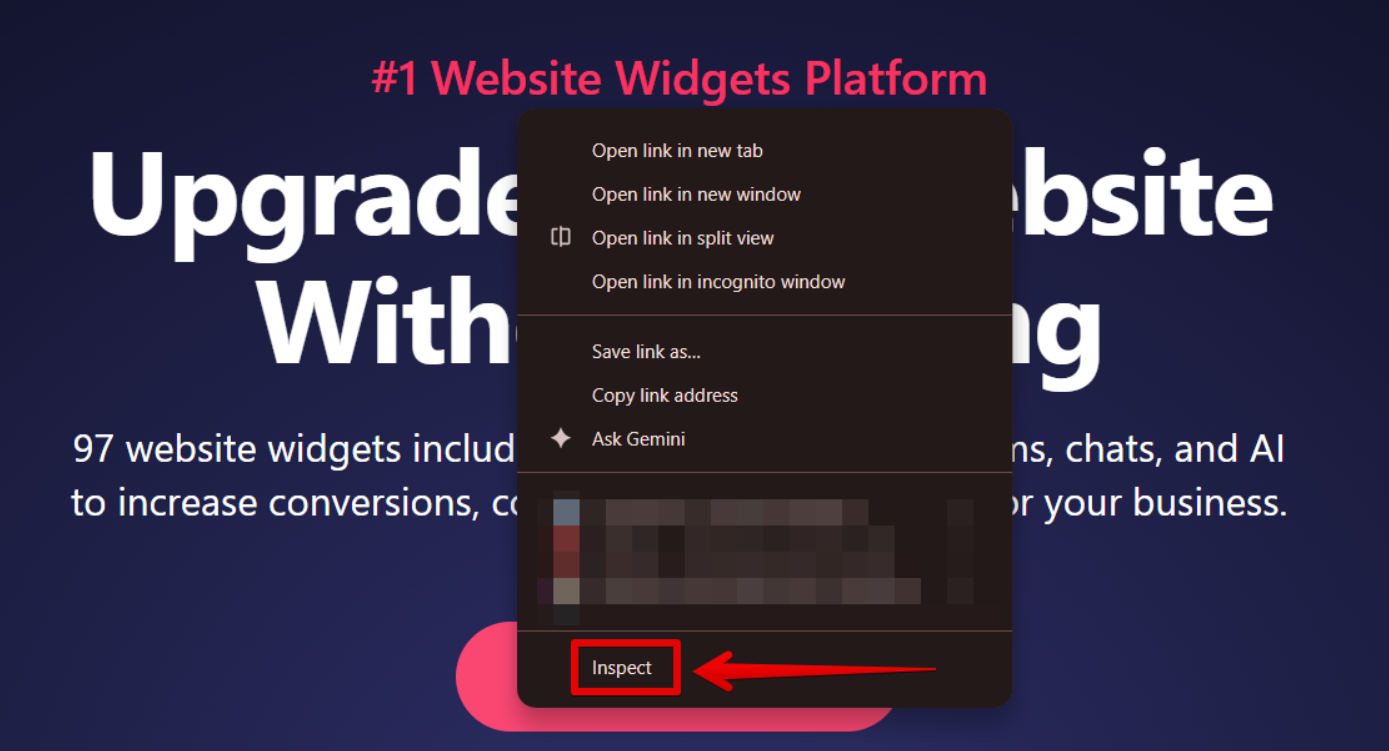
Open the page where you experience the issue, then open Developer Tools:
- Right-click → Inspect
- Use the keyboard shortcut: Ctrl + Shift + I (Windows/Linux) or Cmd + Option + I (macOS):
- 2
-
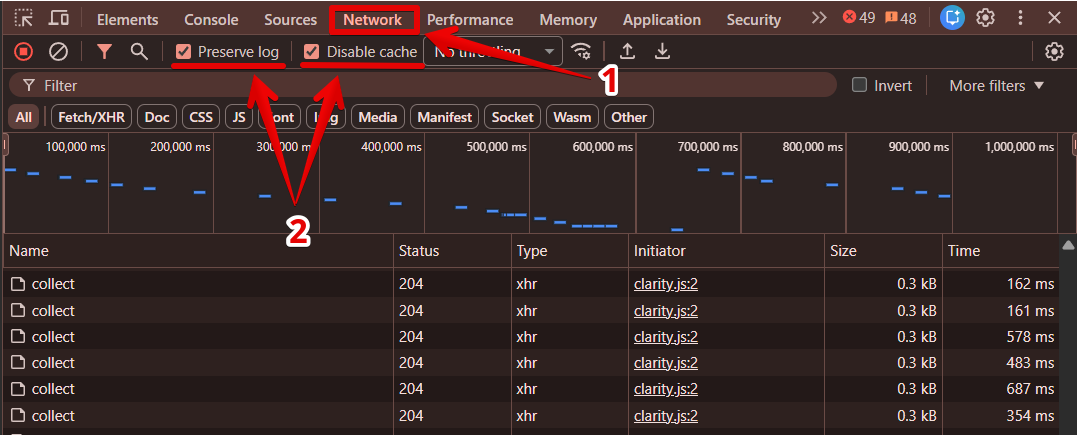
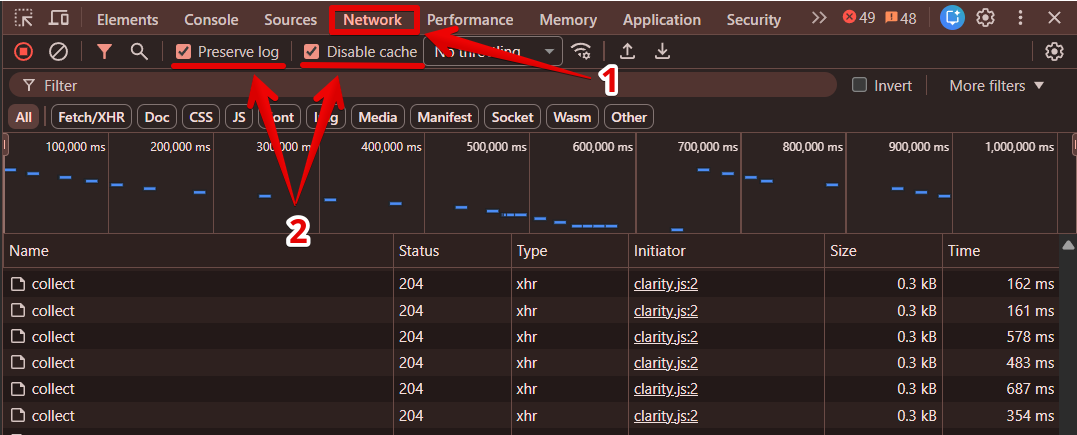
Open the Network tab. Then, enable Preserve log and Disable cache:
- 3
-
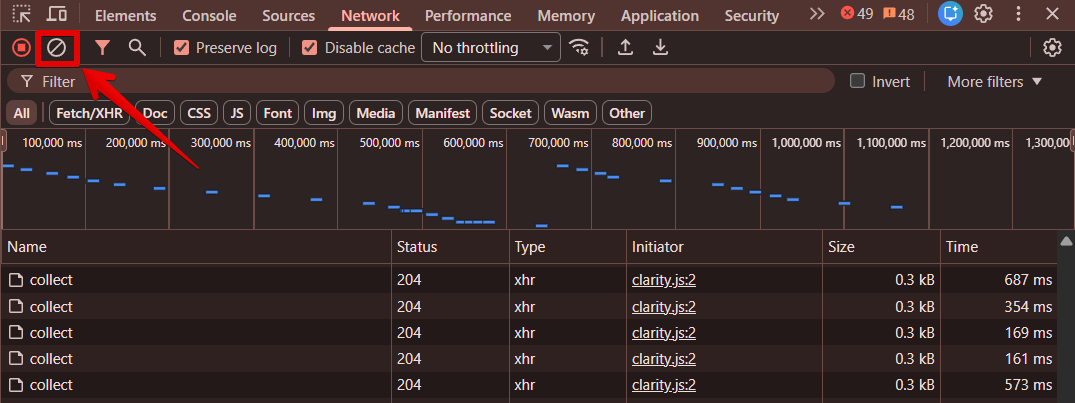
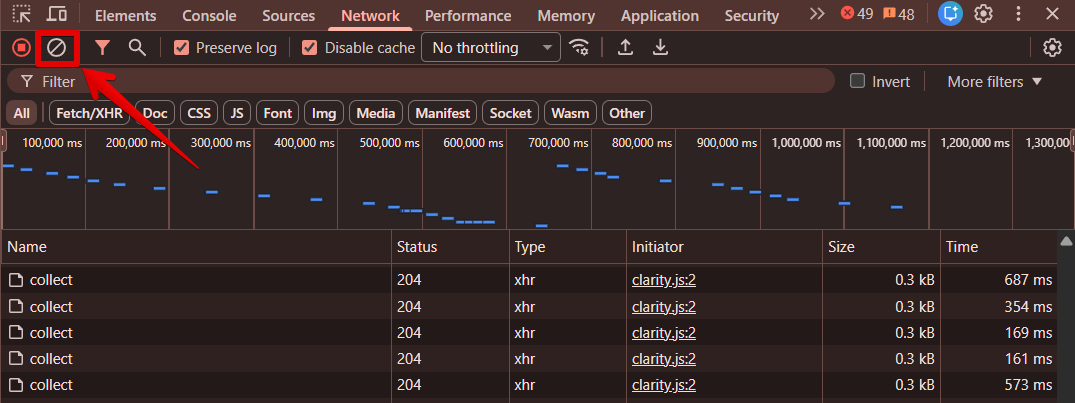
Clear existing requests and reproduce the issue:
- 4
-
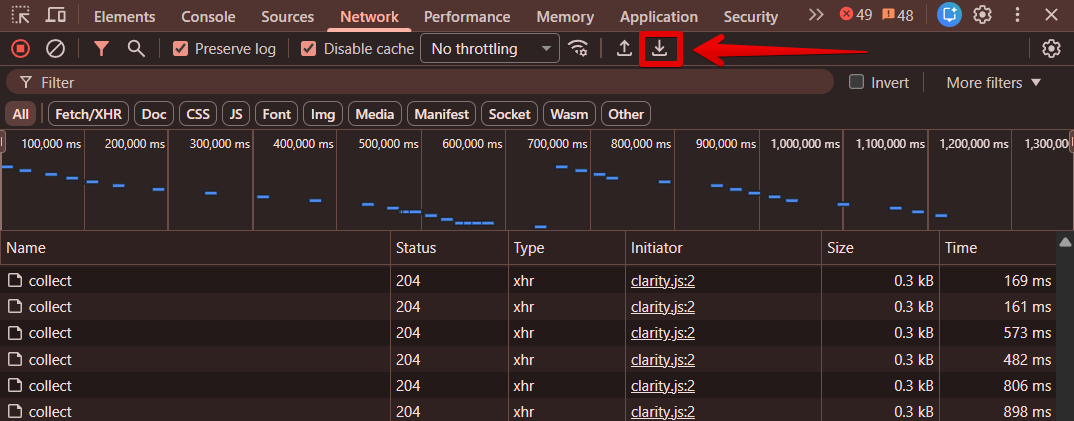
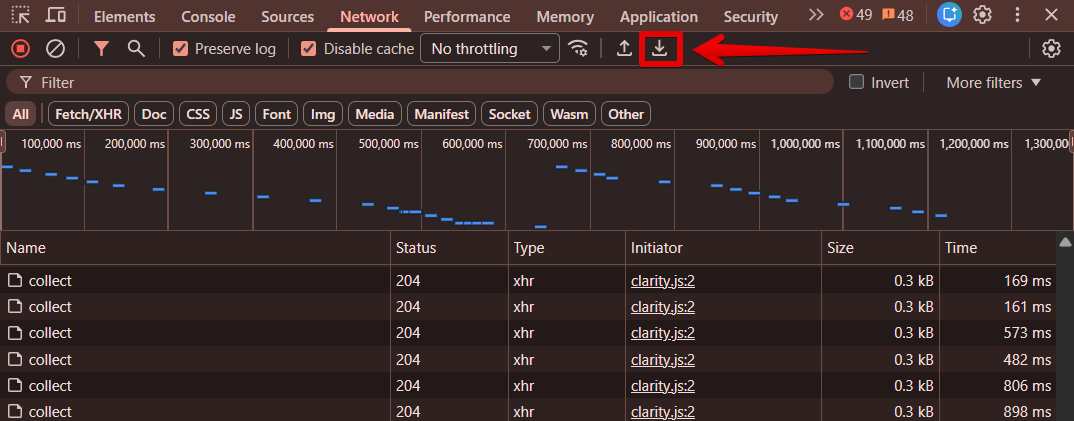
Click the Export HAR icon (⬇️) to save the HAR file:
Safari
- 1
-
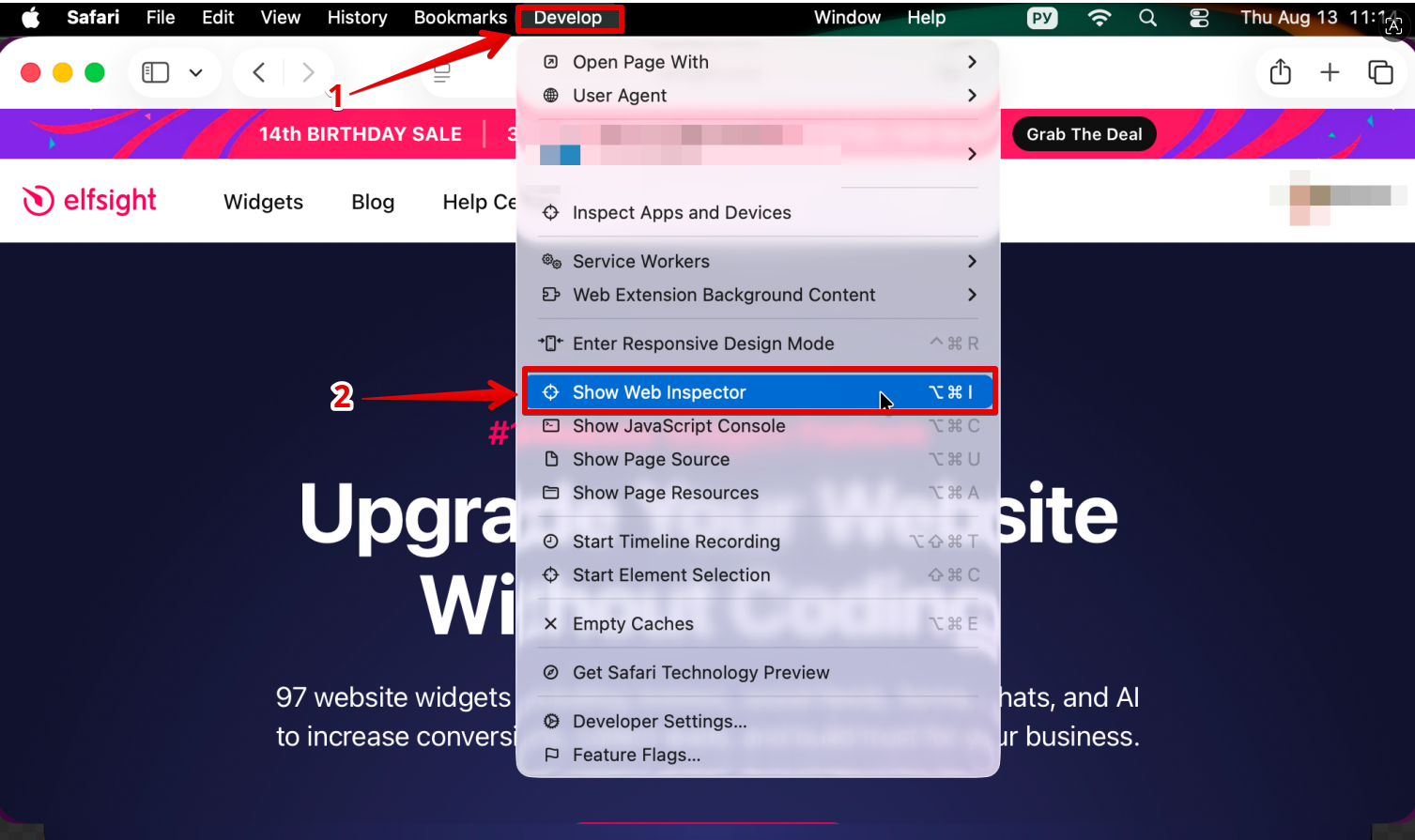
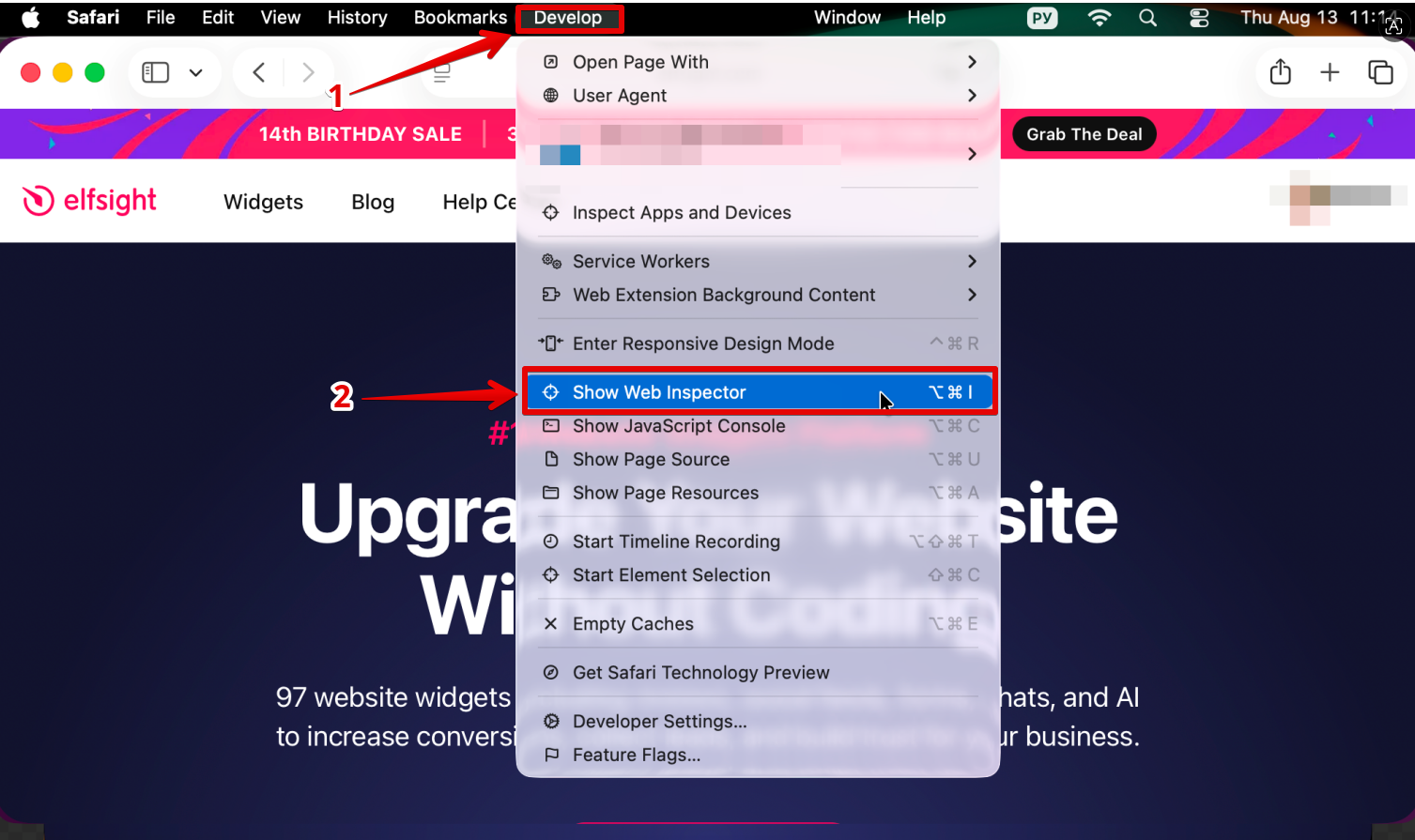
Visit the webpage you want to inspect. Navigate to Develop → Show Web Inspector:
- 2
-
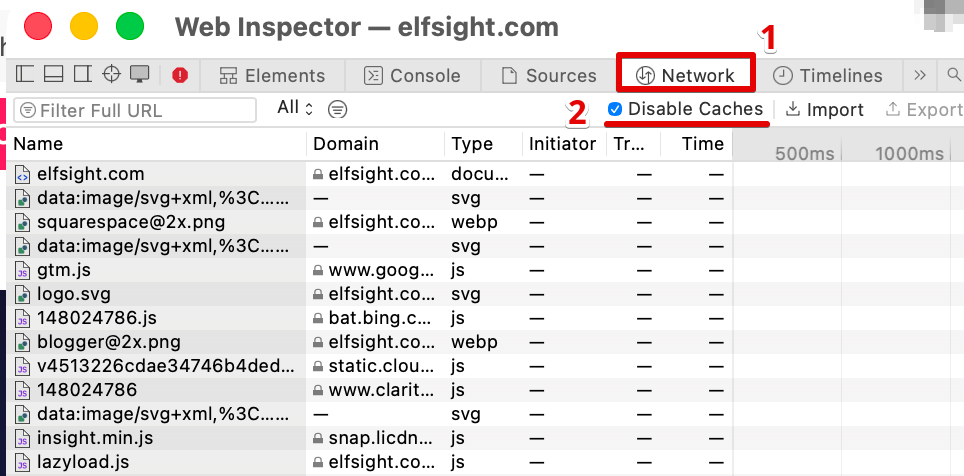
Switch to the Network tab and enable the option Disable caches:
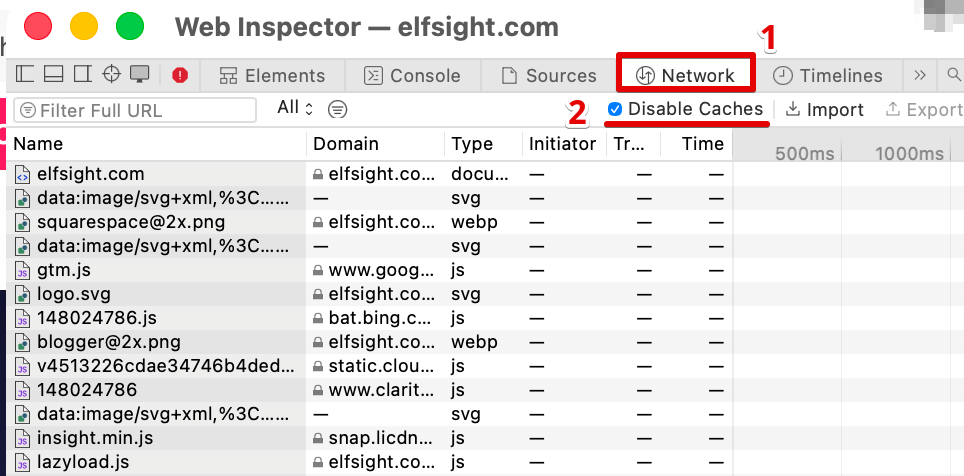
- 3
-
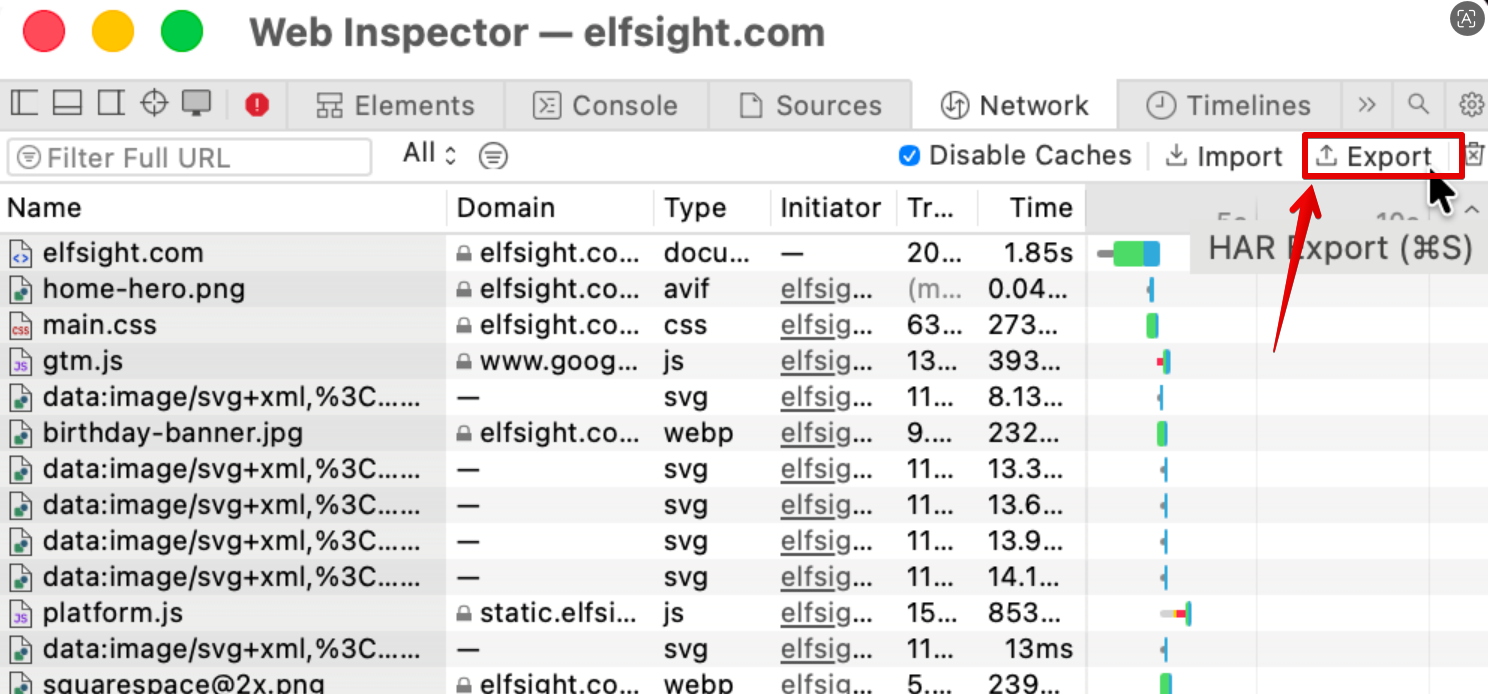
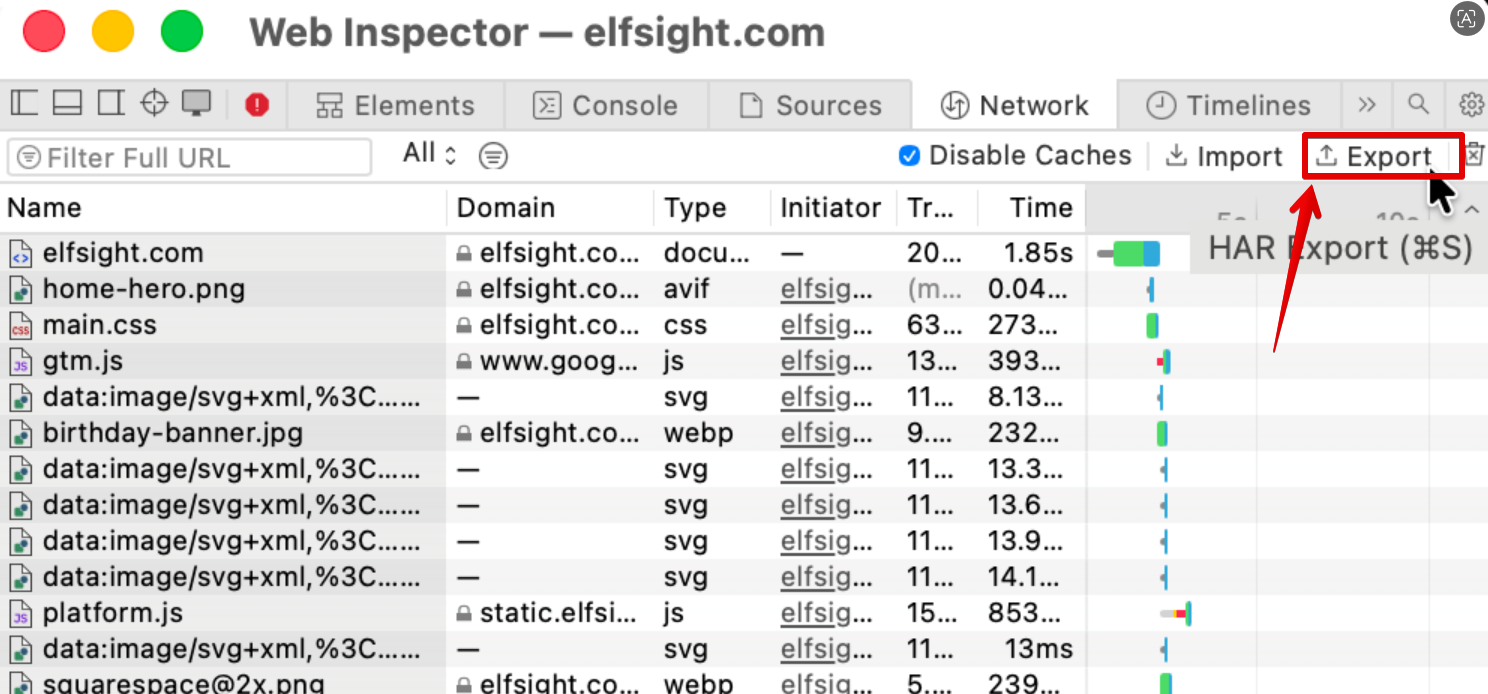
Reproduce the issue on your website, then click Export and save the HAR file to your computer:
Mozilla Firefox
- 1
-
Make sure you’re on the page where you experience the issue. Open Developer Tools:
- Right-click the page → Inspect
- Click the Menu (☰) → More Tools → Web Developer Tools
- Use the keyboard shortcut: Ctrl + Shift + I (Windows/Linux) or Cmd + Option + I (macOS)

- 2
-
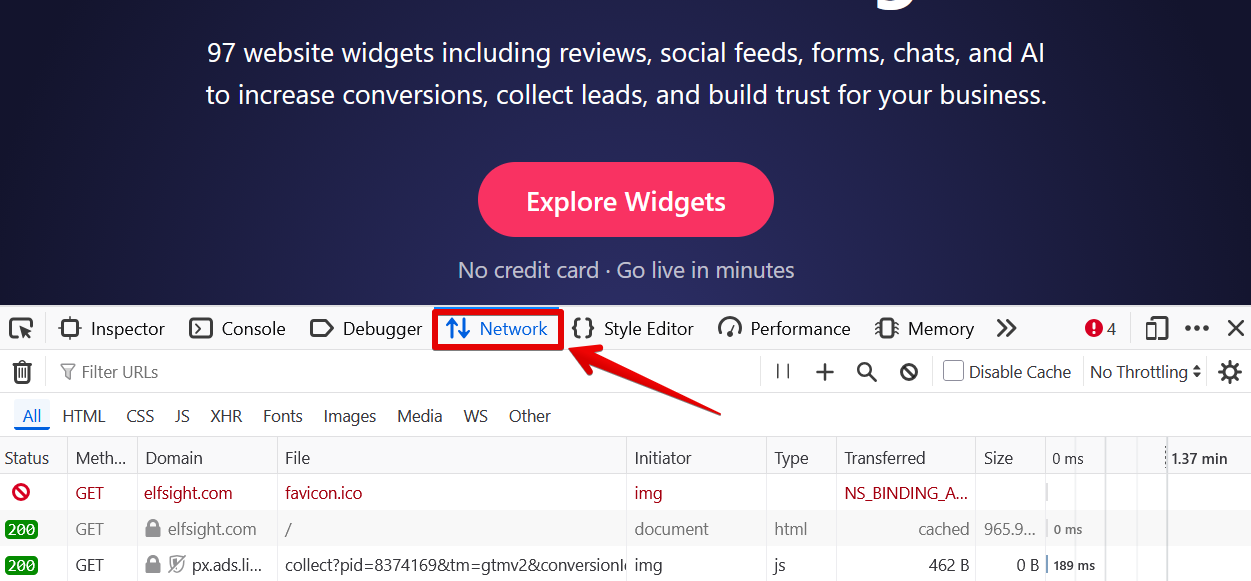
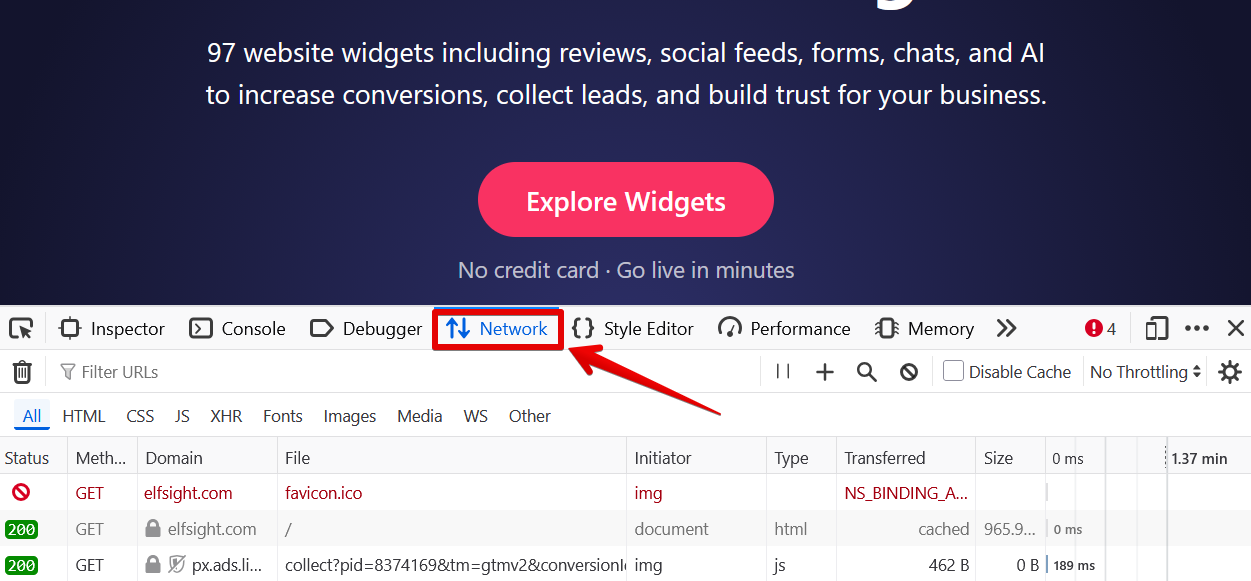
Open the Network tab to start recording and reproduce the issue you experienced:
- 3
-
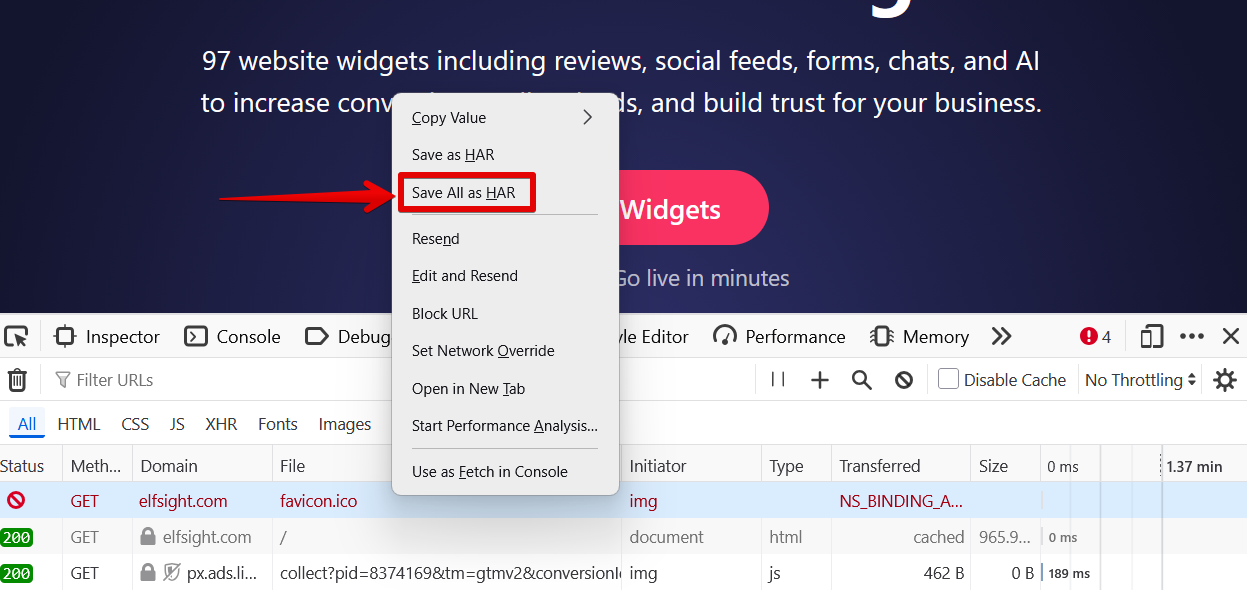
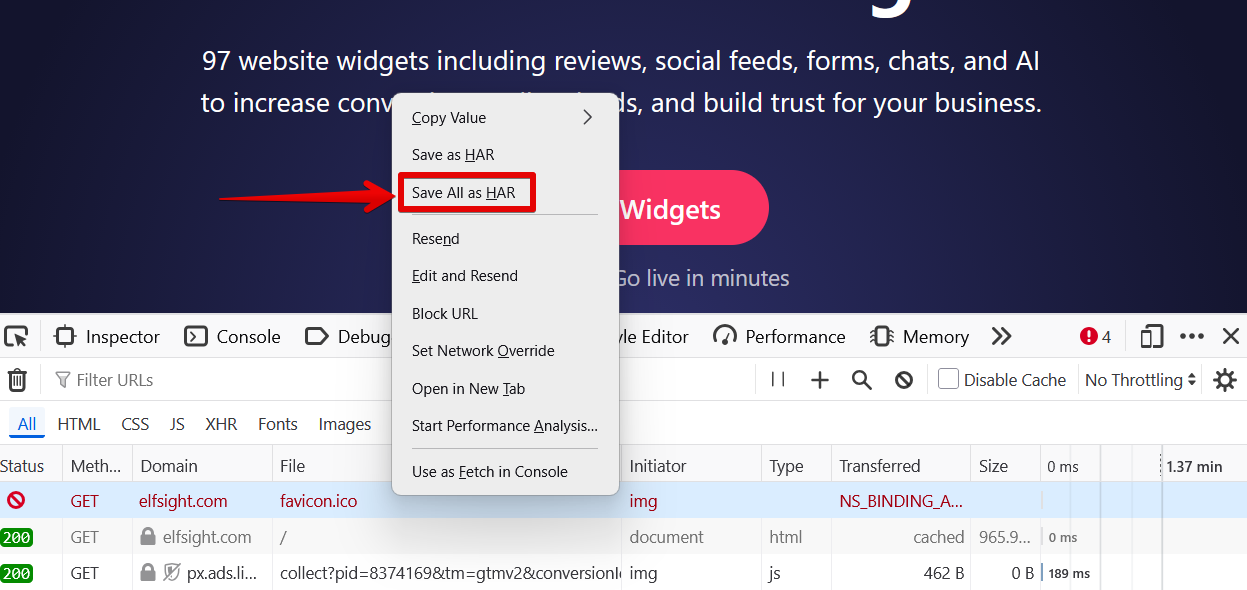
Once you replicate the issue and see the action has been logged in the Developer Network Panel (this normally takes just a few seconds), right click anywhere under the File column and then Save all as HAR:
Great job! Once your HAR file is downloaded, attach it to your support ticket or send it to our Support team. We’ll use it to investigate the issue further.