
Setting Up Google Analytics Events in Your Widget
Elfsight widgets with built-in Google Analytics let you easily track visitor interactions, like clicks, views, messages, form activity, and more. In this article, we’ll show you how to quickly set up Google Analytics events in your widget.
📊 Built-in Google Analytics is currently available in these widgets:
AI Chatbot Audio Player Chat Widgets Click to Call Countdown Timer Event Calendar Forms Instagram Feed Popup Reviews Widgets Slider Social Feed Spinning Wheel Website Translator
If your widget is not listed here, contact Support for a custom code solution.
The Google Analytics feature can be found in the Settings tab of all supported widgets. For this example, we’ll use the AI Chatbot to demonstrate the setup process.
- 1
-
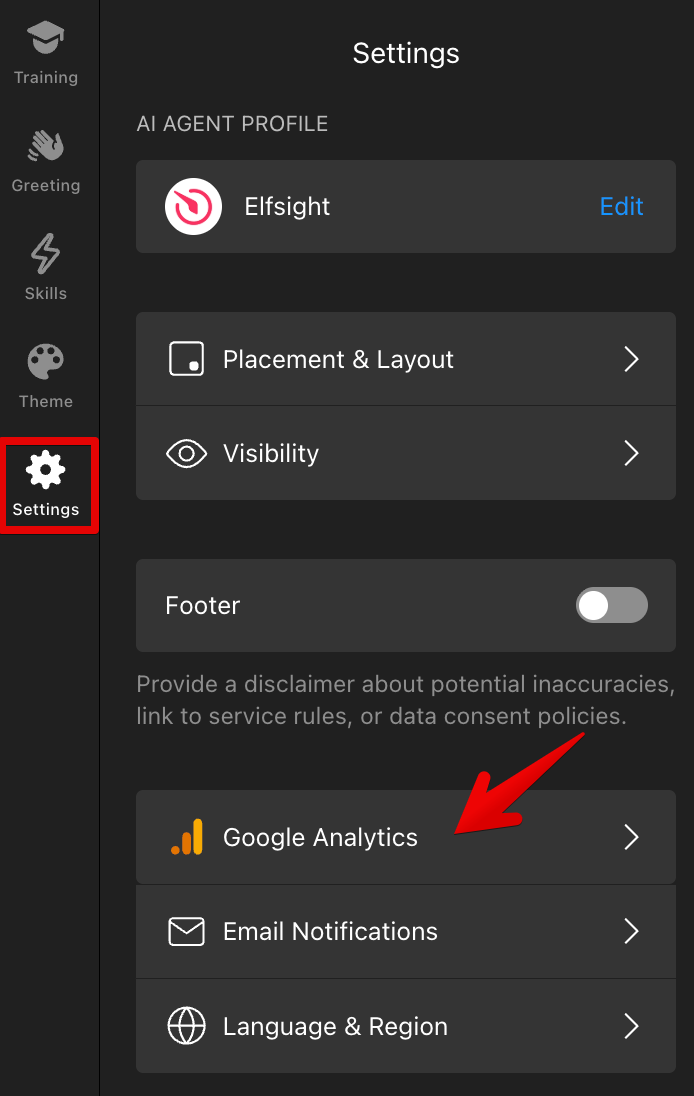
Open your widget editor and go to Settings → Google Analytics:
- 2
-
Click + Add Event and choose the event you want to track. In this example, we’ll use Chat Message, which is triggered when a user or agent sends a message:
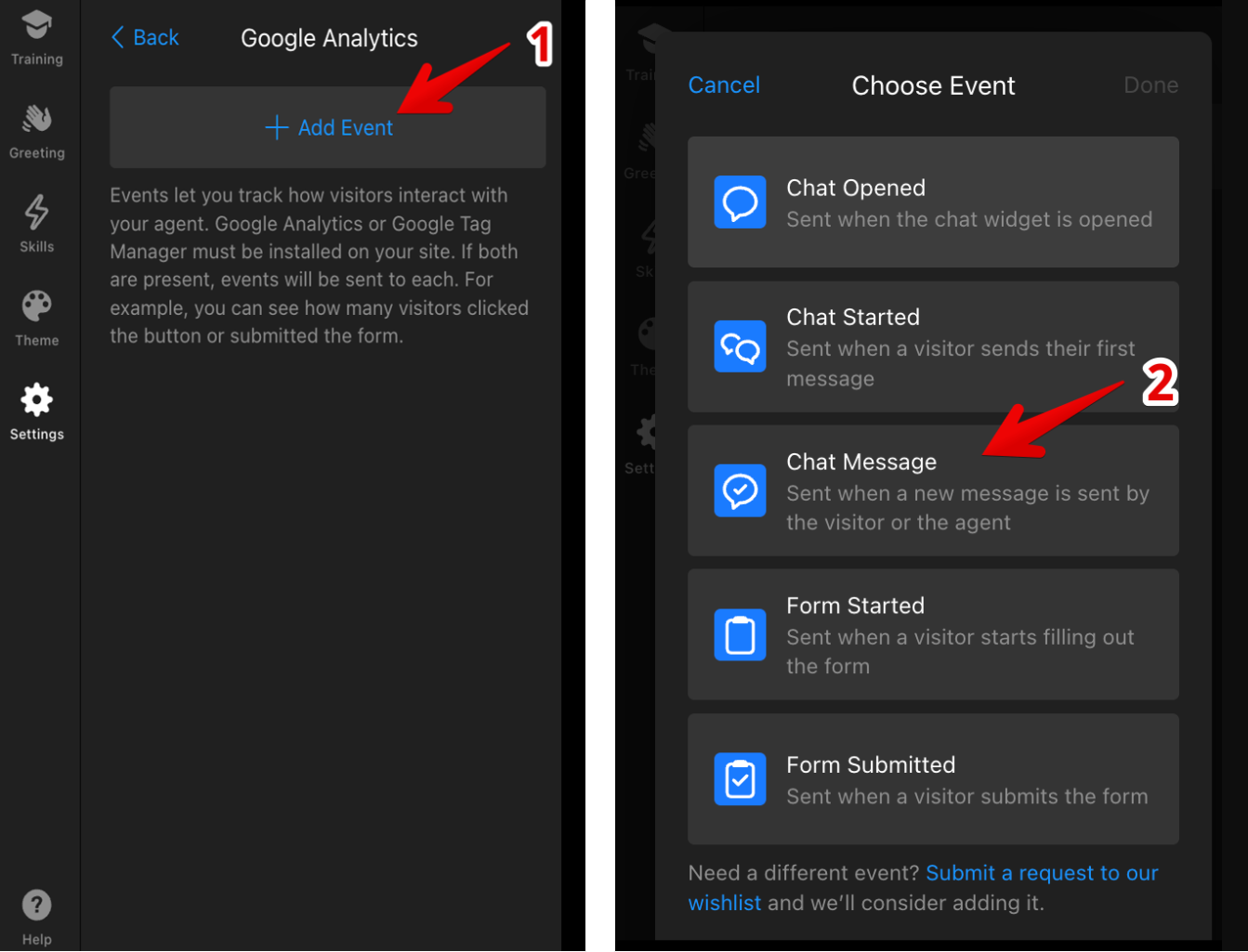
If your widget already supports Google Analytics, but the event you need isn’t listed, feel free to submit a request in our Wishlist. - 3
-
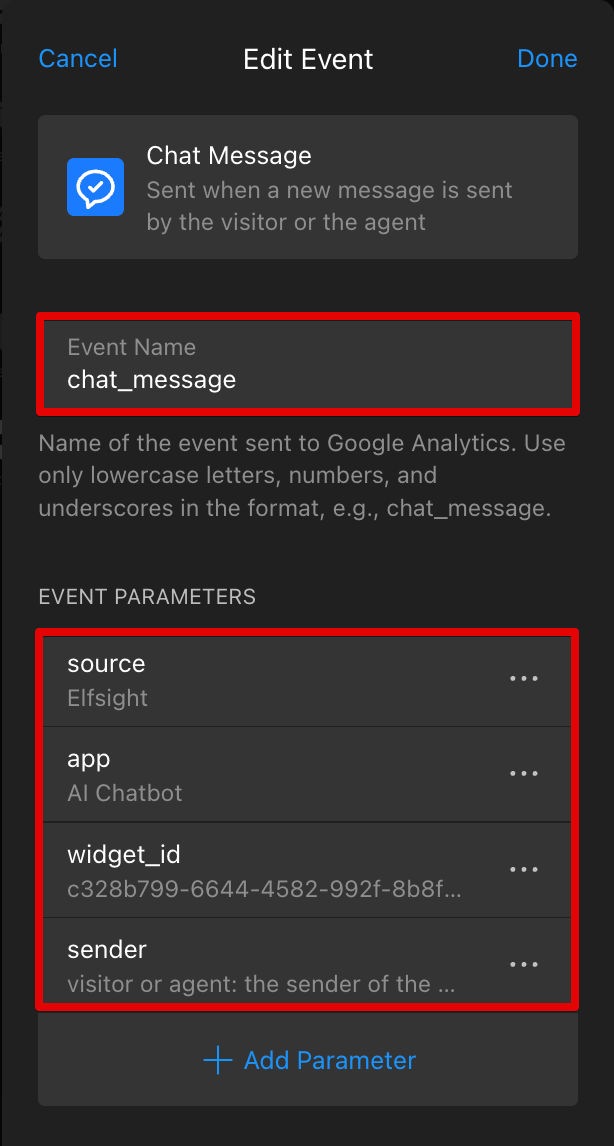
In the event settings, you can edit the Event Name and review the default Event Parameters that will be sent with the event.
Each event includes default parameters like source, app, widget ID, and event-specific ones such as sender:
You can also add your own custom parameters by clicking + Add Parameter → Custom Parameter and entering a Name and Value:
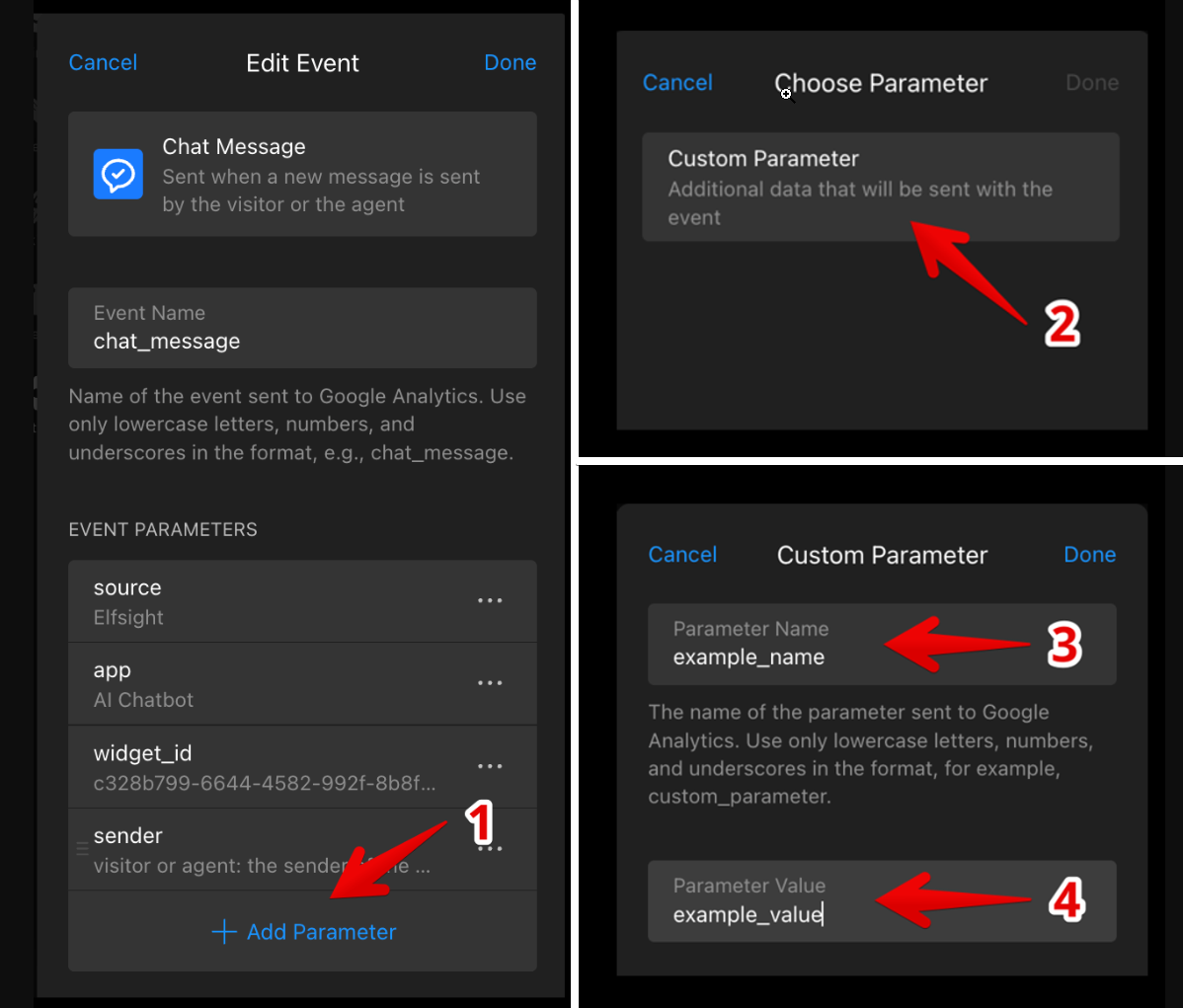
Custom parameters are fixed text labels. Use them to add extra context to your events, such as a campaign name or widget placement (e.g. "campaign = Black Friday"). For tracking specific actions (e.g., button clicks), select the appropriate event instead. - 4
-
Once you're set, click Done and Publish the widget.
Well done! 🙌 Now you know how to set up and customize Google Analytics events in your widget editor.
Next step:
Now that you've added events in your widget, set up tracking in your analytics tool. Choose the guide that matches your setup: