
How to Use Functions in Calculator
Functions make it easier to customize your Calculator widget — from applying discounts to calculating rental periods. You don't need advanced math or programming skills: just choose the functions you need and follow the examples below.
Choose a function by task to see its explanation. Click See function in the widget to view an example.
🔢 Calculate prices and numbers:
🔀 Create conditions (e.g., adjust prices based on customers’ answers):
Depending on the function, you can use values you type in, Calculator Fields, or other Calculations inside it. For help building your formula, see Working with Formulas in Calculator.
Mathematical Functions
Use mathematical functions to find, round, and add values or generate random numbers.
MAX & MIN
These functions find the largest or smallest value in a set of values:
- MAX — Returns the largest value in a set of values.
- MIN — Returns the smallest value in a set of values.
Use commas to separate multiple values.
Syntax: MAX(value1, [value2], ...) / MIN(value1, [value2], ...)
| Example | Result |
|---|---|
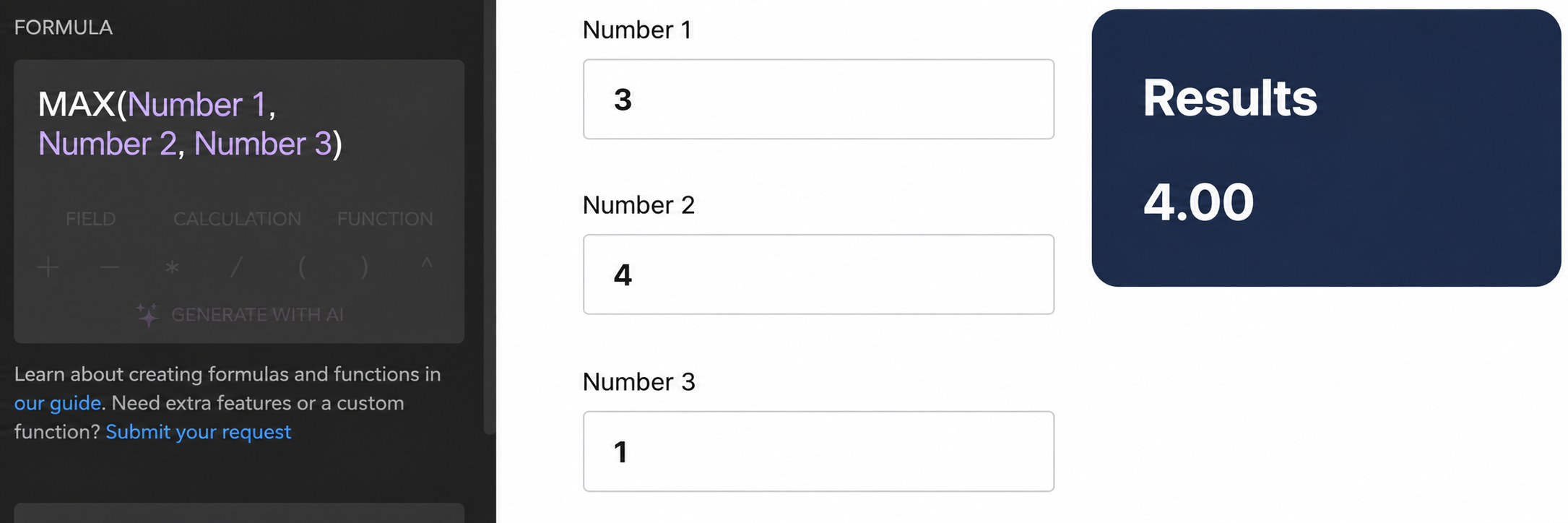
| MAX(3, 4, 1) | 4 |
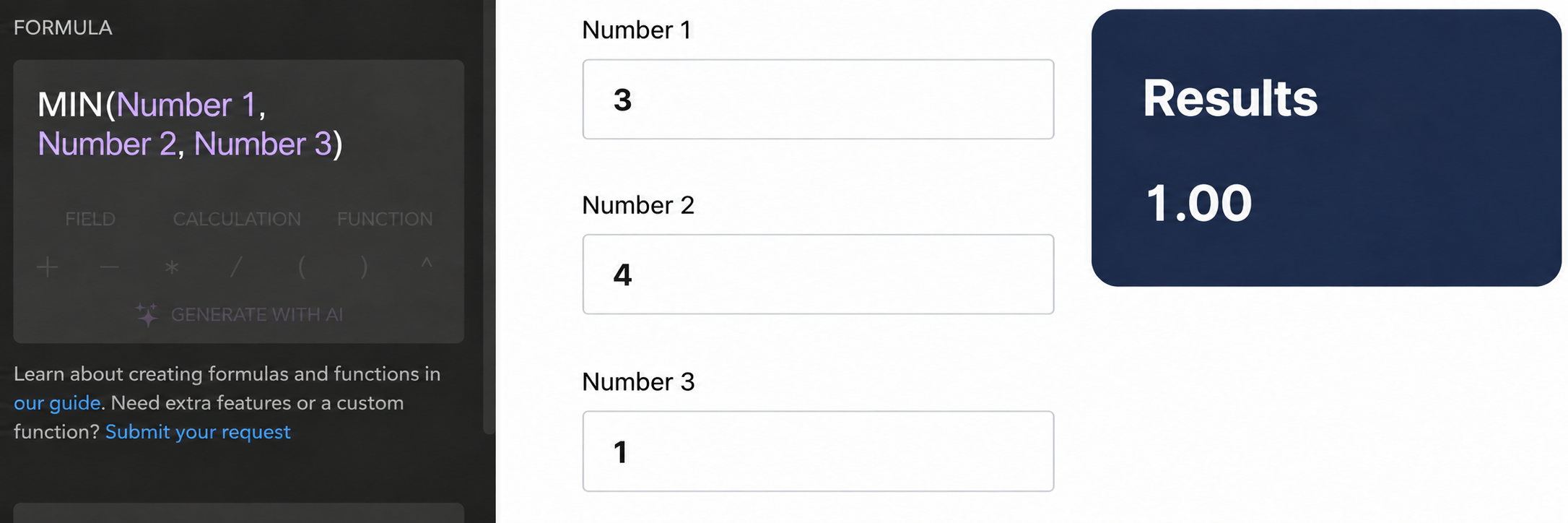
| MIN(3, 4, 1) | 1 |
See MAX & MIN in the widget
MAX
MIN
ROUND, ROUNDUP & ROUNDDOWN
These functions round a number to a given number of decimal places, but round differently:
- ROUND — Rounds up if the last significant digit is 5 or greater, and rounds down otherwise.
- ROUNDUP — Always rounds up, regardless of the last significant digit.
- ROUNDDOWN — Always rounds down, regardless of the last significant digit.
Syntax:
- ROUND(value, [places])
- ROUNDUP(value, [places])
- ROUNDDOWN(value, [places])
| Example | Result |
|---|---|
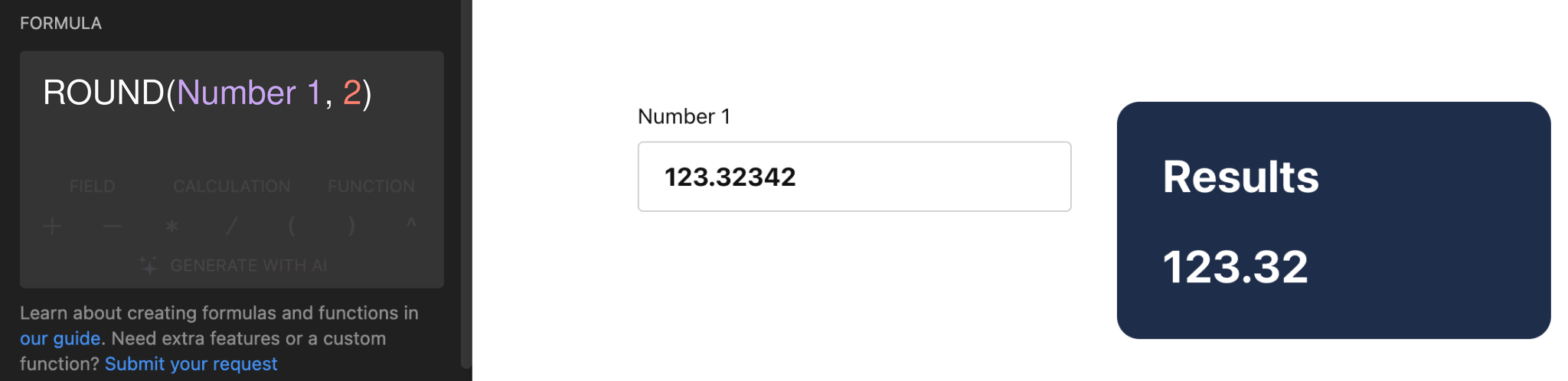
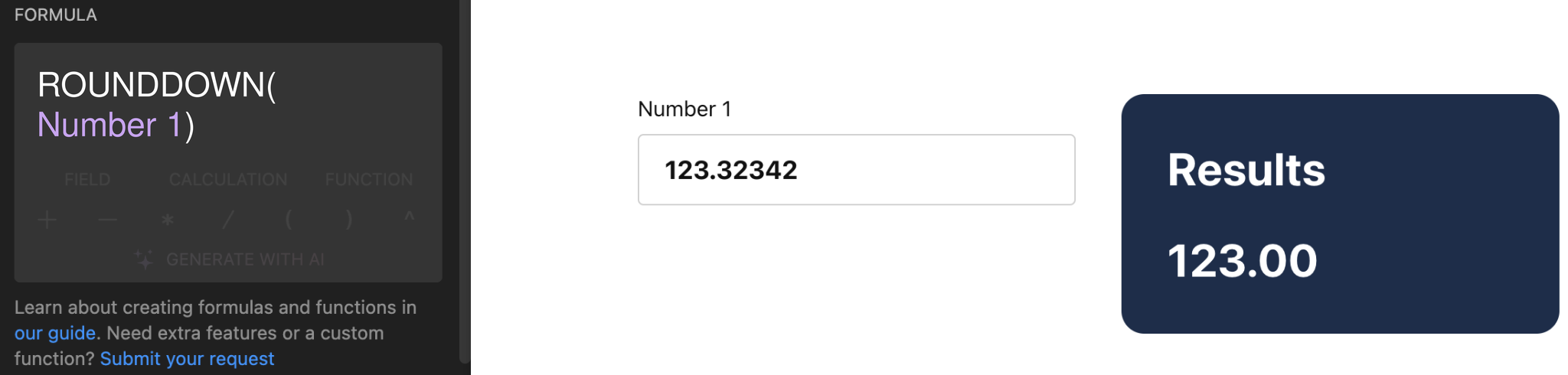
| ROUND(123.32342) | 123 |
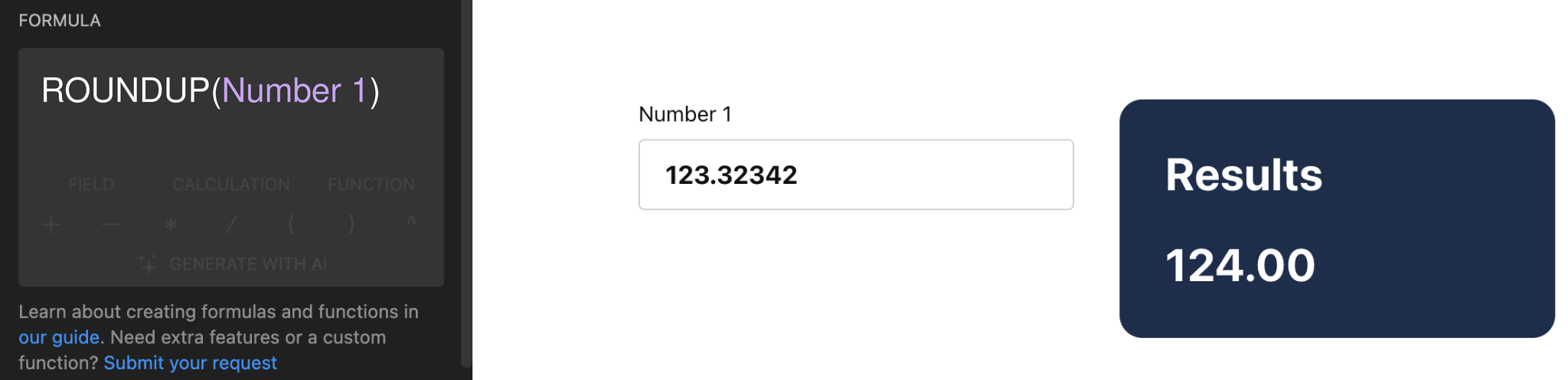
| ROUNDUP(123.32342, 2) | 123.33 |
| ROUNDDOWN(123.32342, 2) | 123.32 |
See ROUND, ROUNDUP & ROUNDDOWN in the widget
ROUND
ROUNDUP
ROUNDDOWN
ABS
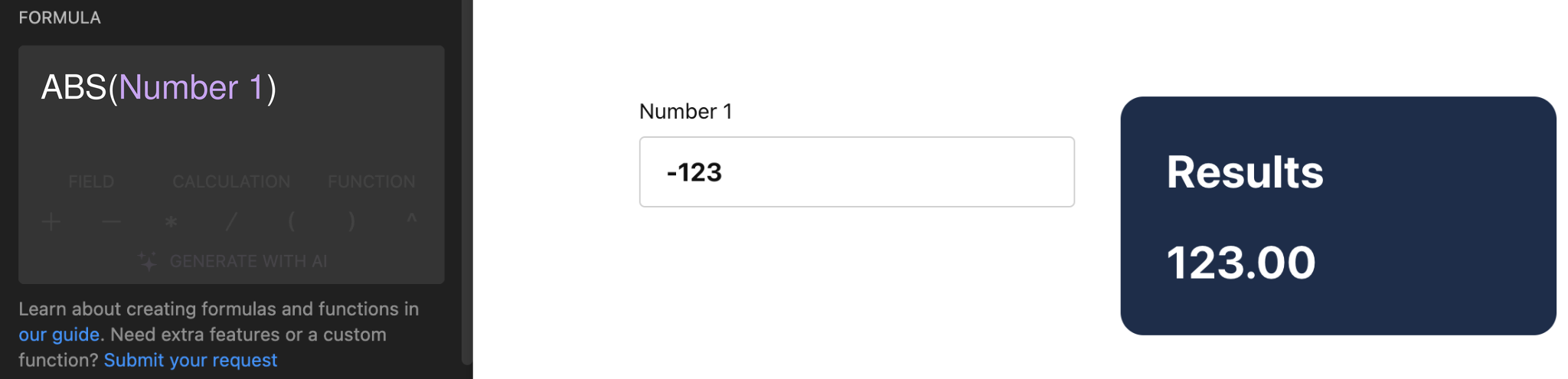
Returns the absolute value of a number. It means that negative numbers will be converted to positive numbers, and positive numbers will remain the same:
Syntax: ABS(value)
| Example | Result |
|---|---|
| ABS(-123) | 123 |
See ABS in the widget
RAND & RANDBETWEEN
These functions generate random numbers:
- RAND — Returns a random number between 0 and 1.
- RANDBETWEEN — Returns a random integer between two given numbers.
Syntax: RAND() / RANDBETWEEN(min value, max value)
| Example | Result |
|---|---|
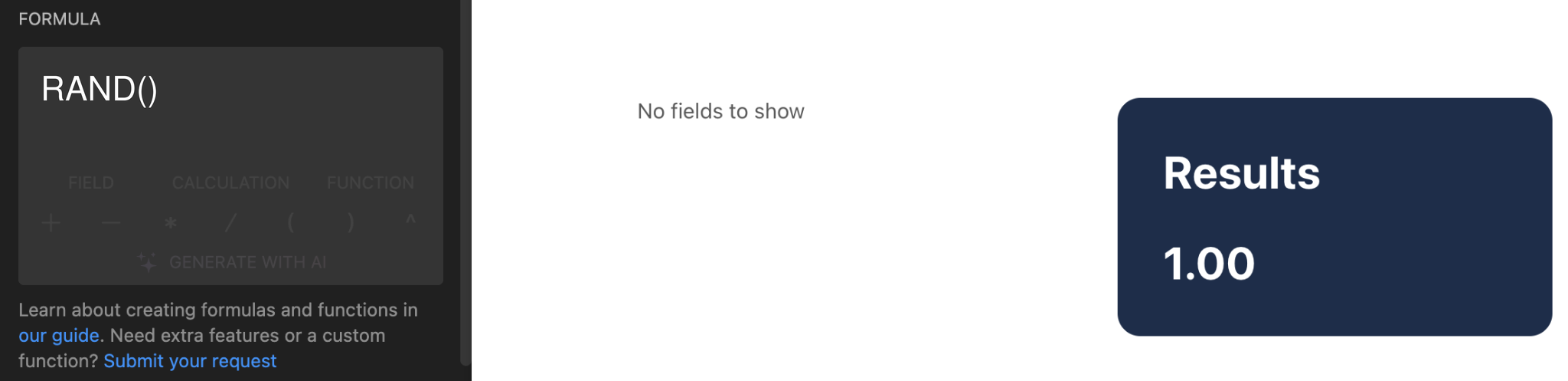
| RAND() | Random value between 0 and 1, for example 0.3 |
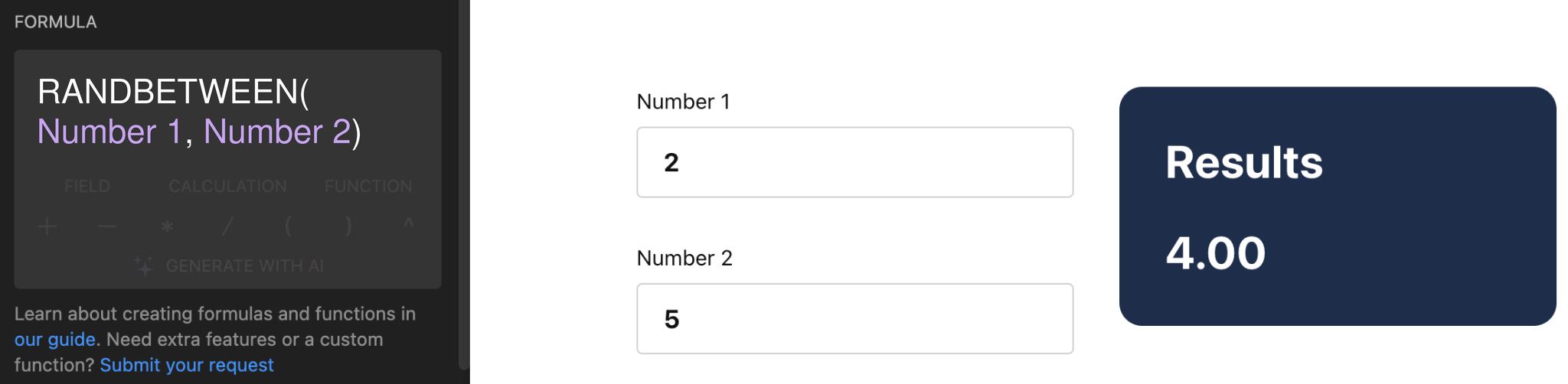
| RANDBETWEEN(2, 5) | Random value between 2 and 5, for example 4 |
See RAND & RANDBETWEEN in the widget
RAND
RANDBETWEEN
SUM
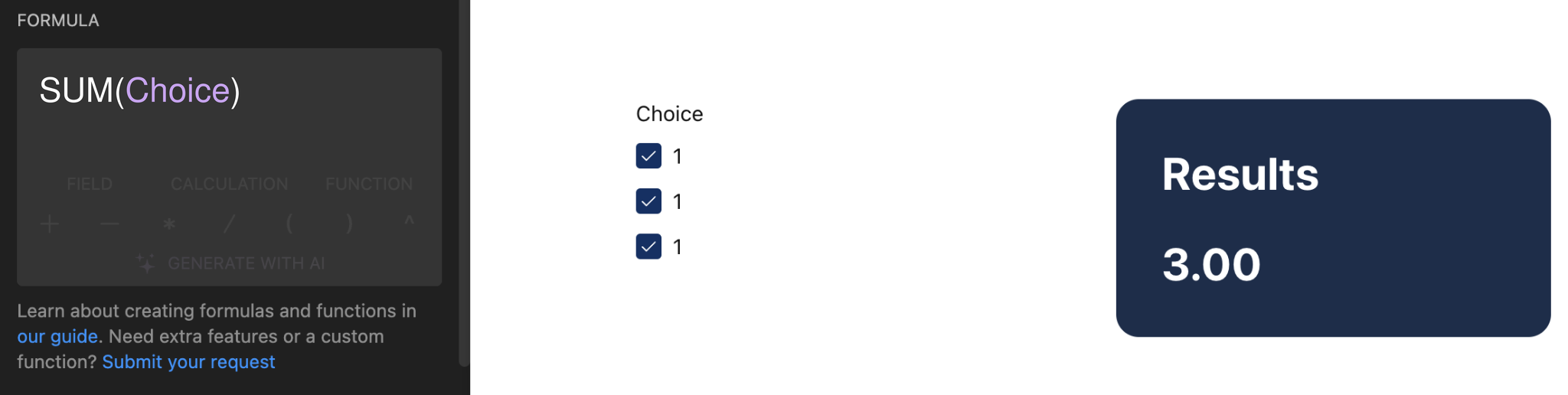
Returns the sum of values supplied. Enter your values manually or select a Choice field as an argument. Don't forget to separate multiple values by commas:
Syntax: SUM(value1, [value2], [value3], ...)
| Example | Result |
|---|---|
| SUM(1,1,1) | 3 |
See SUM in the widget
You’ve got the basics of working with mathematical functions in Calculator. Check out the practical example below to see several of them working together in a real pricing setup.
Practical Example: Set a Minimum Booking Price
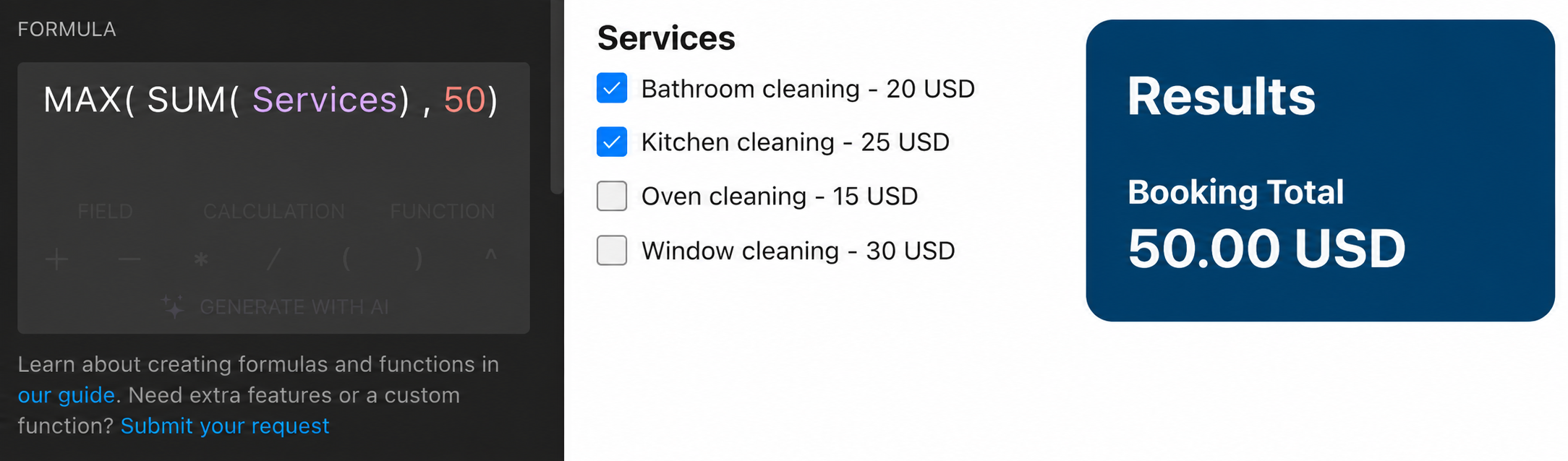
You can use SUM together with MAX as part of a larger formula to calculate a total and apply a minimum price.
In the example below, customers can select several services in a Choice field named Services. SUM adds the selected service prices and MAX applies a $50 minimum booking price:
MAX(SUM(Services), 50)
Logical Functions (Conditions)
Logical functions allow you to test whether a condition is true or false. Depending on the result of the test, you can choose what action to perform next.
IF
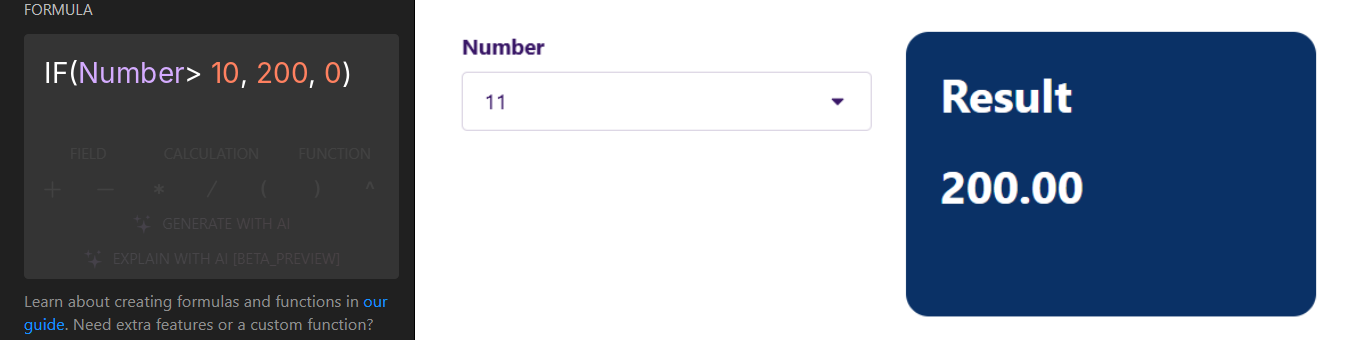
Runs a logical test on supplied values or expressions and returns the value after the first comma if the result is True, and the value after the second comma if the result is False:
Syntax: IF(logical test, value if true, value if false)
| Example | Result |
|---|---|
| IF(true, 200, 0) | 200 |
Keep in mind that other logical functions AND, OR, NOT and CONTAINS, as well as comparison operators (>, <, =) can only be used within the IF function. When other logical functions are nested within IF, they allow you to test more than one condition at a time.
See IF in the widget
AND & OR
These functions check whether conditions are true:
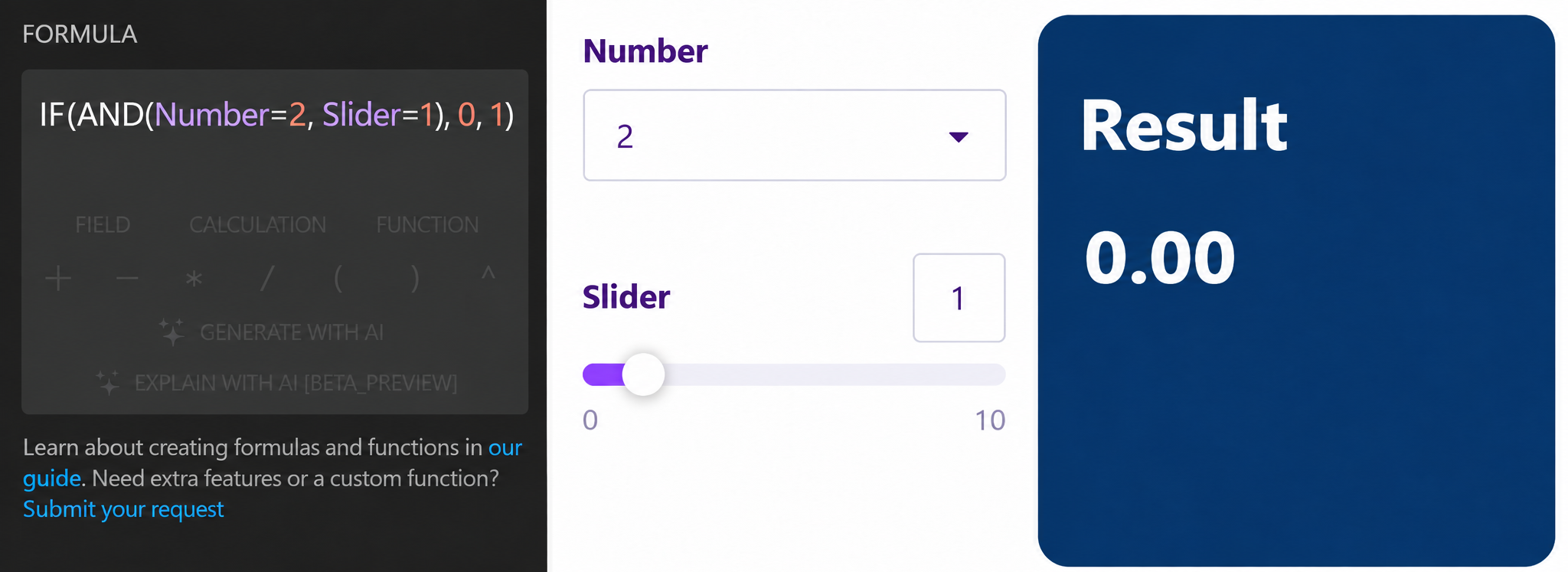
- AND — Returns True only if both results are True, and returns False otherwise.
- OR — Returns True if any given argument is True, and returns False if both arguments are False.
Syntax:
- IF(AND(logical test 1, logical test 2), value if true, value if false)
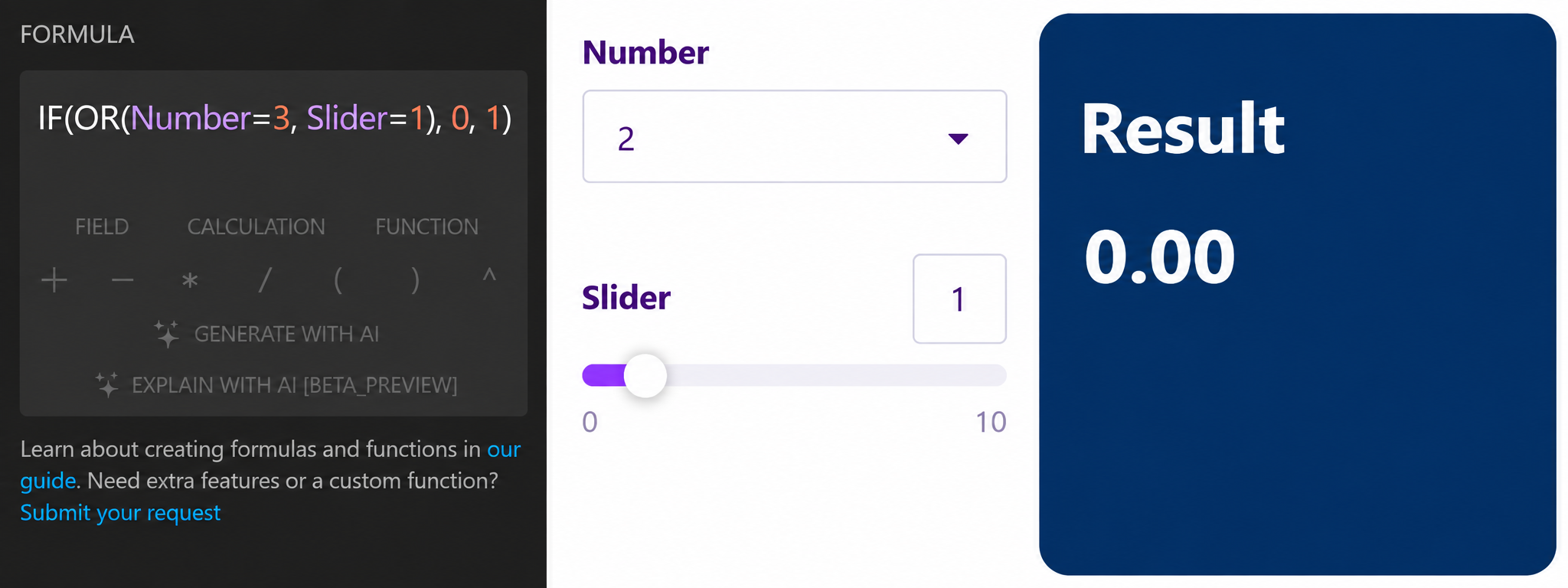
- IF(OR(logical test 1, logical test 2), value if true, value if false)
| Example | Result |
|---|---|
| IF(AND(2=2, 1=1), 0, 1) | 0 |
| IF(OR(2=3, 1=1), 0, 1) | 0 |
See AND & OR in the widget
AND
OR
NOT
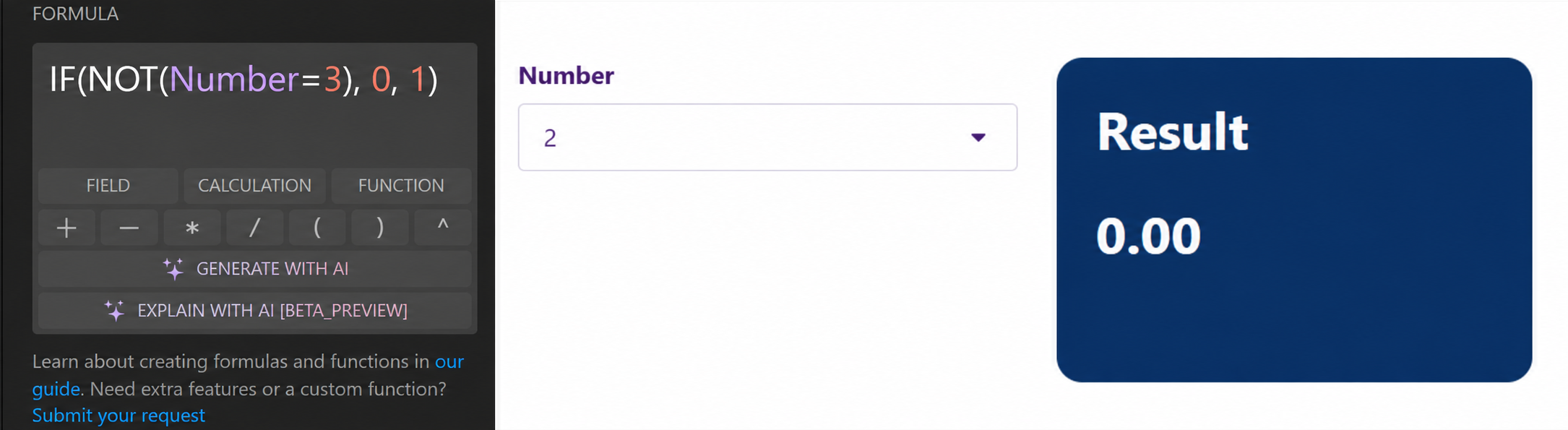
Returns the opposite of the result of the comparison. When given True, NOT returns False. When given False, NOT returns True:
Syntax: IF(NOT(logical test), value if true, value if false)
| Example | Result |
|---|---|
| IF(NOT(2=3), 0, 1) | 0 |
See NOT in the widget
CONTAINS
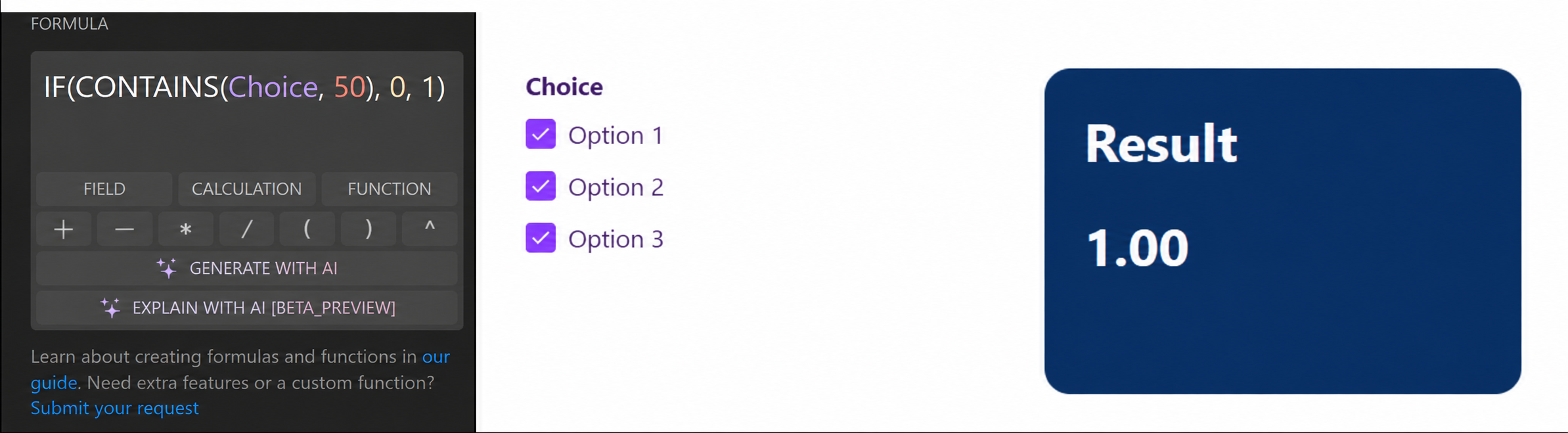
Returns True if the set of provided values contains the value specified after the comma, and returns False otherwise:
Syntax: IF(CONTAINS(set of values, value to test), value if true, value if false)
| Example | Result |
|---|---|
| IF(CONTAINS([1, 2, 3], 50), 0, 1) | 1 |
See CONTAINS in the widget
With conditions in place, your calculator can react differently to different customer answers. The practical example below shows how that works in a real discount scenario.
Practical Example: Apply a Discount When Multiple Conditions Are Met
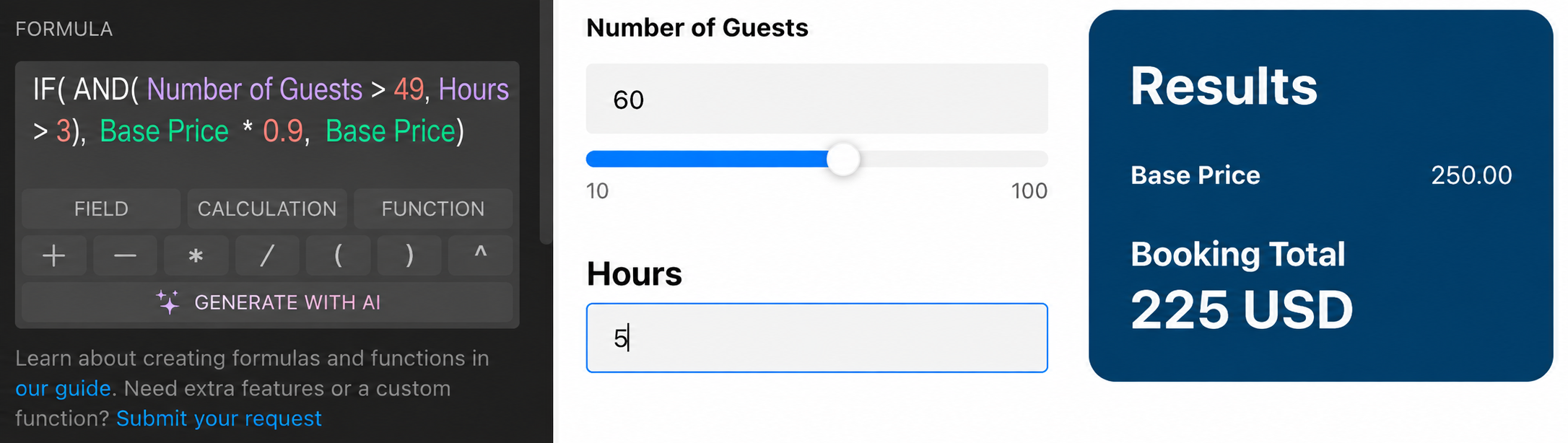
You can use AND together with IF as part of a larger formula to apply a result only when multiple conditions are met.
In the example below, AND checks that a booking is for at least 50 guests and lasts at least 4 hours, and IF applies a 10% discount only when both conditions are true:
IF(AND(Guests>49, Hours>3), Base Price*0.9, Base Price)
Text Functions
Text functions let you count characters, words, and lines, change capitalization, or remove spaces from the beginning and end of text. For example, you can use them to check a coupon code entered in a Text field.
LEN
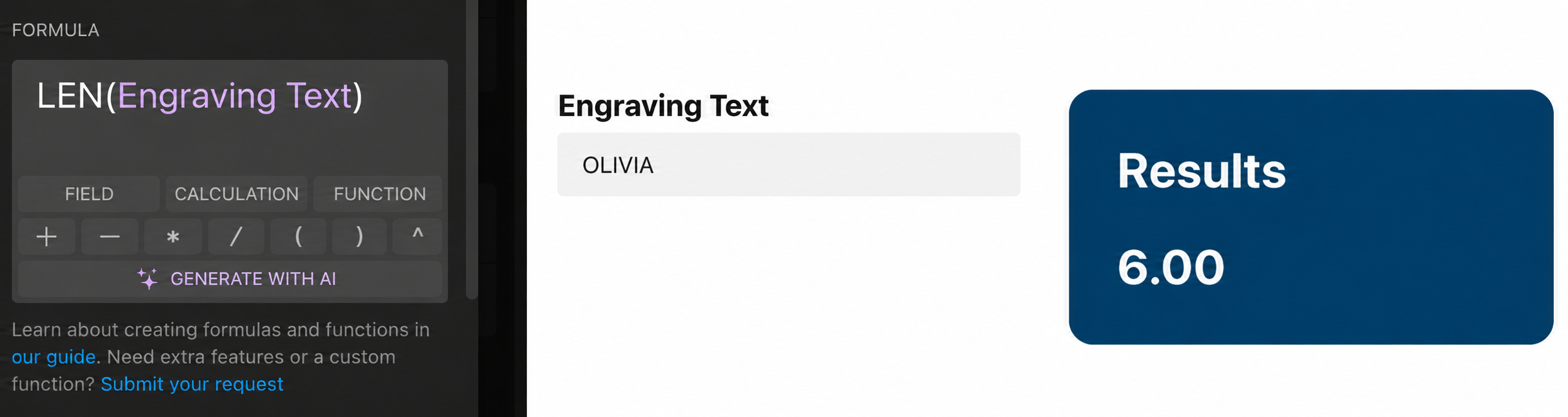
Returns the number of characters in the supplied text:
Syntax: LEN(text)
| Example | Result |
|---|---|
| LEN(Engraving Text)
Engraving Text: OLIVIA |
6 |
See LEN in the widget
COUNTWORDS & COUNTLINES
These functions count words or lines in text:
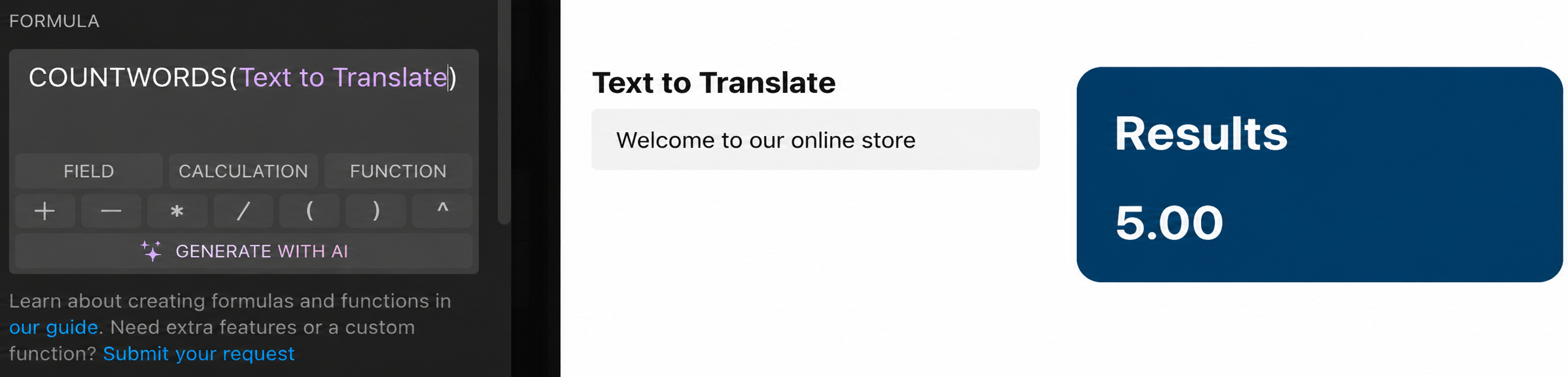
- COUNTWORDS — Returns the number of words in the supplied text. Spaces and line breaks separate words.
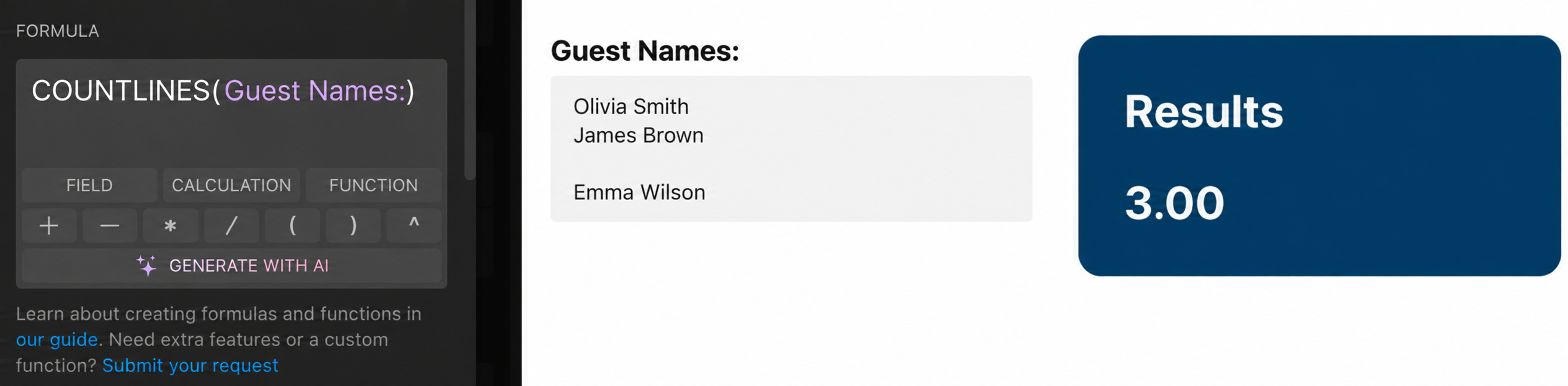
- COUNTLINES — Returns the number of lines in the supplied text. Empty lines are ignored.
Syntax: COUNTWORDS(text) / COUNTLINES(text)
| Example | Result |
|---|---|
| COUNTWORDS(Text to Translate)
Text to Translate: Welcome to our online store |
5 |
| COUNTLINES(Guest Names)
Guest Names: Olivia Smith James Brown Emma Wilson |
3 |
See COUNTWORDS & COUNTLINES in the widget
COUNTWORDS
COUNTLINES
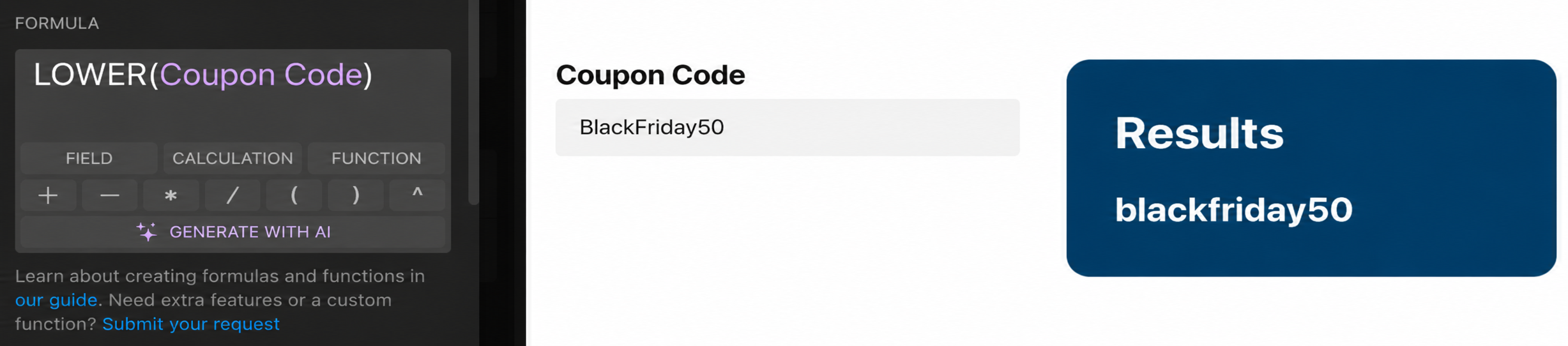
UPPER & LOWER
These functions change the capitalization of text:
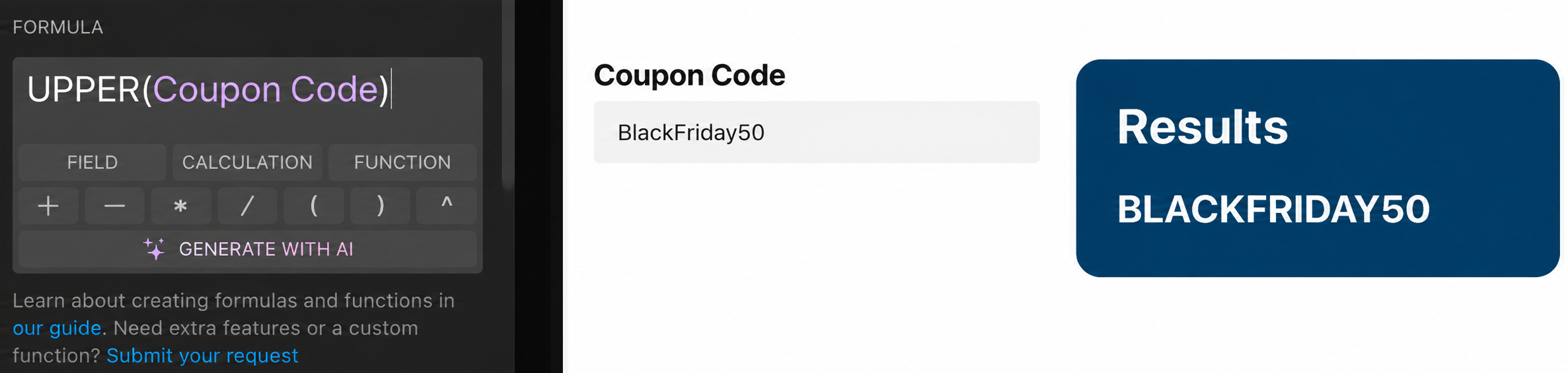
- UPPER — Converts all letters in the supplied text to uppercase.
- LOWER — Converts all letters in the supplied text to lowercase.
Syntax: UPPER(text) / LOWER(text)
| Example | Result |
|---|---|
| UPPER(Coupon Code)
Coupon Code: BlackFriday50 |
BLACKFRIDAY50 |
| LOWER(Coupon Code)
Coupon Code: BlackFriday50 |
blackfriday50 |
See UPPER & LOWER in the widget
UPPER
LOWER
TRIM
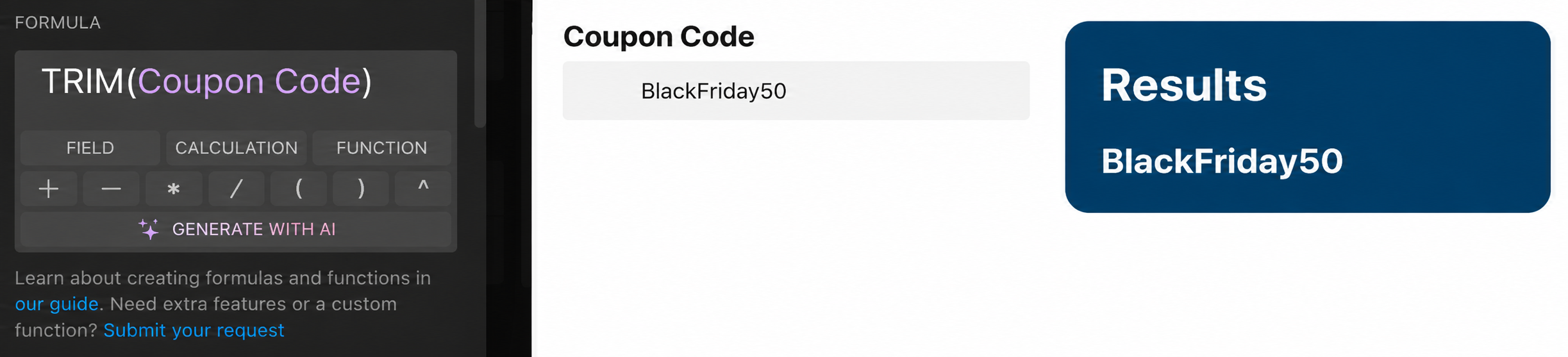
Removes spaces from the beginning and end of the supplied text:
Syntax: TRIM(text)
| Example | Result |
|---|---|
| TRIM(Coupon Code)
Coupon Code: " BLACKFRIDAY50 " |
BLACKFRIDAY50 |
See TRIM in the widget
You can now put text functions to work on real customer input. See the practical example below for a coupon-code use case.
Practical Example: Validate a Coupon Code
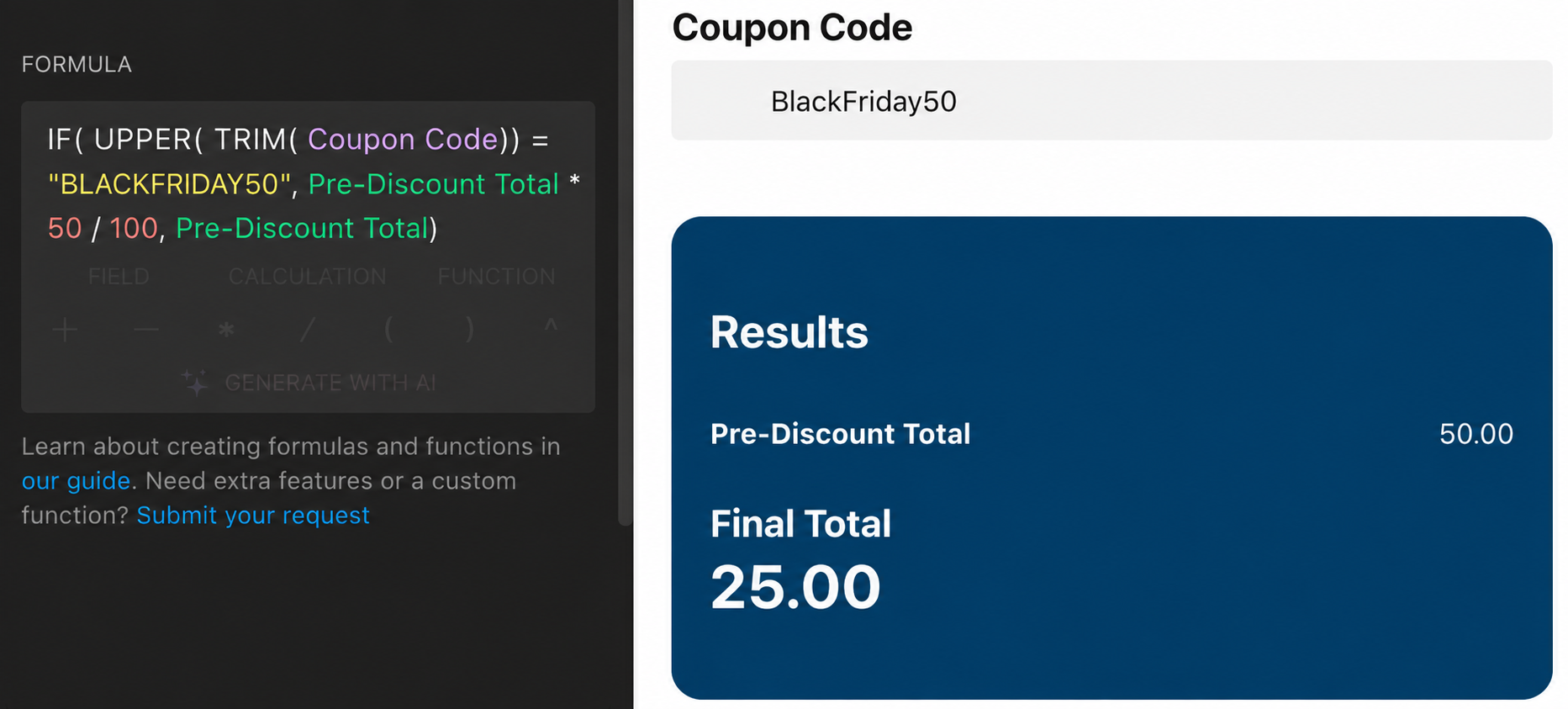
You can use UPPER or LOWER together with TRIM as part of a larger formula to check coupon codes, regardless of capitalization or extra spaces at the beginning and end.
In the example below, TRIM removes the surrounding spaces, UPPER converts the code to uppercase, and IF calculates a 50% discount if the code matches BLACKFRIDAY50:
IF(UPPER(TRIM(Coupon Code)) = "BLACKFRIDAY50", Pre-Discount Total * 50 / 100, Pre-Discount Total)
Date Functions
Date functions let you calculate the time between dates, move a date forward or backward, or extract its day, month, or year. Use a Date field, the current date from TODAY, or a fixed date created with DATE as an argument.
TODAY
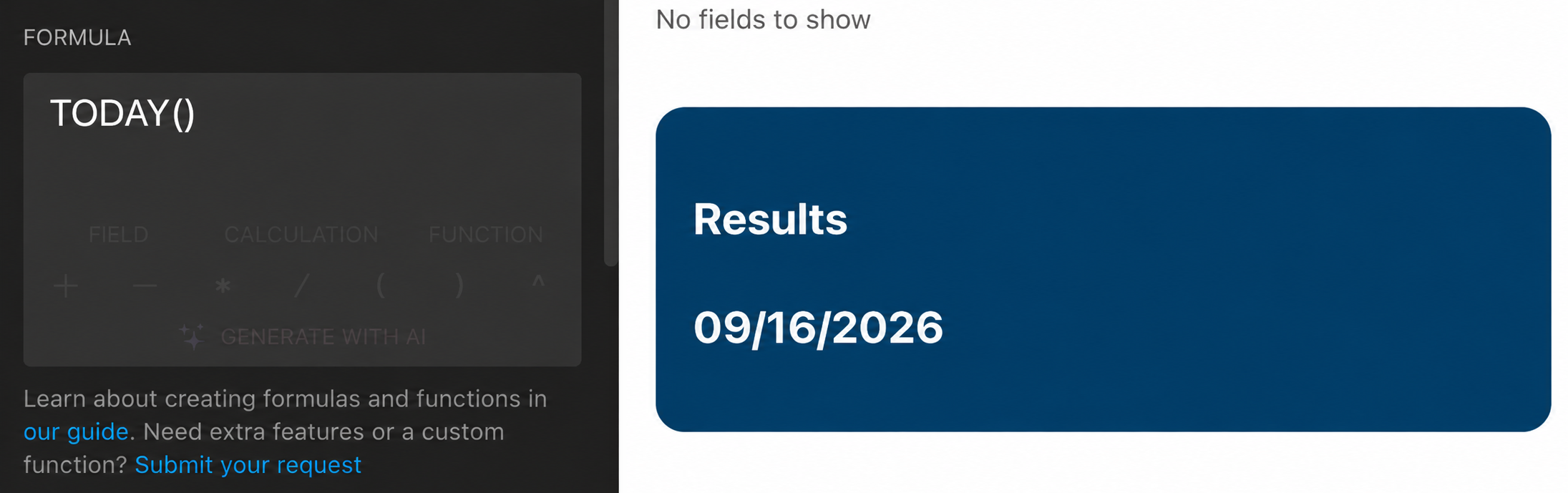
Returns the current date:
Syntax: TODAY()
| Example | Result |
|---|---|
| TODAY() | The current date |
See TODAY in the widget
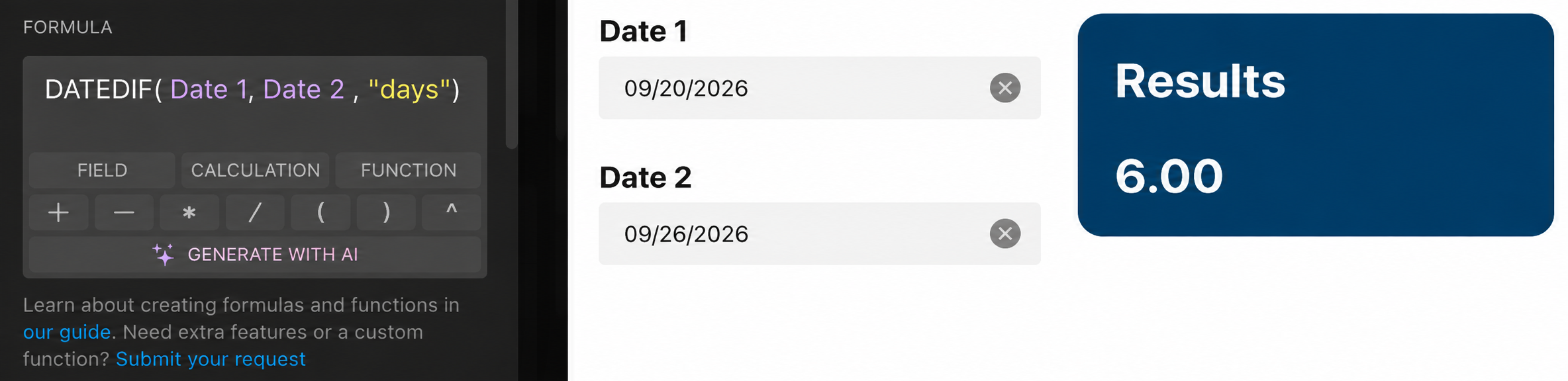
DATEDIF
Returns the difference between two dates in days, complete months, or complete years, depending on the unit you specify:
Syntax: DATEDIF(date1, date2, unit)
| Example | Result |
|---|---|
| DATEDIF(Start Date, End Date, "days")
Start Date: January 1, 2026 End Date: January 11, 2026 |
10 |
| DATEDIF(Start Date, End Date, "months")
Start Date: January 15, 2026 End Date: March 14, 2026 |
1 |
| DATEDIF(Start Date, End Date, "years")
Start Date: June 15, 2024 End Date: June 14, 2026 |
1 |
"days", "months", or "years". You can use either double or single quotation marks, for example "days" or 'days'.
See DATEDIF in the widget
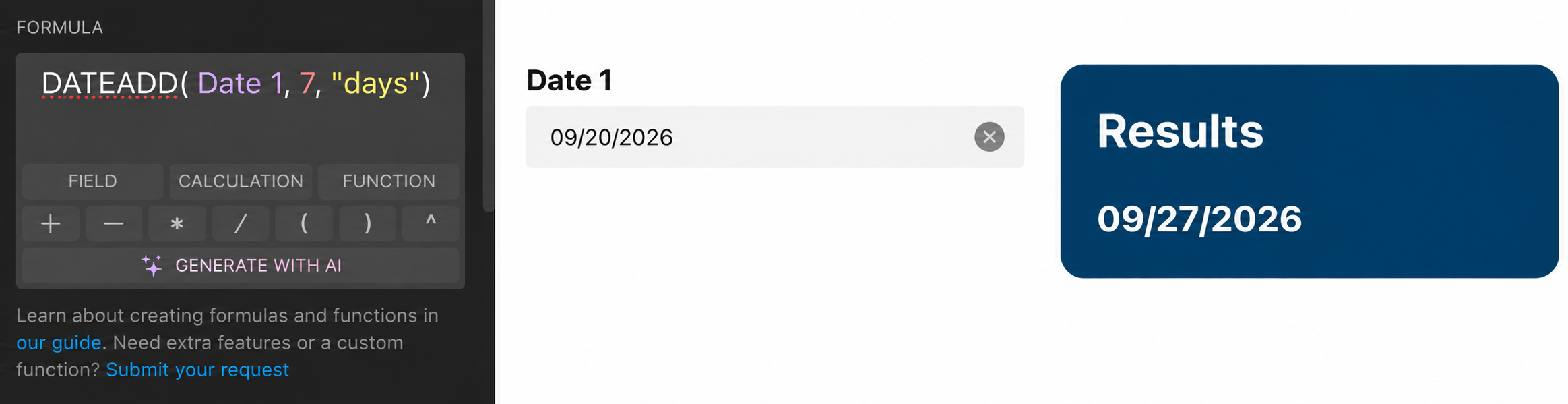
DATEADD
Moves a date forward or backward by a specified number of days, months, or years. Use a positive number to move forward or a negative number to move backward:
Syntax: DATEADD(date, number, unit)
| Example | Result |
|---|---|
| DATEADD(Start Date, 7, "days")
Start Date: September 15, 2026 |
September 22, 2026 |
| DATEADD(Start Date, -7, "days")
Start Date: September 15, 2026 |
September 8, 2026 |
"days", "months", or "years". You can use either double or single quotation marks, for example "days" or 'days'.
See DATEADD in the widget
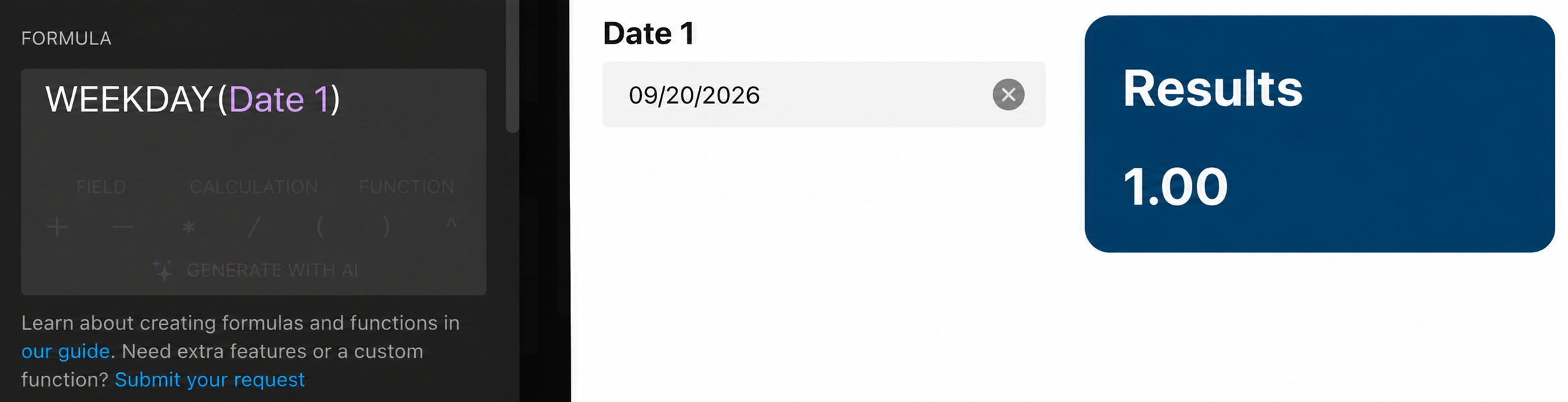
WEEKDAY
Returns the day of the week as a number from 1 to 7, starting with Sunday:
Syntax: WEEKDAY(date)
| Example | Result |
|---|---|
| WEEKDAY(Start Date)
Start Date: September 13, 2026 |
1 |
1 = Sunday, 2 = Monday, 3 = Tuesday, 4 = Wednesday, 5 = Thursday, 6 = Friday, 7 = Saturday.
See WEEKDAY in the widget
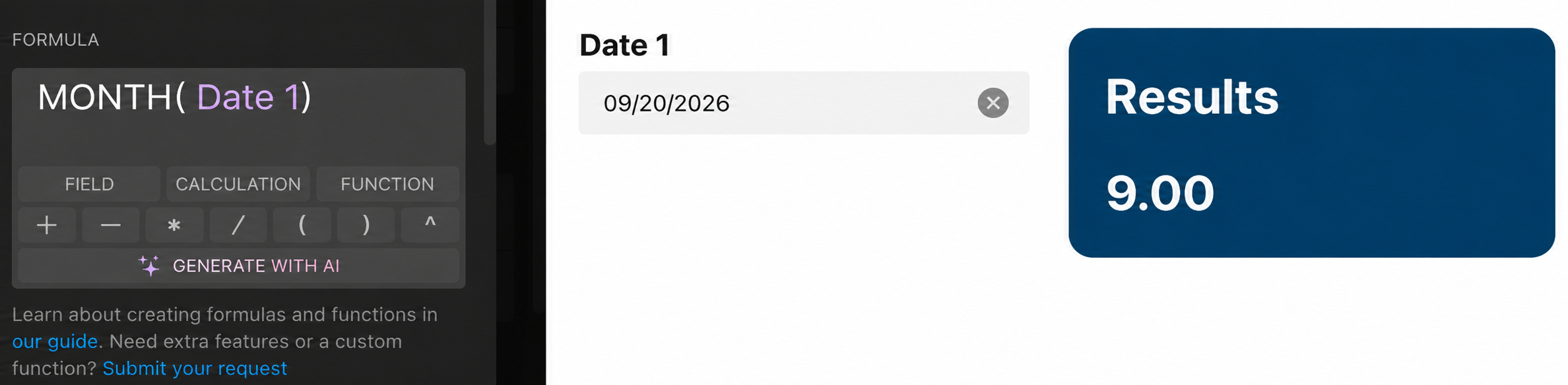
MONTH, YEAR & DAY
These functions extract parts of a date:
- MONTH — Returns the month of a date as a number from 1 (January) to 12 (December).
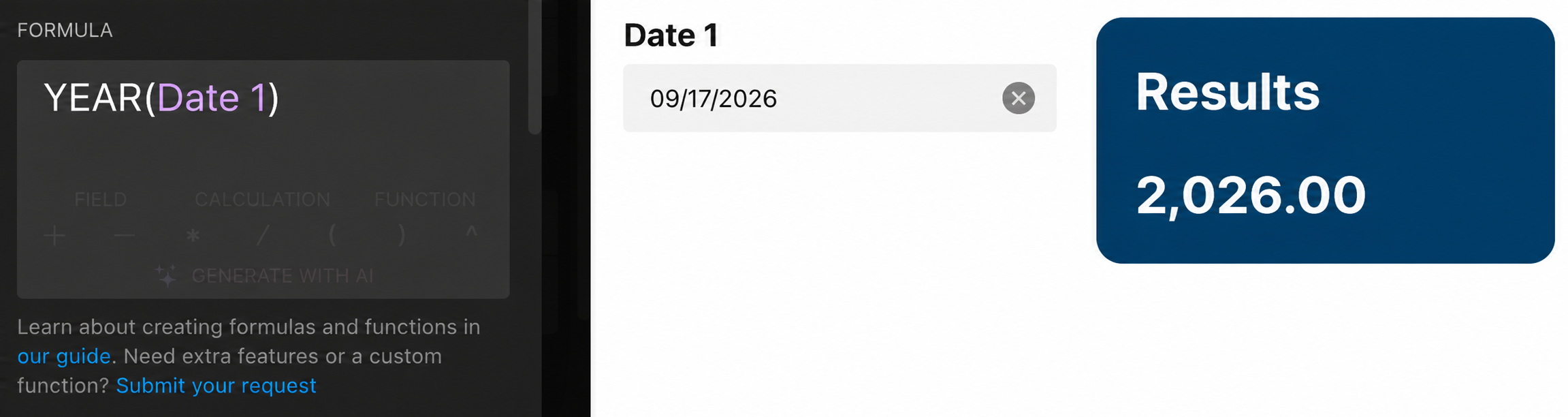
- YEAR — Returns the year of a date.
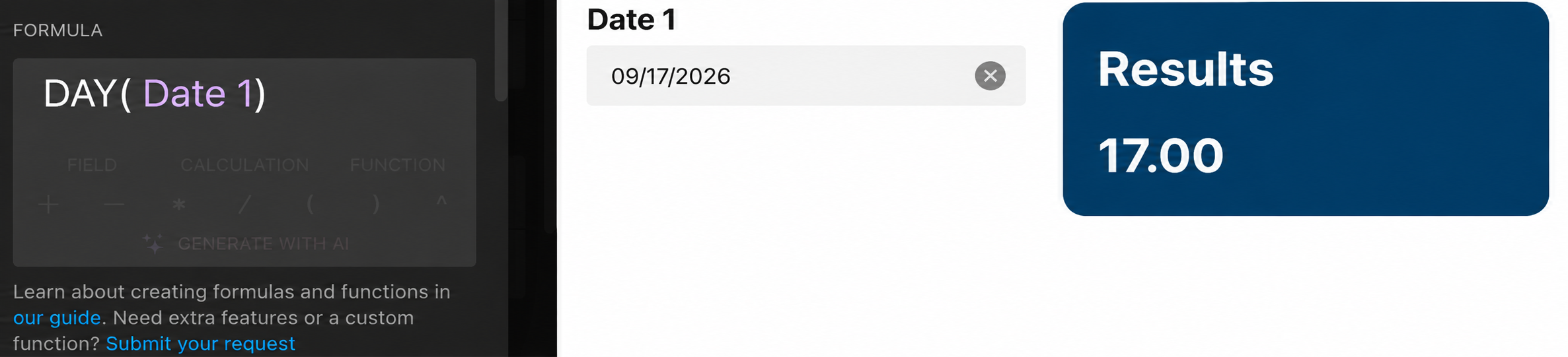
- DAY — Returns the day of the month of a date.
Syntax: MONTH(date) / YEAR(date) / DAY(date)
| Example | Result |
|---|---|
| MONTH(Start Date)
Start Date: September 15, 2026 |
9 |
| YEAR(Start Date)
Start Date: September 15, 2026 |
2026 |
| DAY(Start Date)
Start Date: September 15, 2026 |
15 |
See MONTH, YEAR & DAY in the widget
MONTH
YEAR
DAY
DATE
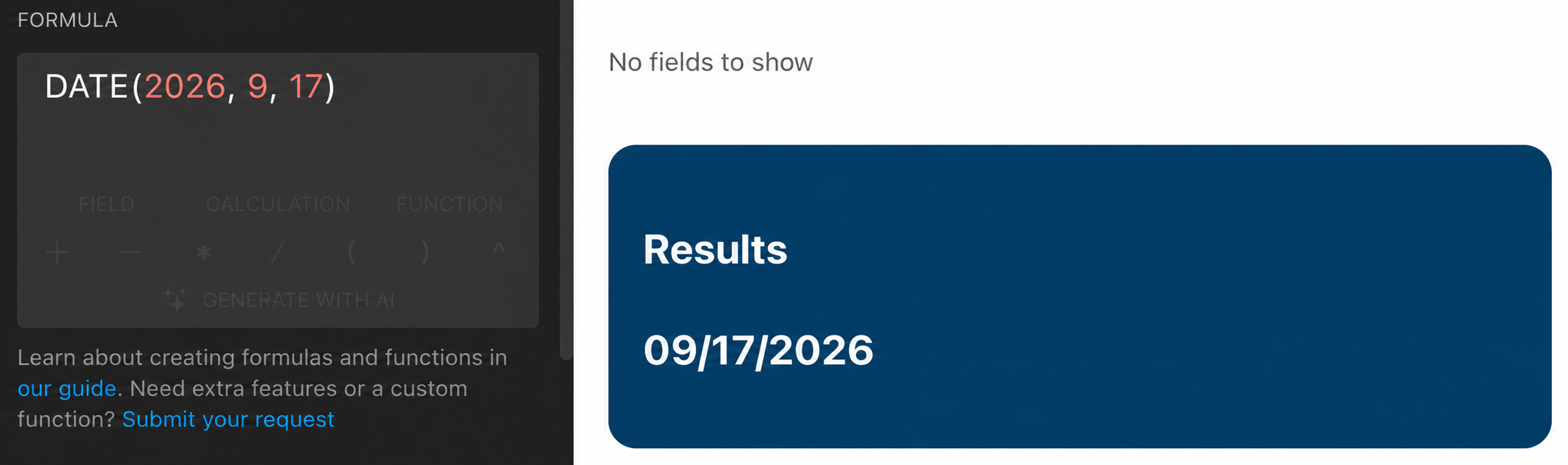
Creates a date from the year, month, and day you specify. Use it when a formula needs a fixed date:
Syntax: DATE(year, month, day)
| Example | Result |
|---|---|
| DATE(2027, 1, 1) | January 1, 2027 |
See DATE in the widget
To see date functions in action, check out the practical example below, where a fixed holiday changes the final price.
Practical Example: Apply Special Pricing for a Holiday
You can use DATE as part of a larger formula to adjust prices for specific dates, such as holidays.
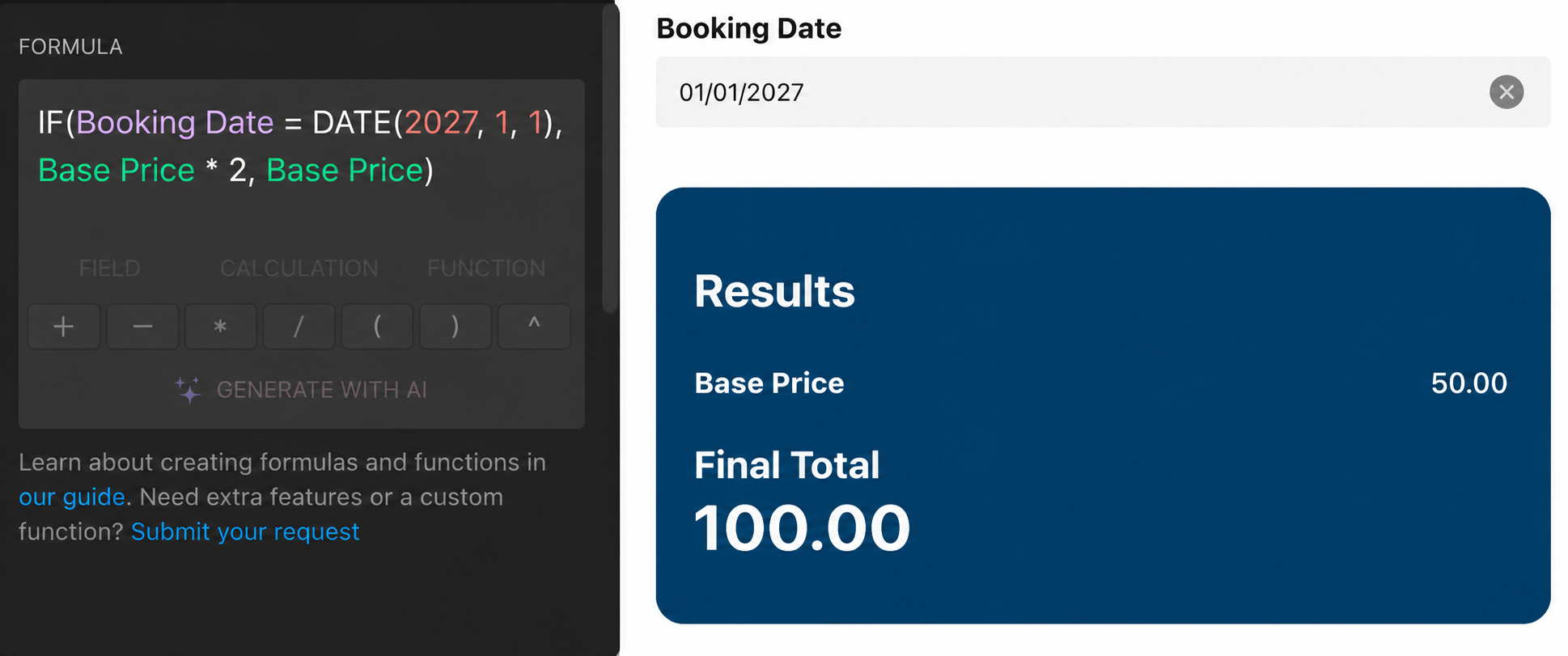
In the example below, DATE specifies January 1, 2027, and IF doubles the Base Price if the customer's Booking Date matches it. For other dates, the base price stays the same:
IF(Booking Date = DATE(2027, 1, 1), Base Price * 2, Base Price)
If you need help with a formula, contact our Support team — we'll be happy to assist!