
How to Collect Reviews with the All-in-One Reviews Widget
Our All-in-One Reviews widget lets you display reviews from 60+ review platforms and collect new reviews directly on your website using the built-in Write a Review form.
In this guide, you'll learn how to enable review collection, choose how visitors can submit reviews, and manage the feedback collected through your widget.
In This Article
Setting Up Review Collection
Follow these steps to enable review collection and configure how visitors submit reviews through your widget.
- 1
-
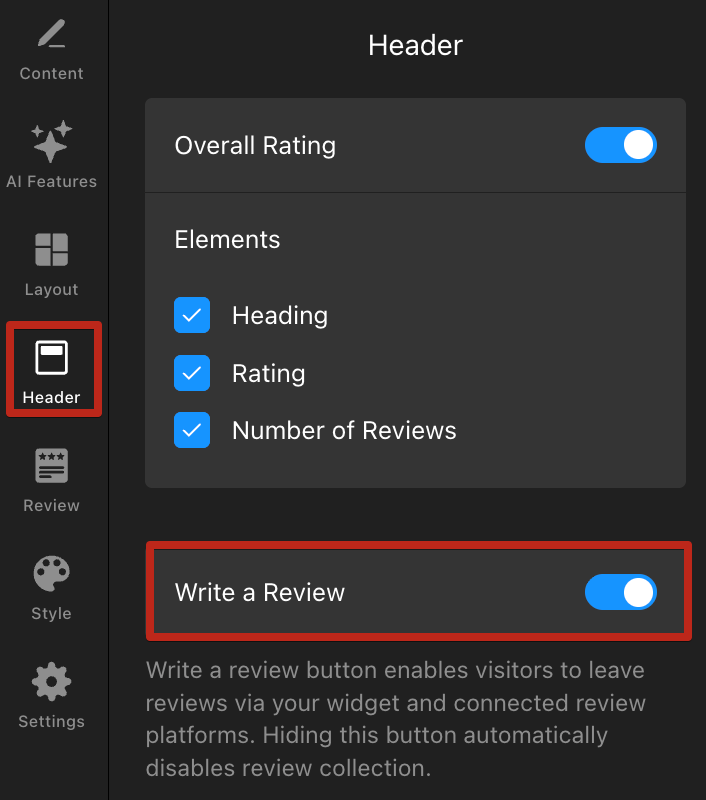
Open the Header tab and make sure the Write a Review button is enabled:
- 2
-
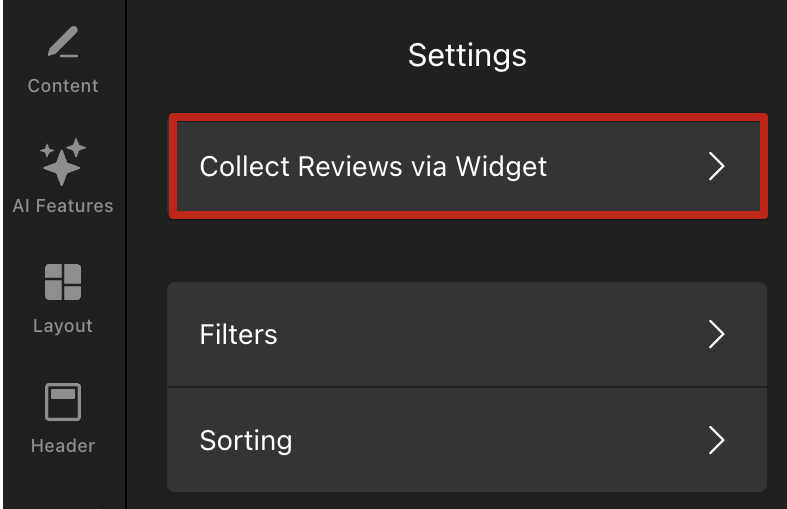
Open the Settings tab and select Collect Reviews via Widget:
- 3
-
Choose how visitors can submit reviews:
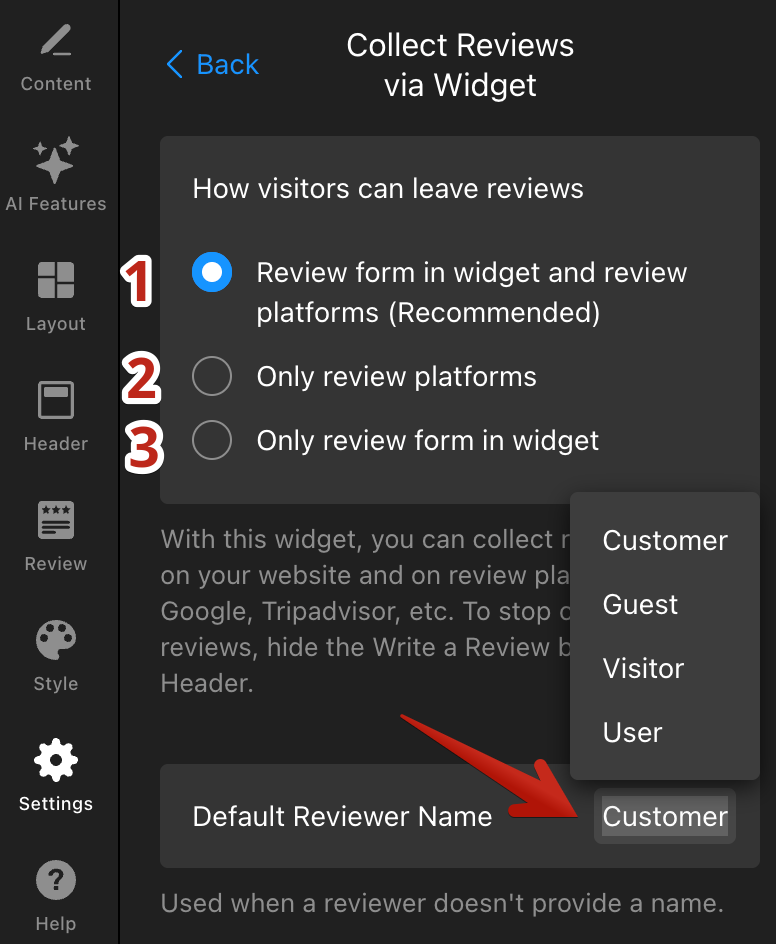
- Review form in widget and review platforms (recommended) – Visitors can submit a review directly in your widget or be redirected to one of your connected review platforms.
- Only review platforms – Visitors are redirected to your connected review platforms to leave feedback.
- Only review form in widget – Visitors can submit reviews directly through your widget only.
Don't see these options? This means you haven't added any review platforms to your widget yet. In this case, visitors can submit reviews only through the widget's review form. You can also set an optional Default Reviewer Name, which will be used if a visitor doesn't enter their own name.
- 4
-
Decide what happens after a review is submitted:
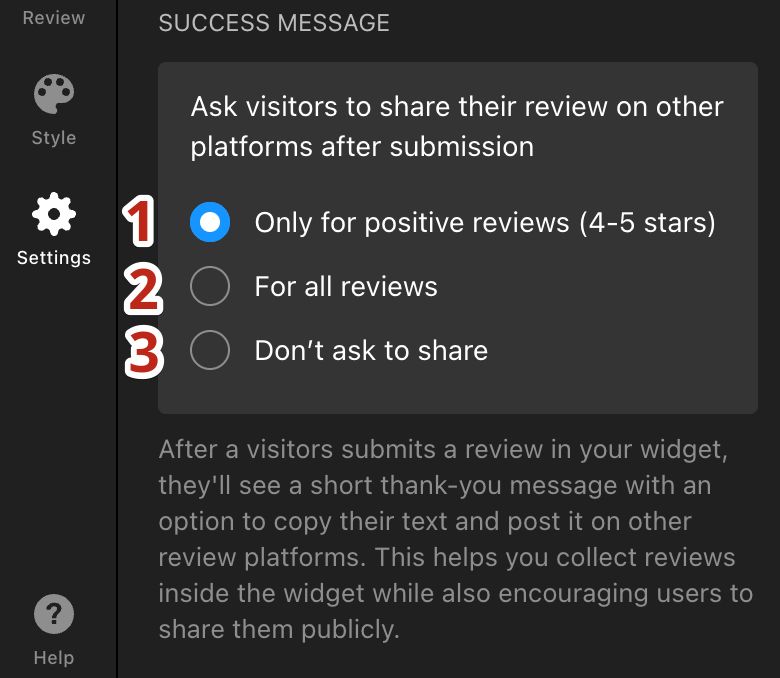
- Only for positive reviews (4–5 stars) – Ask visitors with positive reviews to copy and post them on your connected platforms.
- For all reviews – Prompt all visitors to share their review externally.
- Don't ask to share – Display a simple thank-you message after submission.
Available settings depend on the selected review form. For example, review sharing options aren't shown when Only review platforms is selected, since visitors don't submit reviews through the widget. - 5
- Click Publish in the top left corner to apply changes.
That's it! Review collection is now enabled. Next, let's see what the review submission process looks like for your website visitors.
How Visitors Submit Reviews
The review submission experience varies depending on the review collection method you choose.
Review Form in Widget and Review Platforms
Visitors can either submit a review directly in the widget or select one of your connected review platforms.
If they choose to submit feedback through the widget, they can:
- Select a rating from 1 to 5 stars.
- Write a review manually or generate it with AI.
- Upload a photo.
- Enter their name (optional).
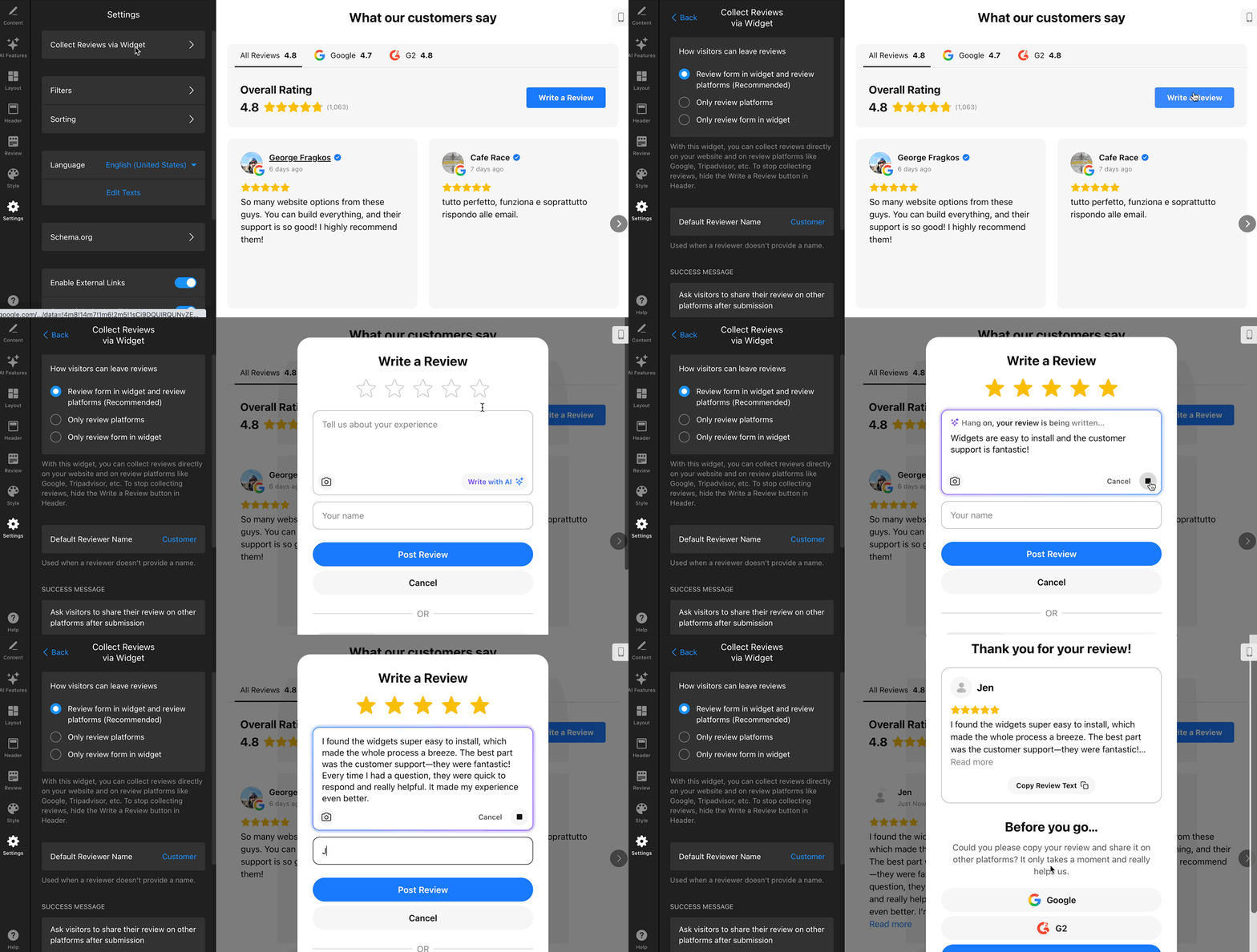
After submission, visitors either see a thank-you message or are invited to copy and share their review on a connected platform, depending on your settings:
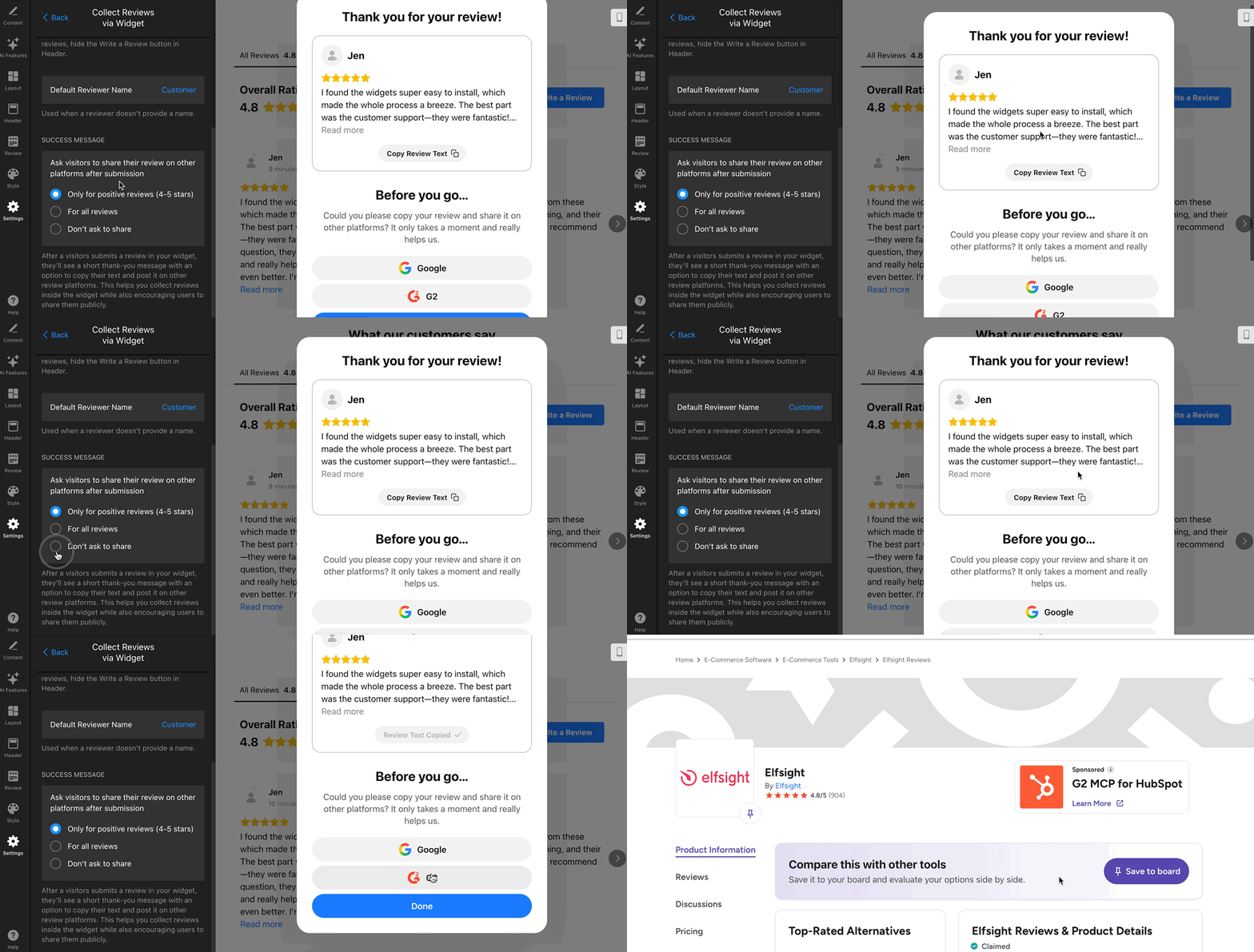
Only Review Platforms
When visitors click Write a Review, they'll see a list of your connected review platforms. Selecting one redirects them to that platform to leave a review:
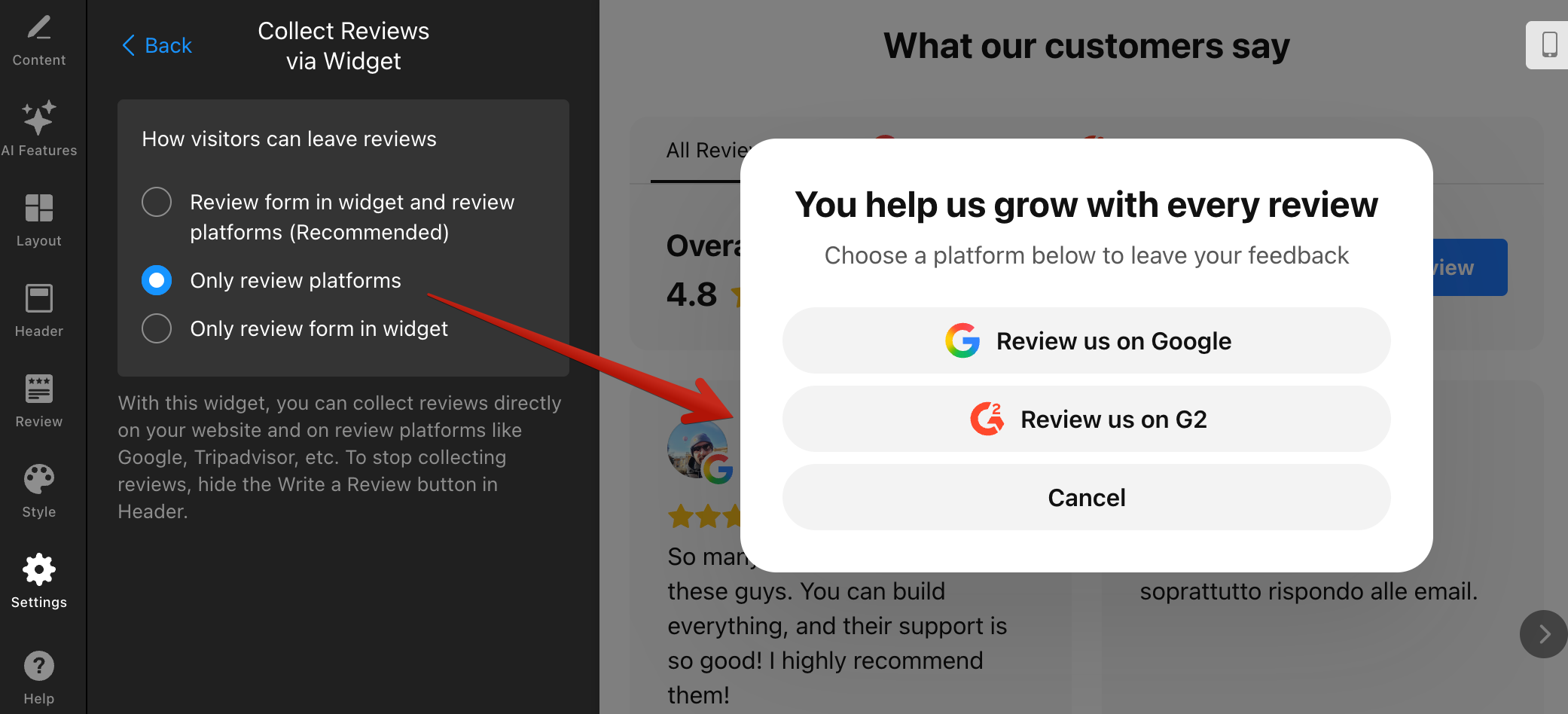
Only Review Form in Widget
Visitors can submit their feedback directly in the widget using the same review form, but without an external platform option::
Managing Collected Reviews
Reviews submitted via the widget appear immediately in your review feed. Here's how you can browse, manage, and moderate them in the widget editor.
- 1
-
On the Content tab, click the review filter and select Collected via Widget. This shows all published reviews submitted through the Write a Review form:
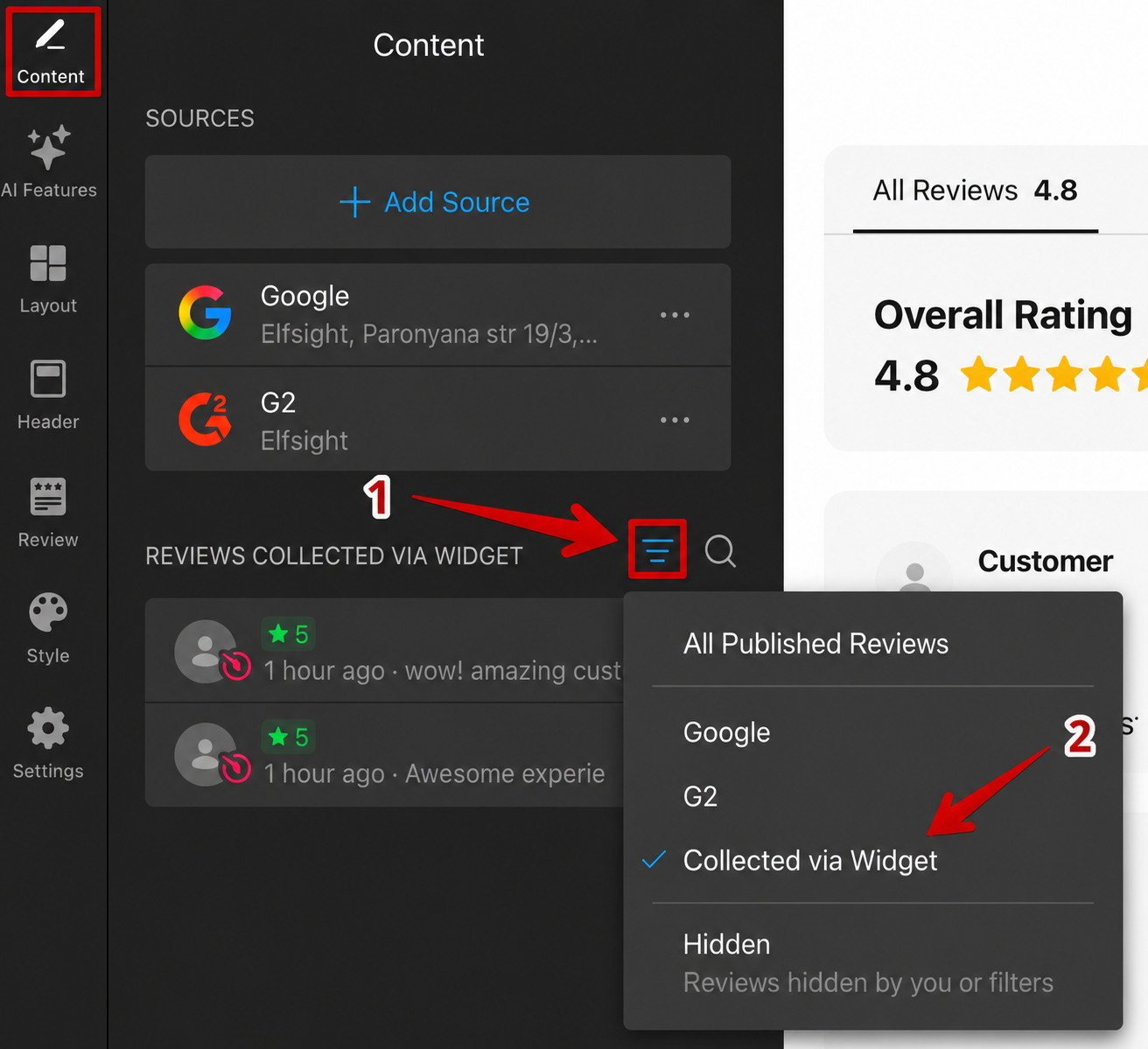
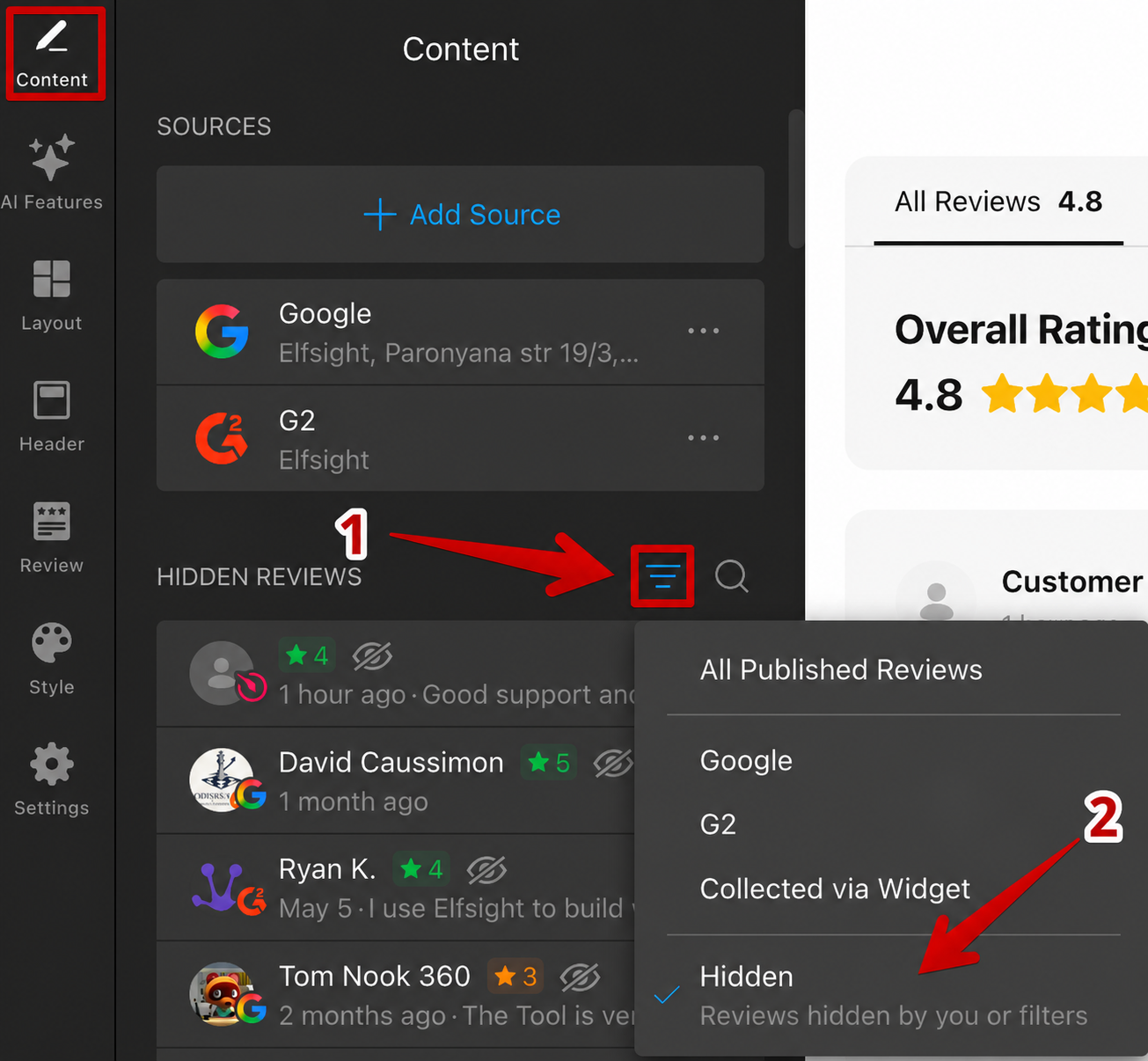
Reviews collected via the widget are marked with the Elfsight logo, making them easy to distinguish from reviews imported from other platforms. The Collected via Widget filter shows only published reviews. If reviews are hidden by active filters, click the filter again and select Hidden to view and manage them:
- 2
-
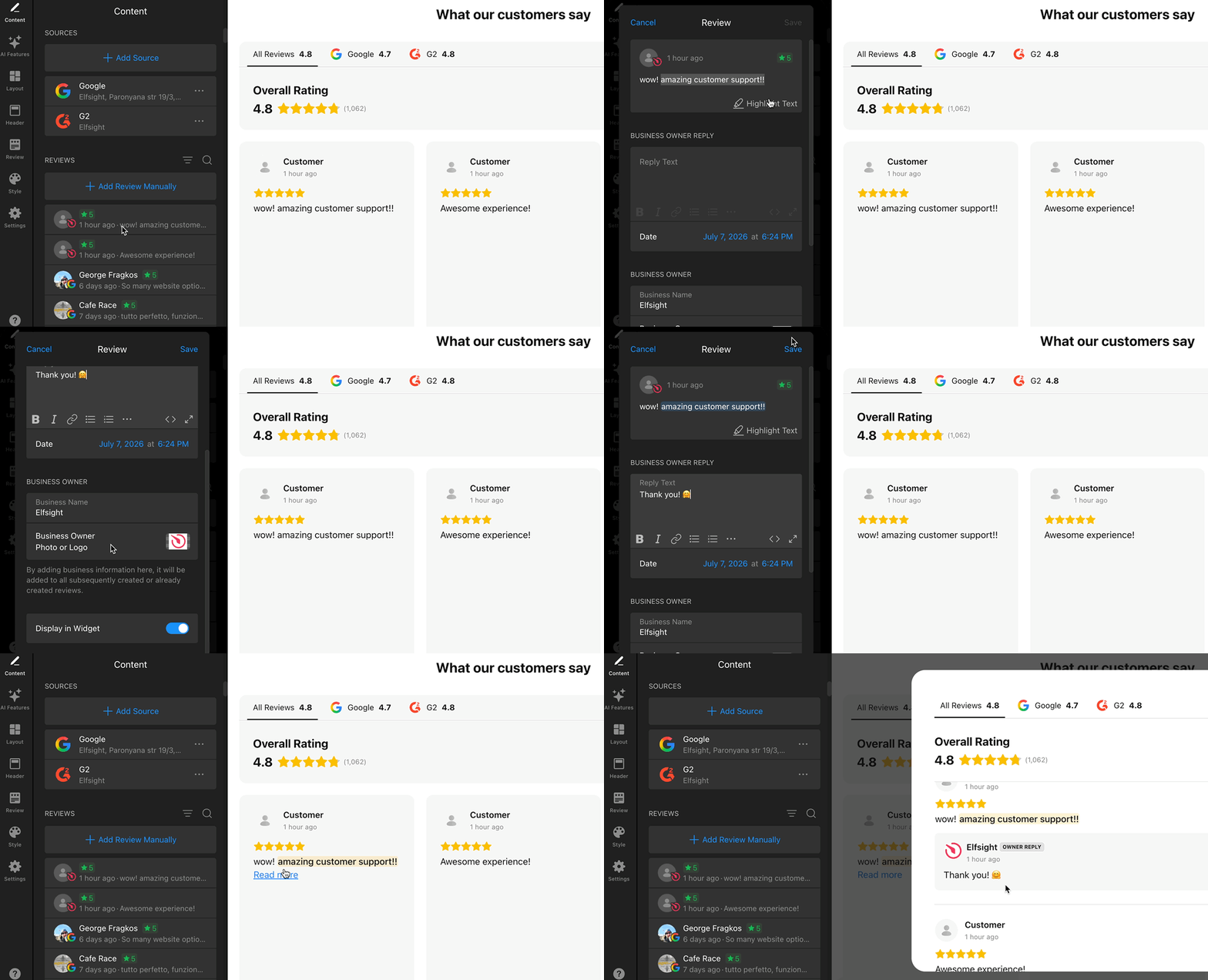
Click any collected review to open its settings. Here you can:
- Highlight important text
- Reply as the business owner
- Add your business name and logo to the reply
- Hide or show the review using the Display in Widget toggle
When you're done, click Save:
- 3
-
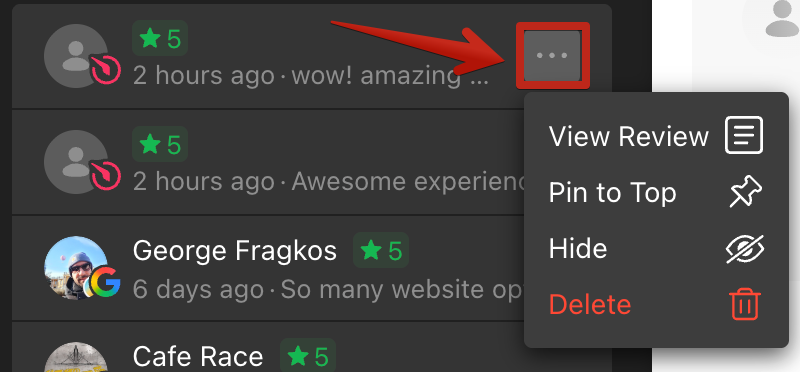
Click the Actions button next to any review to quickly manage it. From here, you can view the review details, pin or unpin it, hide or show it in the widget, or delete it permanently:
Now you can easily moderate all reviews collected through your widget 😊
That's it! Your visitors can now submit reviews directly via your All-in-One Reviews app. If you have any questions, please contact our Support team — we'll be happy to help!
FAQ
Do reviews submitted via the widget sync automatically with review platforms?
No. Reviews submitted through the widget appear only in your Elfsight widget. They aren't automatically published to Google or any other connected platform.
If you enable the review sharing prompt, visitors can copy their review and post it themselves on connected platforms.
Can I pre-moderate reviews submitted via the widget?
The widget doesn't support manual approval before reviews are published. However, you can use review filters to automatically hide reviews that don't meet your criteria.
For example, you can set a minimum star rating in Settings → Filters to hide low-rated reviews. Hidden reviews remain available in the widget editor, where you can review, publish, or delete them later.
For more information about using filters, see our guide: Filtering Reviews.
Can I collect reviews without connecting Google or other review platforms?
Yes. Select Only review form in widget in Settings → Collect Reviews via Widget.
If no platforms are connected, the widget initially shows sample reviews. To replace them, manually add your first review in Content → Add Review Manually. Once real reviews start coming in, remove the manually added review if you no longer need it.
Do reviews submitted via the widget affect the overall rating?
Yes. Reviews submitted through the widget are included in your widget's total review count and average rating, including hidden reviews.
To exclude a review from your widget’s rating, delete it from the Content tab instead of simply hiding it.