
Troubleshooting Issues with Vimeo Gallery
If you’ve added a source to your Vimeo Gallery widget but your videos aren’t showing, check the possible causes below. This guide explains the most common issues and how to fix them.
In this article
Error 400
You may see Error 400 when connecting your Vimeo source. Here's what the error looks like in the widget:
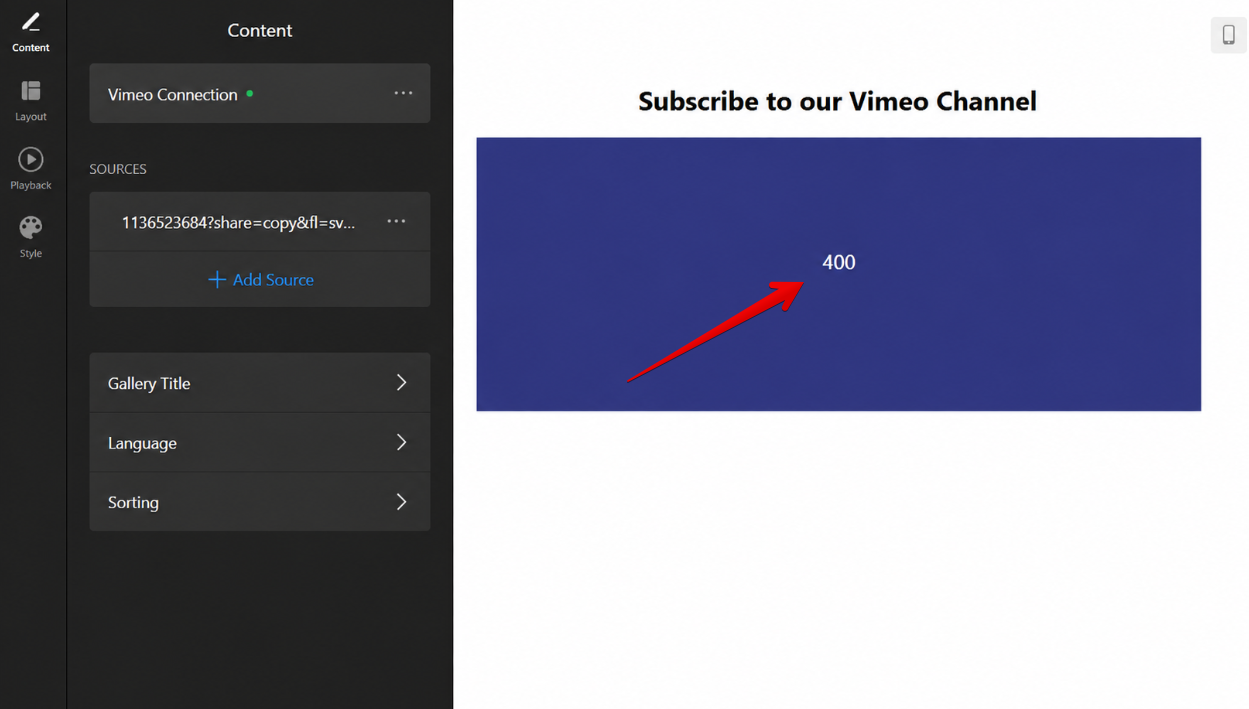
It usually appears for one of the following reasons:
- Your videos are private or have restricted privacy settings
- Your Vimeo access token has expired
Private Videos
The Vimeo Gallery widget supports public videos and hidden videos with specific embed settings.
Keep in mind that Vimeo privacy settings can be applied either to individual videos or to your entire account. If account-level restrictions are enabled, newly uploaded videos may inherit those settings automatically.
To check your account privacy settings, follow these steps:
- 1
-
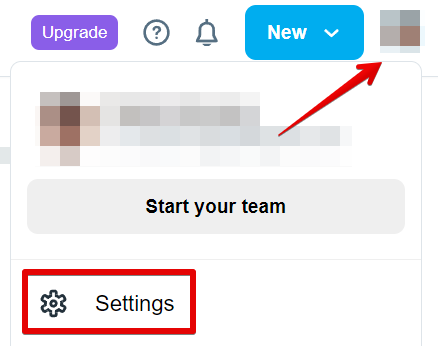
Open Settings from your Vimeo account menu:
- 2
-
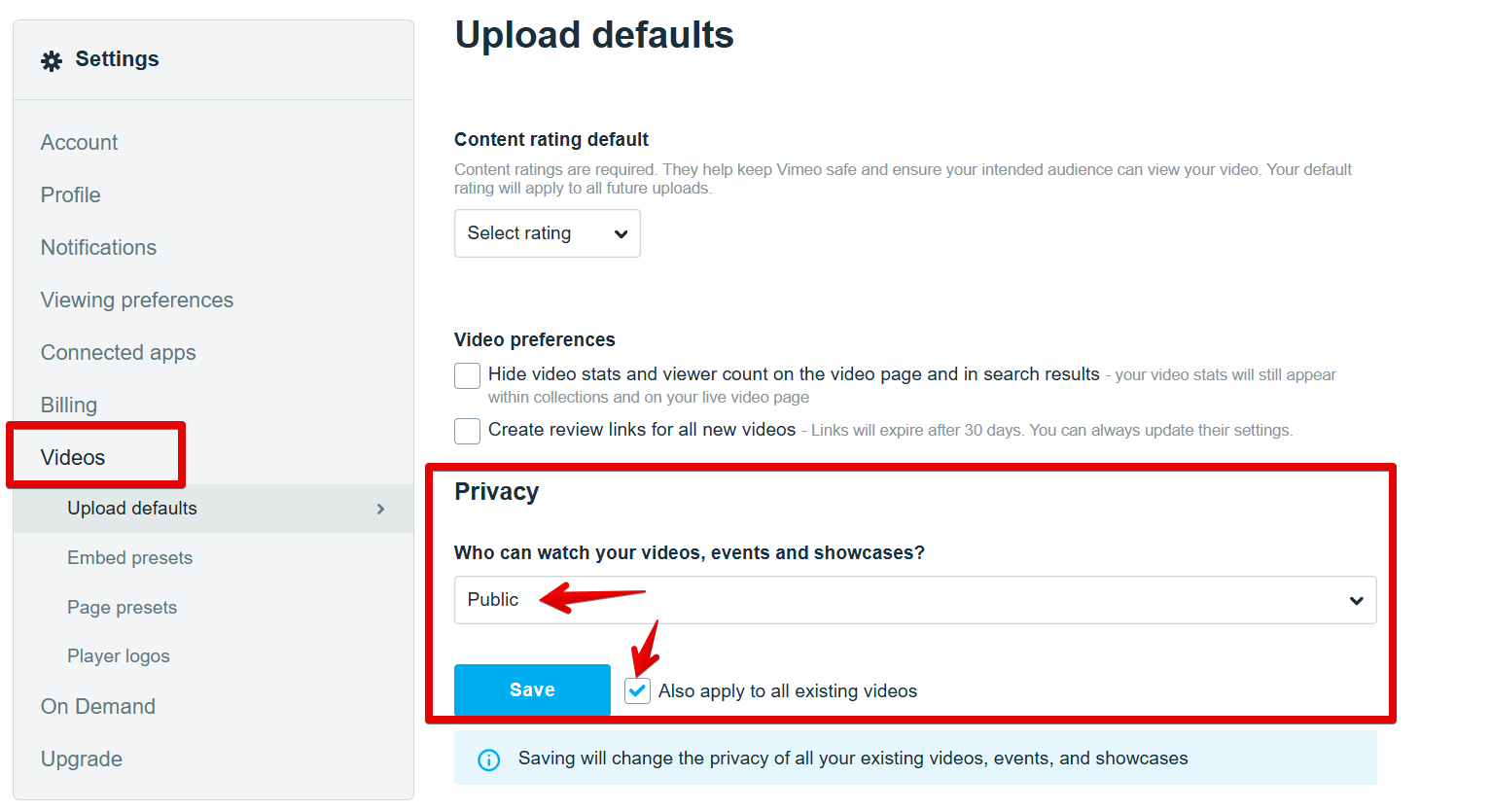
Go to Videos → Privacy. Make sure Who can watch your videos, events and showcases? is set to Public.
If you've changed the privacy settings, enable Also apply to all existing videos to update your previously uploaded videos as well:
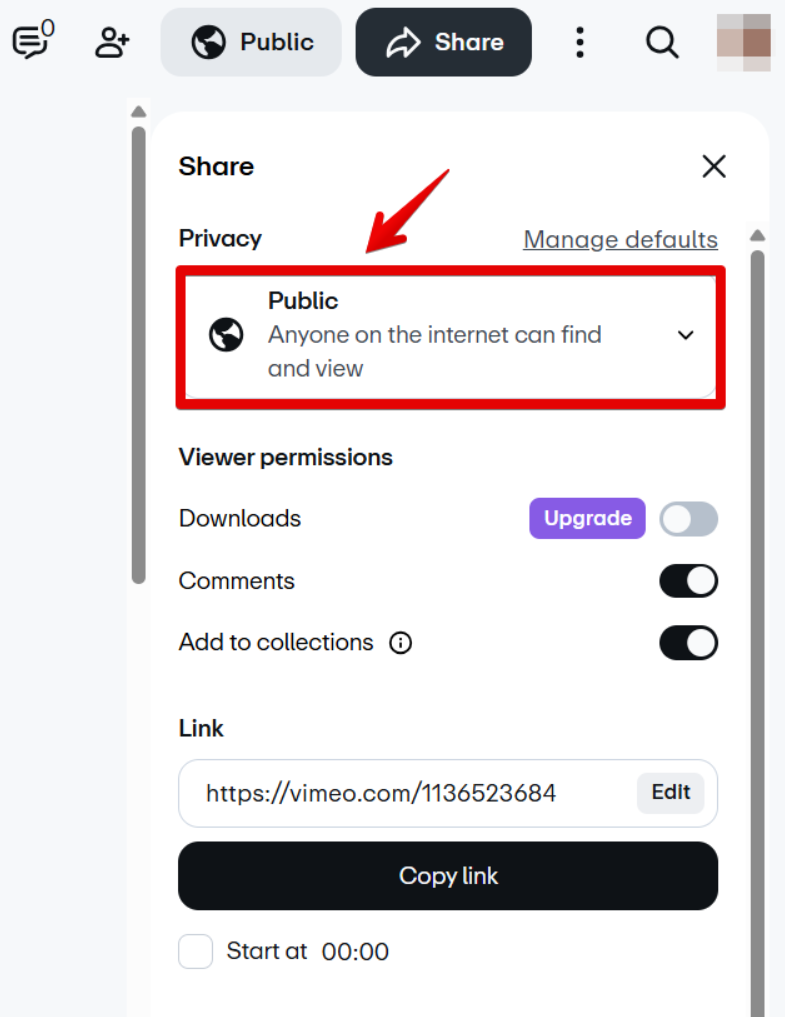
To adjust privacy settings for a specific video, open its settings and make sure the visibility is set to Public:
How to add Hidden videos to the widget
You can keep your Vimeo account private and still display hidden videos in the widget. To do this, you need to allow embedding for the widget domain using Vimeo domain-level privacy settings.
- 1
-
Open your video settings and go to Share:

- 2
-
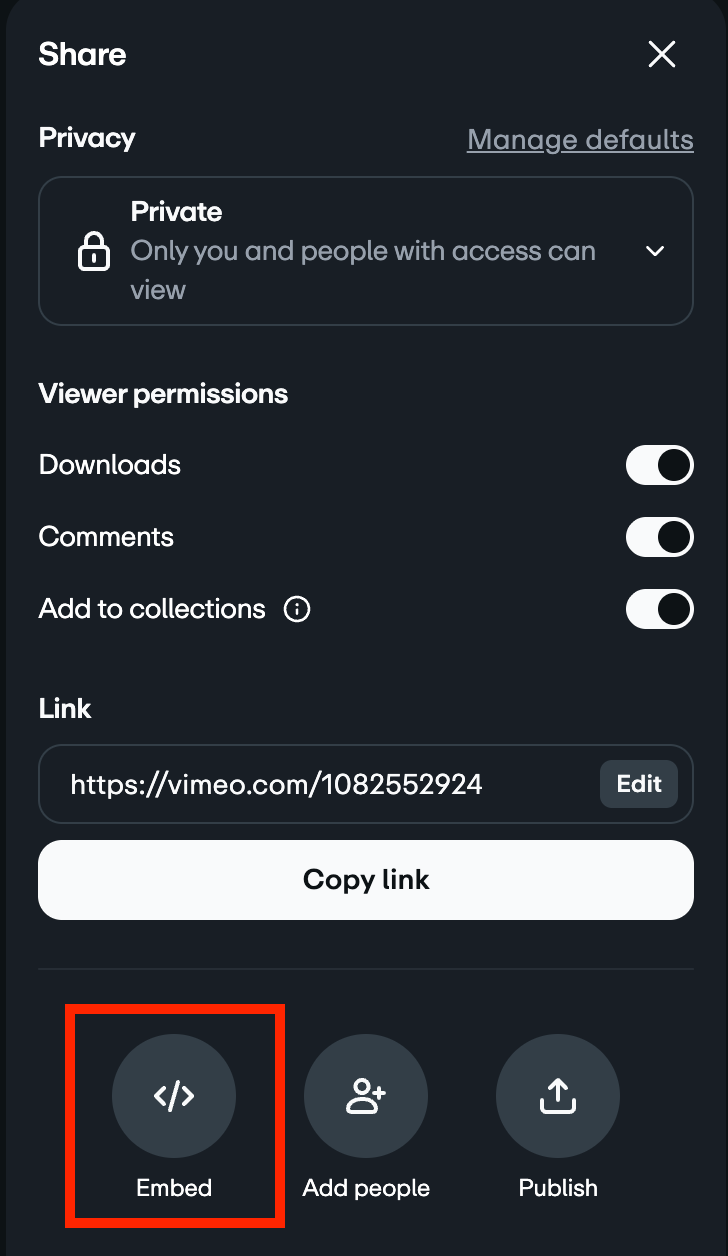
Select the Embed option at the bottom:
- 3
-
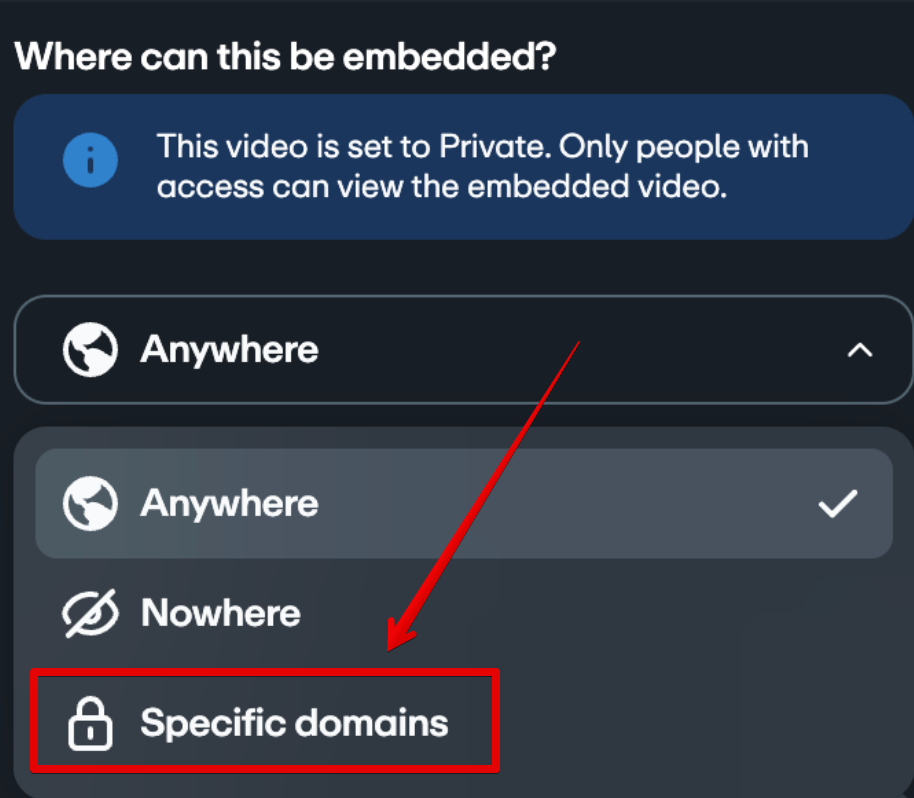
Under Where can this be embedded? select Specific domains in the dropdown:
- 4
-
Add
elfsightcdn.comto Allowed domains and save the changes.
Once you've updated the settings, reconnect your Vimeo source in the widget editor as described below.
Expired Token
If your Vimeo access token has expired or you changed your Vimeo account credentials, follow these steps to reconnect your account.
- 1
-
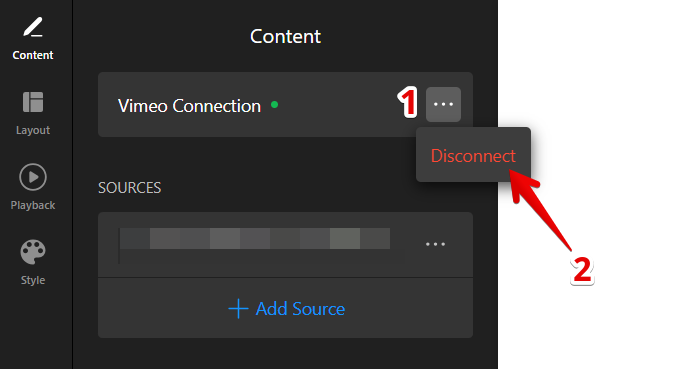
In your widget editor, click the three dots next to Vimeo Connection → Disconnect:
- 2
-
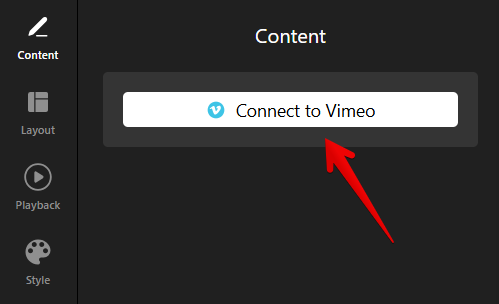
Click Connect to Vimeo and authorize your account again:
For detailed instructions on how to connect an account, see Setting the source of your Vimeo Gallery widget.
Mixed Sources
The Vimeo Gallery widget supports the following source types: User, Channel, Showcase, Video, Group, and Album. For examples of supported URL formats, see this guide.
Different source types can’t be combined in one widget. For example, you can’t add both videos and showcases as sources at the same time. Use one source type per widget:

Need to combine different Vimeo source types in one feed? Try our Social Feed widget—it supports mixed sources. 🙌
We hope you found this article helpful! If you still have any questions or need further assistance, please contact our Support team. We'll be happy to help you!