
Troubleshooting Issues with Flipbook
Having trouble with your Flipbook widget? Don’t worry — this guide covers the most common issues, why they happen, and how to fix them quickly.
Find your issue below and follow the recommended solution.
Common Issues
🚀 Loading Speed Issues
Flipbook Takes Too Long to Load
The maximum file size for a Flipbook PDF is 100 MB. However, large files with high-resolution images or many pages can still slow down loading on your website and in the editor.
To improve loading speed:
- Compress the PDF to reduce file size.
- Lower image resolution if images are very large.
- Remove unnecessary pages or elements,
- Check your internet connection.
You can also use a preview image of your Flipbook (for example, the first page of your PDF) so visitors see content immediately while the Flipbook loads. To set this up, please contact our Support team for a custom solution.
📐 Size and Layout Issues
Flipbook Appears Too Small
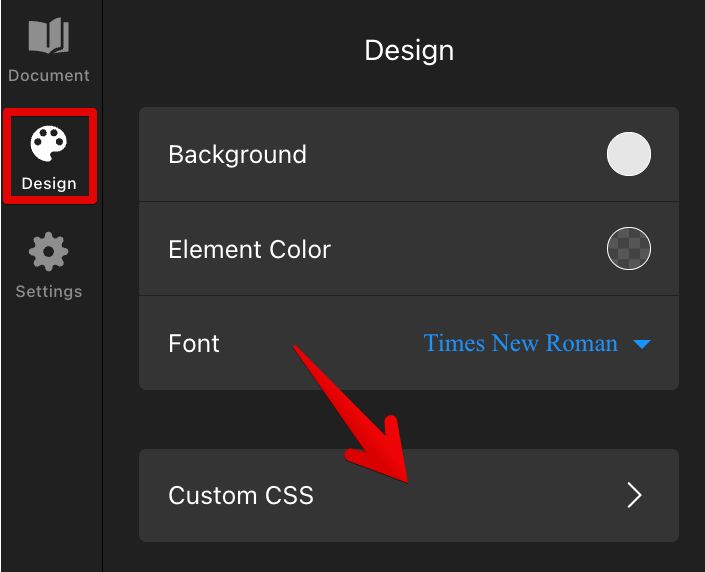
If the PDF in your Flipbook widget looks too small or has too much empty space around it, you can adjust the widget height using custom CSS. Follow these steps:
- In your widget editor, go to the Design tab → Custom CSS:
-
Paste the following CSS into the Custom CSS field and Publish your changes:
[class*="widget__Container-sc-"] {
 height: 80vh;
}
@media (max-width: 1100px) {
 [class*="widget__Container-sc-"] {
  height: 70vh;
 }
}
@media (max-width: 650px) {
 [class*="widget__Container-sc-"] {
  height: 60vh;
 }
}
You can adjust the height values to fit your layout.
Pages Look Incorrectly Scaled
If some pages in your Flipbook look stretched, squashed, or incorrectly sized, it is usually caused by different page dimensions in your PDF.
The Flipbook uses the first page as a reference for layout, applying its proportions to all pages. If your PDF contains pages with very different sizes, some of them may appear distorted.
In some cases, we may be able to help with a customized solution. Please contact our Support team and include the link to your page so we can review your setup.
🖥️ Display Issues
Text Looks Blurry
If your Flipbook text looks blurry, it is usually caused by small font size or low-quality settings in the original PDF.
To improve clarity, increase the font size, try clearer font styles or weights, and optimize the PDF resolution before uploading.
If this doesn’t help, please contact our Support team — in some cases, additional customization may be possible.
White Lines or Stripes Appear on Pages
Thin white lines can sometimes appear across Flipbook pages even if they are not visible in the original PDF file.
This usually happens because some PDF engines split complex images into smaller fragments. When the page is rendered or scaled, small rounding errors can create thin lines where the background shows through.
To fix this, try exporting the file using the PDF/X-4 standard or simply set the PDF version to 1.6 or higher.
Fullscreen Mode Doesn’t Work
If the fullscreen button doesn't open properly, the issue is usually related to your website’s security settings.
Check your website’s current security settings and make sure fullscreen mode is not being blocked. These settings can usually be reviewed through your server configuration or CDN settings.
We hope this guide helped! However, if the issue still persists, please contact our Support team and include:
- A direct link to the page where your Flipbook is installed.
- A short description of the issue.
- Screenshots or screen recordings if possible.
This will help us investigate the issue faster and provide the best solution. 🙌