
Image Upload Guidelines for Your Before and After Slider Widget
In this article, we'll share some simple tips for uploading images to your Before and After Slider widget. By choosing the right size, format, and resolution, you can improve user experience and visual quality. Let’s explore how to make the most of your widget! 😊
In this article
Recommended Image Size, Resolution, and Dimensions
When uploading images to the Before and After Slider widget, it's essential to consider both size and aspect ratio. Here’s what we suggest:
- Aspect Ratios: While there are no strict rules, it's best to match the aspect ratio to the original image’s orientation. This can be set in the Settings tab → Image Ratio:
- Recommended Dimensions: Full HD (1920 x 1080 px) is optimal, with a maximum of Quad HD (2560 x 1440 px). However, lower resolutions may be sufficient for mobile devices, improving page load speed and reducing network load.
- File Size: We advise uploading images no larger than 1 MB. Smaller files load faster, helping to keep your page performance high. Reducing image dimensions can also speed up loading times.

This ensures proper display without distortion. For instance, if you upload a vertical image (e.g., 9 x 16) but set the ratio to horizontal (16 x 9), the image will be cropped.
We also suggest sticking to one orientation for images—either all horizontal or all vertical—for a consistent look.
Supported Image Formats
The Before and After Slider widget supports a variety of image formats. We recommend the following:
| .jpg | .jpeg | .png | .svg | .gif | .webp |
Alt Text Support
The Before and After Slider widget supports image alt text, which helps with accessibility and SEO. To add alt text to an image:
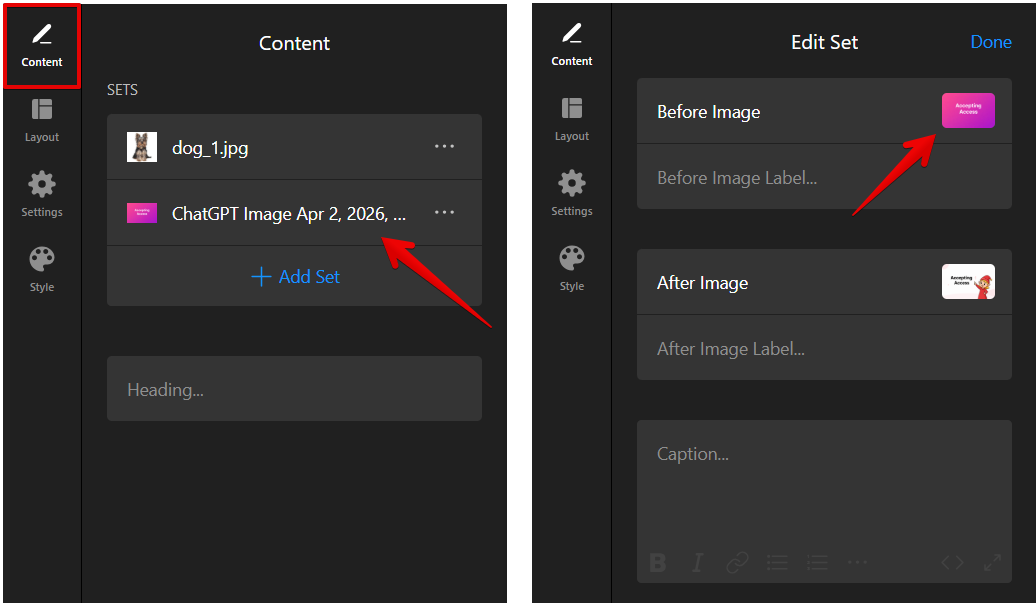
- Select an image set in the Content tab, then click the image you want to add alt text to:
- Enter your alt text in the Image Alt Text field and click Done:
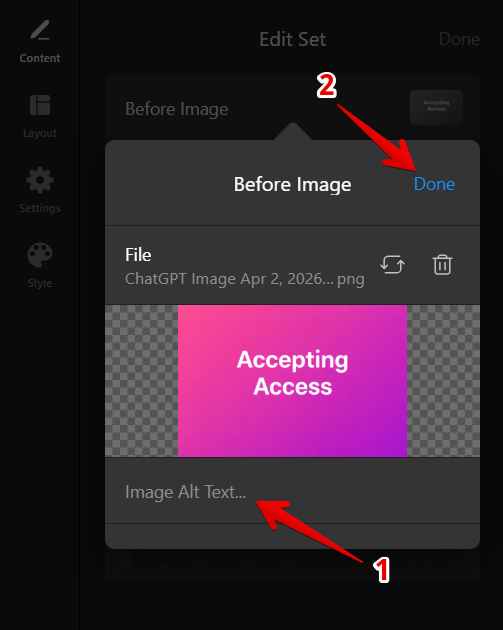
- Repeat the process for the other image in the set or across all the sets in your widget.
We hope these suggestions help you optimize your image uploads for the Before and After Slider widget! If you have more questions, we've got you covered with some helpful answers below. 🙌
FAQ
Can I edit images once uploaded?
Direct image editing (like cropping) isn't possible, but you can adjust the slider width within the Layout settings. This allows you to resize the images, making them smaller or larger as needed.

How can I optimize my images for faster loading times?
To reduce file sizes, consider using compression tools like Kraken.io, Squoosh.app, or ImageCompressor.com. We suggest keeping file sizes under 1 MB.
Will the widget automatically resize images to fit different screen sizes?
Yes, our widgets are responsive and automatically resize images to fit various screen sizes seamlessly.
Is it possible to use images from external sources or URLs?
The Before and After Slider widget supports both direct uploads and image links for more flexible image sourcing:
